
Nerdy November
Nerdy New Things in November
I always enjoy hunting down new, nerdy tools that I haven’t tried before—especially if they solve an everyday friction point or just make working at the computer a bit more enjoyable. Between rethinking my terminal setup, poking around at local AI models, wrangling Linux updates, and doing some much-needed digital housekeeping, November has been a busy month for tinkering. Here is what I have been experimenting with lately.
Rex: The New King of Terminal Multiplexers
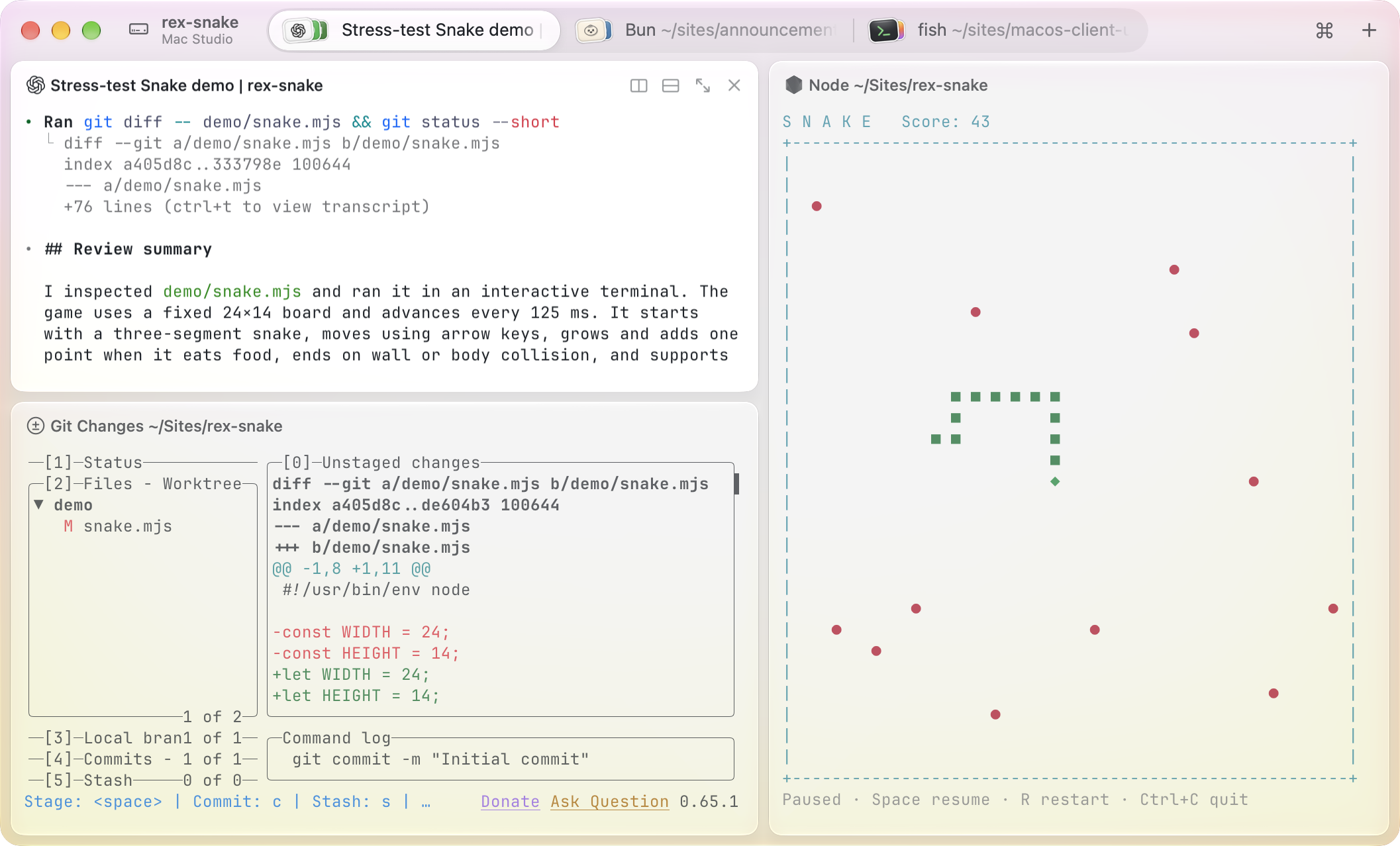
One of my favourite discoveries this month is Rex, a modern terminal multiplexer that I have started using in place of WezTerm, and which I actually prefer over both tmux and Zellij. It has a great-looking interface and handles session management in a way that makes my daily workflow noticeably more efficient. If you have used tmux or Zellij, the core concepts in Rex will feel familiar, though it organises them cleanly:
- Sessions: A group of related work—such as a single coding project or server task. A background server keeps your sessions alive whether or not a window is actively attached to them.
- Windows: Essentially tabs within a session, each holding its own layout of blocks.
- Blocks: Individual applications or shells running inside a window (your actual terminal panes).
- Clients: The programs connected to the server—whether that is the macOS desktop app, the CLI, or a mobile client.
Why It Beats tmux and Zellij for Me
My favourite quality-of-life feature is pressing Command + Shift + P to bring up the Command Palette. From there, I can fuzzy-search for whatever action I want to take, see the associated keyboard shortcut to build muscle memory, or just hit Enter and let Rex do the job for me. You don’t get that kind of discoverability in tmux at all—you just have to memorise the key chords or keep a cheat sheet handy. Zellij gives you a status bar of hints along the bottom of the screen, which is helpful, but Rex’s command palette is far cleaner: you use it as a crutch until the shortcuts stick, and then you are up and running at full speed.
Rex also ships with a handy command-line interface of its own. You can run rex ls to list all active sessions, or rex session inspect to view the structural details of the session you are currently working in.
Customisation and Keybindings
Out of the box, Rex has sensible macOS-friendly shortcuts: Command + D splits a window vertically into panes, and Command + Option + Left/Right Arrow hops between panes. When you want to tweak things further, Rex uses a Lua configuration file. For example, I added a custom keybinding that moves the session/window tabs from the sidebar up to the top row and lets me toggle between the two layouts whenever I want more horizontal screen real estate.
Seamless Continuity Across Macs and iOS
Like tmux and Zellij, you can completely quit Rex, reopen it later, and drop straight back into your session with every pane and running process exactly as you left it—and in my experience, Rex restores state more reliably than the other two. Where Rex really pulls ahead, though, is multi-device access:
- Mac to Mac: I can attach to the sessions running on my MacBook Pro while sitting at my Mac Mini, or vice versa. If I have a long-running build or project ticking away on the Mac Mini in my office, I can grab my laptop on the sofa, connect straight into that live session, and carry on working in comfort.
- iPad and iPhone: Taking it a step further, there are iOS apps currently in TestFlight. I have installed them on both my iPad and iPhone and paired them with my Macs. Being able to pick up my iPad and interact with my live desktop terminal sessions without any clunky SSH setup is a joy. After a week of daily use—and watching frequent, thoughtful updates roll in—I am sticking with Rex and leaving WezTerm behind for the foreseeable future.
Apple AI in the Terminal: The fm Command
With macOS 27, Apple includes a built-in command-line interface for its local Foundation Model, accessed simply by typing fm in the terminal.
On paper, having a zero-setup, on-device LLM built right into the OS sounds brilliant. In practice, it has very clear limitations. First, its knowledge cutoff is stuck in 2024—if you ask it “What year is this?”, it confidently tells you it is 2024 rather than 2026. Worse still, it regularly trips over basic maths.
So how can fm actually be useful? The trick is treating it as a lightweight text-processing utility rather than an oracle, and tailoring your prompts to what a small local model is genuinely good at:
- OCR and Data Extraction: It is great at pulling structured text out of images—for instance, scanning photos of receipts and formatting the line items neatly into a table.
- Quick Creative Prompts: Asking it to knock out a quick haiku or a limerick.
- Fast Summarisation: Condensing a short article or a block of notes down into a sentence or two, or extracting a clean set of bullet points.
fmis certainly not going to replace a proper agentic AI like Antigravity, nor does it compete with running capable open-weights models like Gemma locally through Ollama or LM Studio. Still, since it is already sitting there in macOS with zero overhead, it is nice to have in the back pocket when I remember to reach for it.

Omarchy 4.5: Progress, Rough Edges, and Politics
Upgrading to Omarchy 4.5 on my Linux iMac was a bit of a mixed bag, though mostly positive once the dust settled.
The headline improvement for my workflow is dictation. Omarchy 4.5 switches the default dictation engine to SuperWhisper, replacing the previous tool which was painfully slow at putting words onto the screen. With SuperWhisper, text appears almost instantaneously as I speak, removing all the friction that used to frustrate me. That change alone makes Omarchy viable as a proper daily driver—so much so that I am tempted to move the Omarchy iMac into my main office so I actually use it every day.
That said, it wouldn’t be a Linux desktop update without a bizarre hiccup: the settings window for SuperWhisper refused to display properly out of the box, and I had to enlist Antigravity to diagnose and fix the window-rendering issue. You really don’t expect something as fundamental as opening a preferences window to break, and it makes me wonder how many more of these little papercuts lie ahead. Honestly, if I didn’t have AI on hand to troubleshoot config files and display quirks in minutes, I probably would have ditched Omarchy within an hour of installing it.
With AI acting as my Linux sysadmin, however, I am really enjoying it. Omarchy has thoughtful guardrails and built-in learning aids, and it is remarkably malleable. Whenever I want to personalise the setup or remap keybindings, I just get AI to sort out the configs. I also discovered today that pressing Option + Spacebar rolls down Omarchy’s built-in AI assistant straight from the top of the screen, giving you immediate tools to tweak the system on the fly.
The “Stop Omarchy” Backlash
You can’t talk about Omarchy lately without mentioning the Stop Omarchy movement circulating online, sparked by political comments made by its creator, DHH, expressing support for a right-wing figure in England. Let me be clear: I don’t agree with right-wing politics in the slightest. But in my view, his personal opinions have nothing to do with how the operating system functions. You aren’t required to shout “Sieg Heil” at the login prompt or be nasty to unfortunate people just to open a terminal window. Everyone has to draw their own ethical line with tech founders, and for me, that line is financial support and active harm:
- I would never buy a Tesla now that we all know what Elon Musk is like—he has gone far beyond merely saying something dodgy online. In fact, I used to have a Starlink system on my house, which was genuinely useful, but I got rid of it as soon as I possibly could because I refused to keep putting money into Musk’s pocket.
- With Omarchy, on the other hand, the software is free and open. Not a single penny of my money is going to DHH, so boycotting a useful Linux distribution only punishes me.
Tempted by Omarchy on Apple Silicon
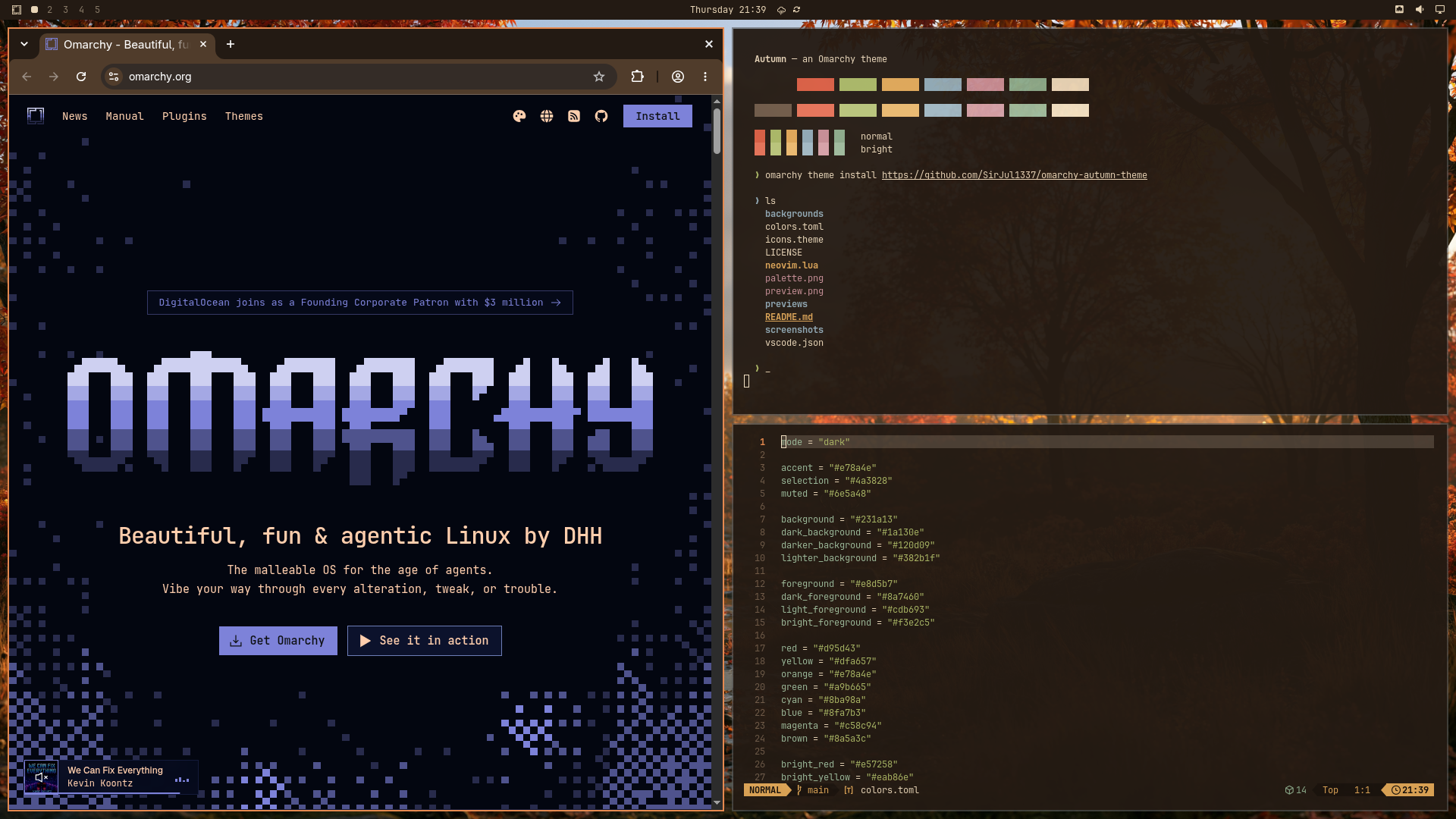
With all the funding and momentum behind Omarchy right now, the desktop experience is improving rapidly—and the latest release now supports Apple Silicon Macs. I am half-tempted to install it on one of my M-series Macs to see how it flies on modern hardware. Before I do anything that drastic, though, I want a cast-iron safety net. My plan is to pick up a couple of 1TB external drives so I can create two separate bootable backups of the internal Apple SSD before touching the partitions. For that job, I will be reaching for SuperDuper!, which after all these years remains my absolute favourite macOS backup utility.
Pruning the Hard Drives (and Watching NAS Prices Climb)
Speaking of storage, experimenting with local AI models via Ollama and LM Studio has a nasty side effect: multi-gigabyte model weights eat up local SSD space at an alarming rate. This month I had to do some ruthless pruning across my Macs so I could keep my couple of go-to local models without choking the system drives. Along with deleting models I was only testing out of curiosity, I finally cleared out a graveyard of old applications—software I used daily two or three years ago, haven’t launched in months, and had no business keeping around just to gather digital dust.
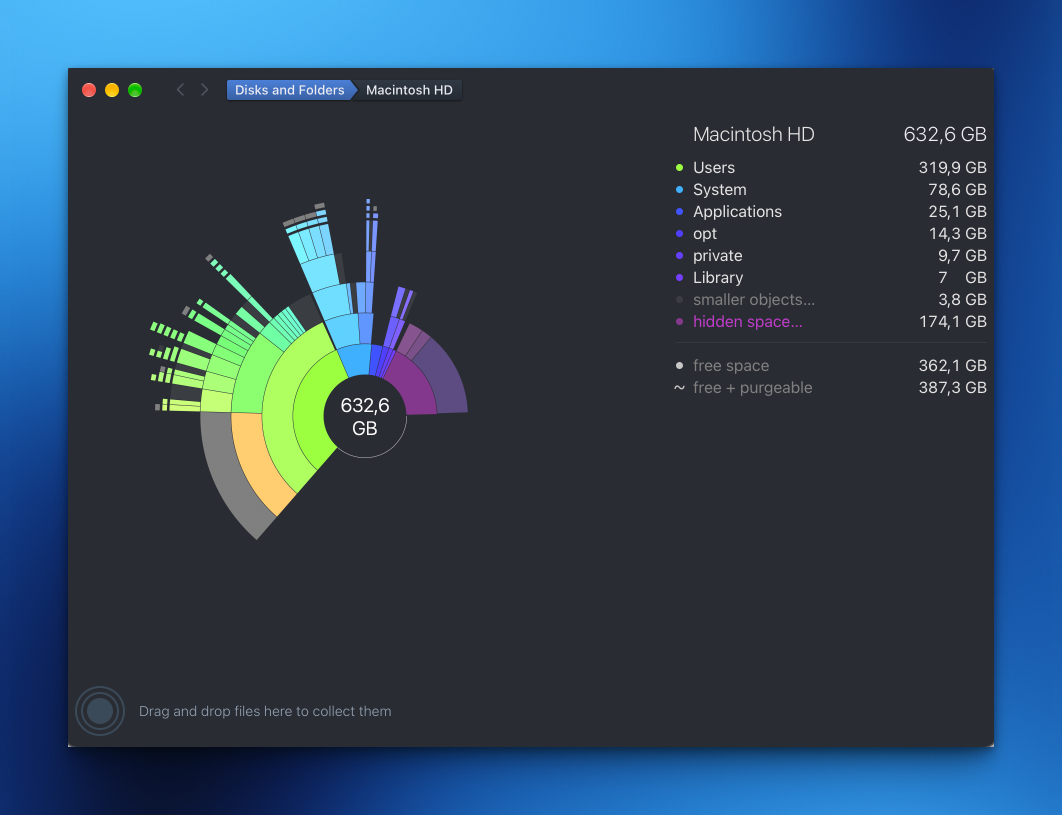
Mole and DaisyDisk
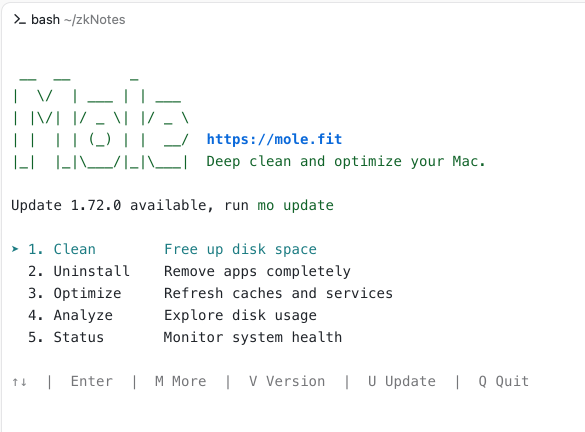
To keep my drives trim, I have settled into a two-pronged routine using a mix of CLI and visual tools:
- Mole (CLI): A great command-line utility for inspecting disk usage, clearing out stubborn system caches, and optimising storage. I run a quick pass with
moleonce a week to keep things ticking over smoothly, and do a proper deep clean with it once a month. - DaisyDisk (GUI): Still unbeatable when you want an interactive visual map of your drive to spot massive forgotten folders at a glance.
Black Friday NAS Plans
Local drives aren’t the only storage on my mind. With Black Friday coming up later this month, I am hoping to snag a deal on a new spinning hard drive for my 4-bay NAS. Currently, three of the four bays are populated, leaving one empty slot waiting to be filled. What baffles me is how much storage prices have crept up lately—not just SSDs, but traditional mechanical hard drives too. The drives currently sitting in my NAS cost me €180 each when I bought them; today, the exact same capacity is sitting around €230. When I do get the fourth drive, I plan to add it straight into the existing RAID array to expand my usable pool rather than leaving it on a shelf as a cold spare. Once all four bays are full, I will probably wait until next year’s Black Friday to pick up a fifth drive to keep on standby as a drop-in replacement for when one of the spinning disks inevitably gives up the ghost.
Terminal Password Managers: Moving to Gopass
Everyone should be using a password manager. For many years, my default was 1Password, and for the past year I have switched to Proton Pass, whose clean user interface and privacy model I really like.
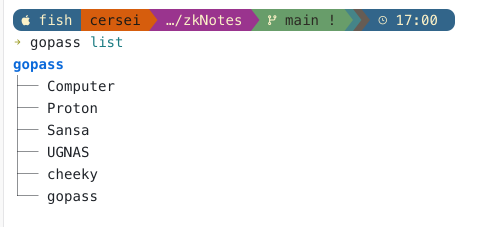
Even so, I don’t like keeping all my eggs in a single basket, and because I spend so much of my day inside the terminal, having a fast command-line password manager makes a lot of sense. Previously, I used the classic Unix pass utility and later passage, an age-encrypted fork. However, with passage effectively deprecated and left behind, I have now migrated my terminal workflow to gopass.
Why Gopass Works So Well for Power Users
gopass is built from the ground up to be command-line first, and it supports either GPG or age encryption under the hood. Getting started is painless: install the binary, run gopass init, and your encrypted vault is ready to go.
My strategy is to keep Proton Pass as my primary everyday vault, while maintaining a curated backup of critical developer and system credentials in gopass. A few things I particularly like about it:
- xkcd-Style Passphrases: When generating passwords, you can specify the exact format you want. I am a big fan of
xkcd-style passphrases—strings of memorable, random words combined with numbers and separators, such asBarge4-Recess9-Wager0-Disgrace6. They are high-entropy, easy to read if you ever have to type them on another device, and supported natively. - Custom Fish Shell Integration (
gpgen): To make creating passwords completely frictionless, I wrote a small helper function in myconfig.fishcalledgpgen. When I rungpgen, it pops up a prompt asking for the name of the new entry, generates the password, prints it to the screen, and automatically copies it straight to my system clipboard ready to paste. - Instant Retrieval & Extra Metadata: When I need a credential later, I just run
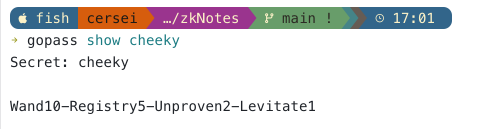
gopass <name>. Beyond plain passwords,gopasscan also handle one-time passwords (TOTP/2FA) and multiline secret notes, so you can store API tokens, recovery codes, or SSH passphrases alongside the login itself.
A Friendly Bit of Advice for the “Muggles”
While those of us who live in the terminal might obsess over whether to encrypt our secondary vaults with GPG or age, it is sobering to remember how many non-tech “muggle” friends and family members still don’t use a password manager at all. Too many people still jot logins down in a paper notebook, use weak passwords, or—worst of all—reuse a single password (something on the level of passw0rd123) across every single website they use.
If you are the tech-savvy person in your circle, consider this your reminder to keep spreading the word. Getting a friend or relative set up with a basic password manager is still the single best bit of digital self-defence you can give them. Encryption is Important