
Omarchy Quattro
Why install Omarchy?
I have an old iMac, and I’ve been using Linux Mint on it and been quite happy with the way that it was working. I set it up so that it looked quite Mac-like in the way that it worked, and I was very happy with it, although I didn’t actually use it that often. Then last week I saw some YouTube videos hyping up the latest version of an Arch distribution called Omarchy. This was because a new version came out: Omarchy 4 or Omarchy Quattro. So even though Mint was working pretty well, I thought, why not give this other thing a try and see what I can do with it? The guy who goes by the name Network Chuck on YouTube was showing it off, and another YouTuber called Typecraft uses Arch. (by the way). I like things that are new, and I like things that are different, and I’m not scared of change. I thought, why not? Let’s go for it and see what I can do with it. I couldn’t even be bothered to do a backup of the hard drive before installing Omarchy.
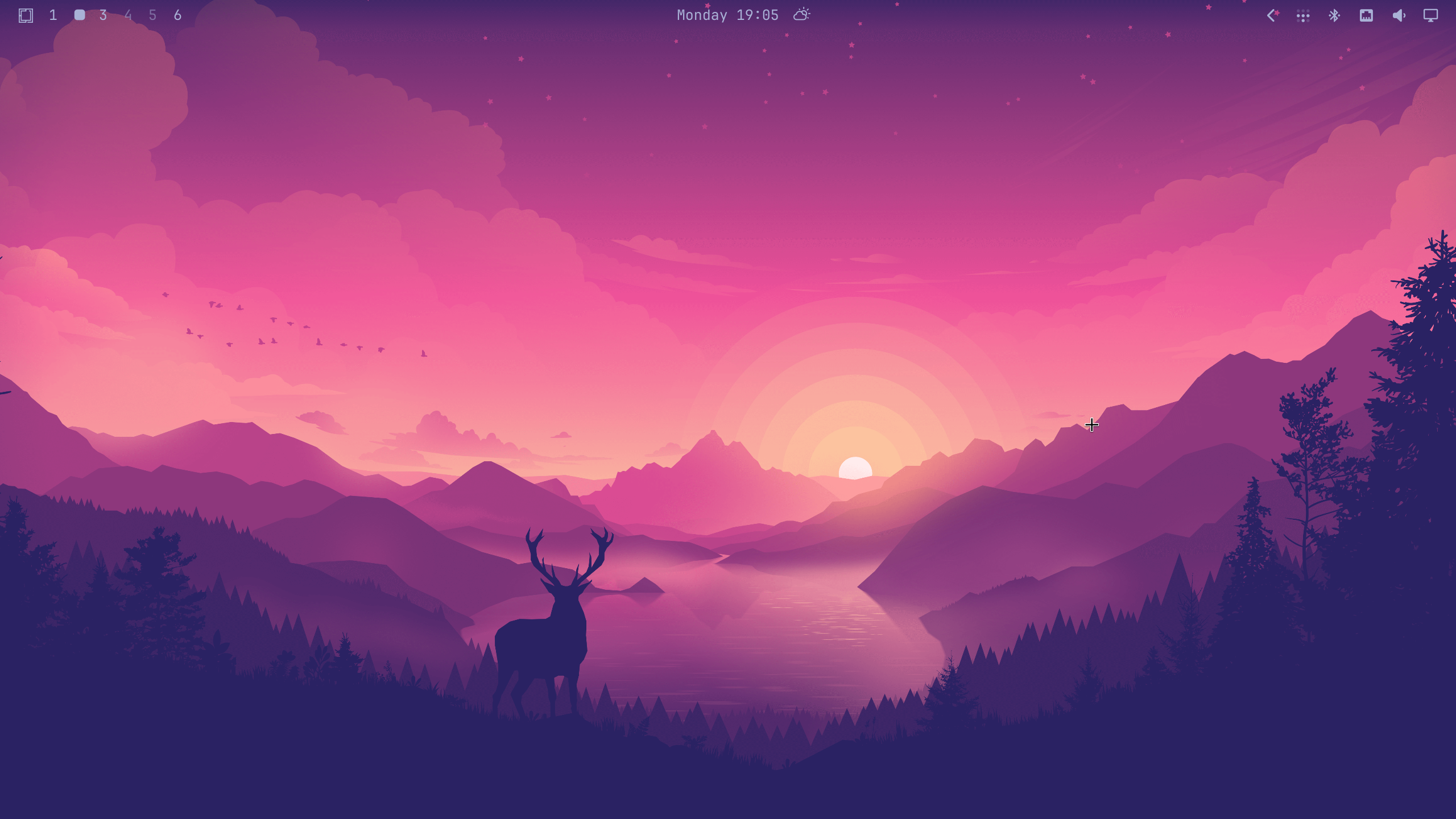
One of the reasons why people go for Linux, especially on an older machine, is that it can revitalise the old machine and kind of bring it to life. Old iMacs or MacBook Pros that are still working with the Intel chips seem very slow in comparison to the Apple silicon Macs. It seems as though just about any of the Linux distros will make an old machine like that seem like it was a new one. On the face of it, Omarchy. looks like a good option for people coming from Windows or from the Mac to Linux because of the setup that’s already taken place to customise it to work the way it does. DHH, The guy behind Omarchy. has said that it is a very opinionated version of the Arch computing system. The Arch Linux distro is the starting point, and he’s made changes to make it easier for someone new to start with it and added a number of applications ready to go to make it even simpler for people new to Linux. People who are already on Linux and have spent a lot of time setting up their distro Linux to look and work the way they want it to might not be so impressed with Omarchy Quattro, but for me, after trying it, I’m quite impressed. At first glance I like it.
Installation of Omarchy
One of the big talking points of Omarchy is the fact that it’s very quick and easy to install. I saw a video by the person behind Omarchy, DHH, and he reckons it’s possible, depending on the computer, to do it in under two minutes. This is despite the fact that there is a certain amount of bloatware added to Omarchy: things that you’re unlikely to ever use. For example, I’m incredibly unlikely to use any of the office software that was added. I think it’s Libra Office. This is something else that the pro Linux users complain about. They don’t generally tend to like bloated software. It really doesn’t mean anything for me because of the fact that you can easily remove the extra added software, either all in one go or piece by piece, so that you can just keep whatever you think you might need. Omarchy Quattro even includes a web version of X or Twitter, which has its own baked-in keyboard command to open it. I don’t use those social media things, so I have deleted those straight away. I did keep the web app for YouTube, and I made a web app of my own for Craft.
In this blog post, I’m not going to tell you how to install it because it’s easy enough. All you have to do is to go and get the ISO file of Omarchy and use Etcher to put it onto an SD drive or thumb drive of some sort. It’s really easy to do, and you just have to follow some on-screen instructions. Within about five or six minutes, you’ll have it installed on your hard drive, and you’ll have completed the first upgrade to the system after it’s been put onto your hard drive, so it’s completely ready to go.
Omarchy has AI built into it.
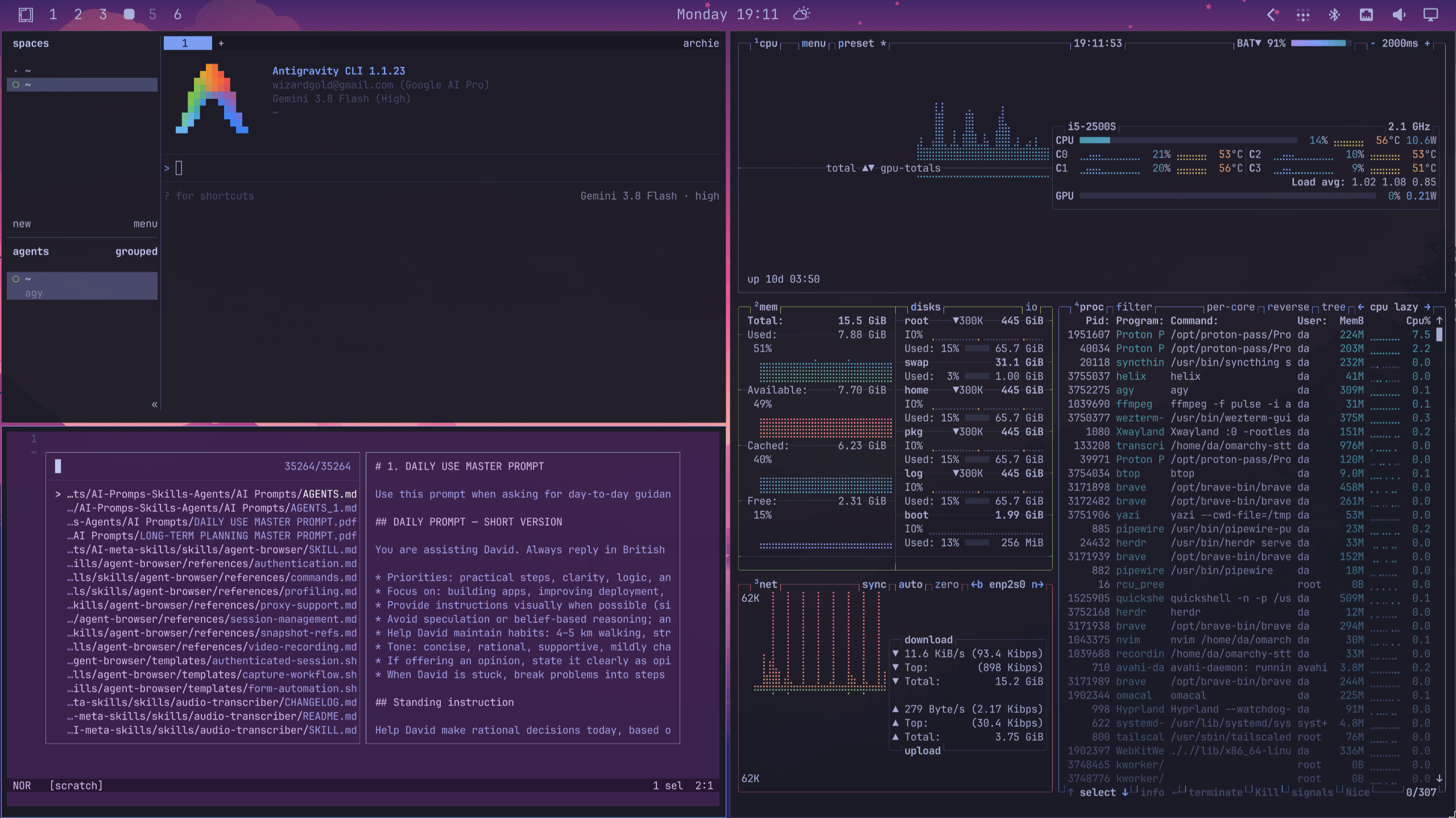
One of the neat little tricks with Omarchy is that if something crashes on the system, it offers you a window to click on so that you can get AI to explore what happened with the crash and fix it for you. That seems like a really good use of AI, as far as I’m concerned. You’ve also got applications like Herdr, which is an AI version of Tmux. You can also set up a default AI agent to work with. I work with Gemini and Antigravity, I have my reasons…. I have already had a number of occasions to use AI to fix things for me in my Omarchy setup. If there’s something not working quite right, all you have to do is open up your AI agent and tell it what the problem is. Within a minute or two, you have it fixed and ready to work with.
Issues or difficulties with Omarchy
Screen flickering glitch
It was an all plain sailing with Archie (I named the computer based on the Arch Linux), and I had a few things to twiddle with and sort out so they worked properly. One of the weird things that happened with Omarchy for me is that when using the browser, I had strange artefacts across the screen and flickering, which was really annoying. In fact, it wasn’t just the browser that caused that problem. There were other applications, like ZenNotes, which also suffered with this same glitch. I corrected the problem once using AI, and I was surprised to find that I had to solve the same problem again for a different application later. I got AI to fix the same problem three times. You could get annoyed with that sort of thing, but for me it was all part of the game. Besides, AI did all the work for me to sort it out, and I’m happy with the final result.
Dictation software problems
The other thing I had a problem with, with Omarchy, was the dictation services. An app called Voxtype is included or half-included with Omarchy. When you first try to use it, you have to actually install the software. I didn’t like it at all, and it didn’t work, and I got a frustrated. On Linux Mint, I was using the software called Handy, and I was happy enough with it. It worked well and was fast in getting the speech onto the screen in the applications where I used it. So I tried installing Handy onto the Omarchy system, and it also didn’t really work very well. There were problems with the hotkeys not functioning, and sometimes when the hotkey did function, the actual words didn’t get pasted into the application where I wanted those words. Of course, I tried using AI to fix these problems for me. I didn’t have any luck with that, and in the end I just kept looking for other dictation software I could use with Omarchy. In the end, I found one called Omarchy-STT. I have this software working, and I can dictate into whatever application I want to on Omarchy. It’s not perfect, but it’s just about good enough. The accuracy of the voice-to-text transcription is good enough. The only thing is that it’s a little bit slow in putting the transcribed words onto the page. It was a bit of a surprise to me because dictation on Linux Mint was working really well. If I couldn’t have got this dictation software working at all, then it would be a complete deal-breaker, and I would definitely go back to Linux Mint.
I set up Omarchy SST to work with a push-to-hold button. I just have to press and hold the F12 key, it listens to me and turns my voice into words on the screen. It can take one or two seconds after letting go of the hotkey for the words to appear on the page, but I’m okay with it. If I didn’t have other computers I could use to do this, then I could be less than impressed with how it’s working, but as it is, it’s just about good enough.
Omarchy Documentation
On omarchy.org, there is a manual, and it’s very good. The main things that you’re going to need from the start will be the page showing all of the hot keys. You need to know how to open applications, close applications, and to use the Hyprland tiling system to organise your applications on the screen. I actually like the way that Hyprland tiles your applications across the screen. If you’re running just one application, it goes full screen. If you add another application to that screen, it splits the screen in half for you automatically. Add another application, and one of those tiles gets split automatically as well. You’ve also got numbered workspaces.
The way to use these workspaces is to decide where you’re going to put things. For instance:
- Workspace number one can be for your email.
- Workspace number two can be for your note-taking application.
- Workspace three can be your terminal.
- and so on…
A Keyboard Centric Operating System
On my Mac, I use Raycast, so coming to Omarchy, it’s very easy to think about
having a super key to open applications and do whatever else needs to be done.
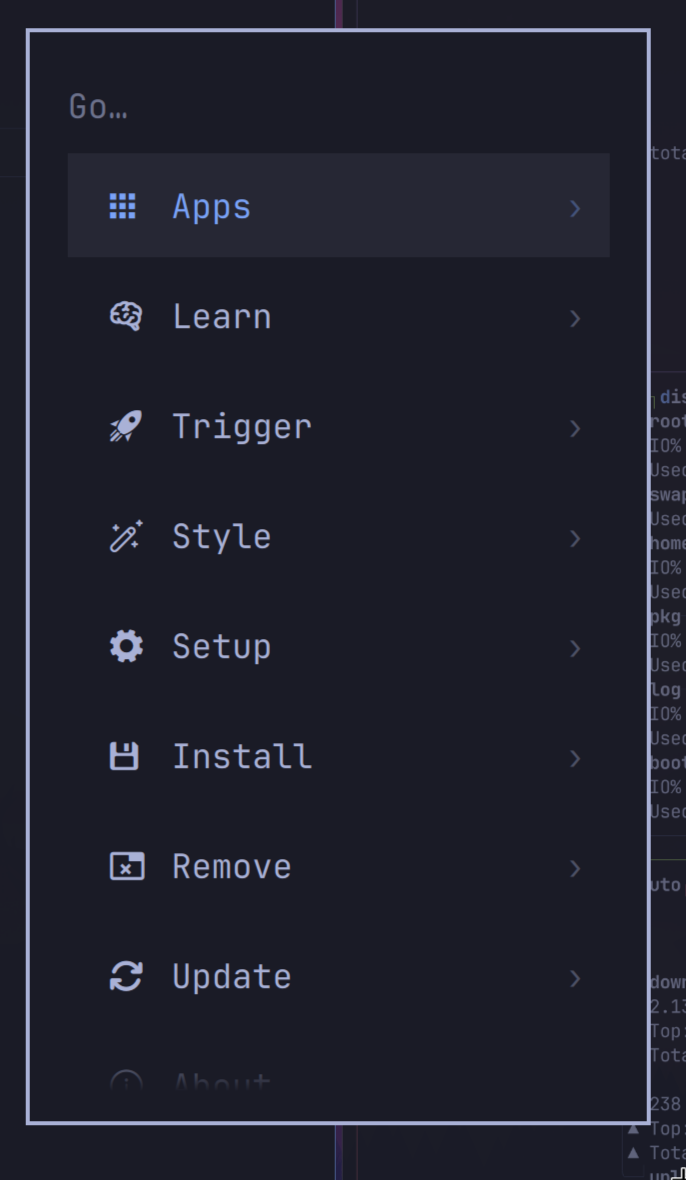
Super+ space gets you into the menu system of Omarchy. This is going to be the
Command key if you’re coming from the Mac, and I think if you’re using Windows,
it’s going to be the Windows key. At first, you might think that you’re never
going to learn all of these hotkeys to do things, but it’s all pretty simple.
You’ve also got a hotkey to get into a persistent place for learning all of
those hotkeys. So if you learn super+space for the starting point and then
super+k to get into the list of the hotkeys, you’re good to go. There are
going to be applications to use more often than others, so it’s not going to
take long for you to learn and get into your muscle memory the hotkeys to open
up the terminal or the browser. You soon learn the little tricks that you can
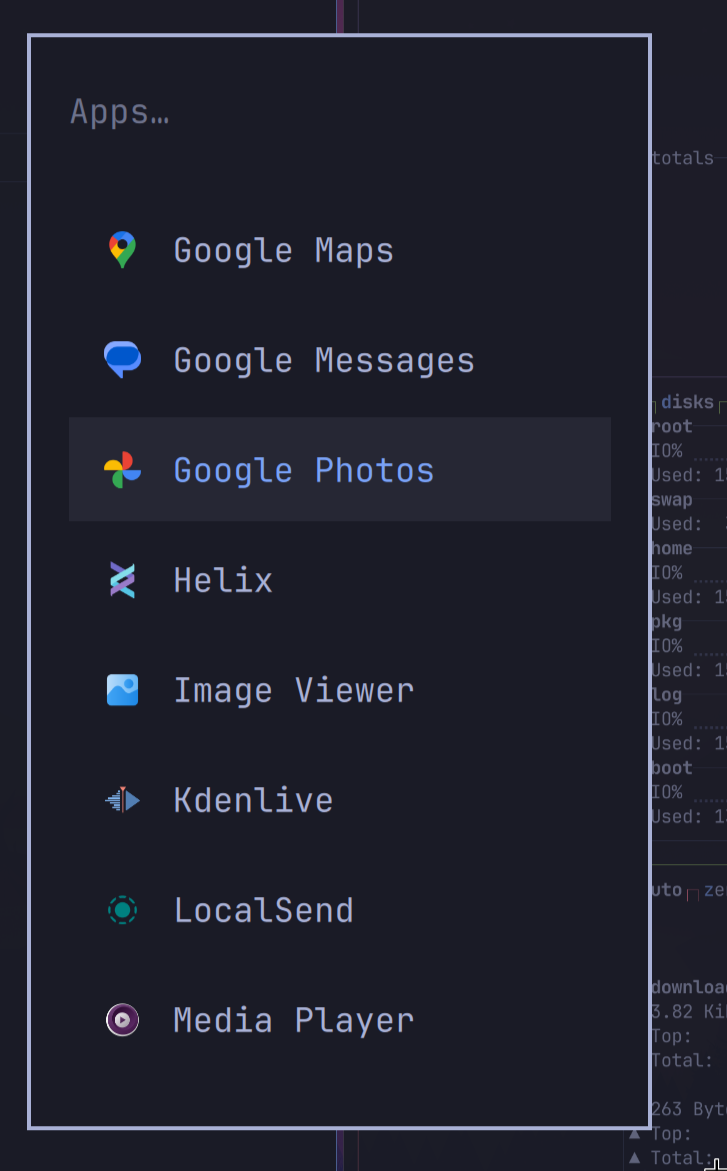
use to make things quicker and easier, like using Super+Option+Space to get into
the dedicated apps-only menu.
Some basic hotkey keys to get started
| Shortcut Key | What it does.. |
|---|---|
Super + Space |
Start Point to Everything |
Super + Alt + Space |
Apps |
Super + K |
List of all the hotkeys |
Super + Return |
Terminal |
Super + Shift + Return |
Browser |
Super + Shift + F |
File manager |
| . | |
| . |
Super Key - Hyper Key
On my Mac, I’m used to using a Hyper key to start applications. The Hyper key is
a combination of Command, Option, Shift, and Control keys. On my Mac, I use
Hyper key + C to open Craft and Hyper key + T to get into the terminal. With
Omarchy, there’s already a system for using hotkeys to get into applications
such as the terminal and the browser, and things like Herdr. So it’s probably
better to use the same system for the application that you like to use, and only
use the hyper key if absolutely necessary.
Moving around Tiled Apps.
When you open up one application, it takes up the whole of the screen. When you open up another application in the same workspace, it splits the two applications equally across the screen. So it doesn’t take you too long to work out that if you want to jump from one application to the next, you need to use Super + an arrow key. Then, sometimes you’re going to want to move one of these applications off to a different workspace so that you can use Super+Shift and a number to move it to a different workspace. You can set these numbers at the top of your screen, going from 1 to 6, but you can add more than 6 if you want to.
It’s probably a good idea to get used to the idea of having certain applications in certain workspaces, so that you have your mail application always in workspace 1, your terminal application always in workspace 2, the browser in workspace 3, and so on. This makes it very easy to jump from one application to another. Well, it would be nice. What I’d like to see is the possibility of changing the workspace names from numbers to something like mail or terminal or whatever, so that you could more easily see where you’re jumping to if you can’t remember them.
A large part of the idea behind Omarchy is that you use the keyboard as much as possible and not use the mouse, but you can still use the mouse to do certain things. Mouse use is not difficult or forbidden, for instance, if you hold down Super and then use the mouse to click on a window, you can rearrange where it is on the screen. Or, if you hold down Super and use the right button on the mouse, you can resize the window as you see fit.
The daily use experience in Omarchy
Linux doesn’t have to look ugly. You’ve got a good theming setup with Omarchy. What’s nice about it is that when you set the theme, it covers most of your apps that you use.
There are nice little touches, such as the reminders. You’ve got an equivalent of Airdrop called Local Send, which is already installed for you. Omarchy has screenshots, screen recording, and text extraction, as well as the Dictation options. It’s cool that Neovim is already installed as a LazyVim installation, although I have changed that to work with Helix for my text editing. Another nice little trick is that if you press Super + Control + Print Screen, you can select a region on the screen for text extraction, so you get some OCR working. It puts the text into the clipboard, and you just got to paste it wherever you want it.
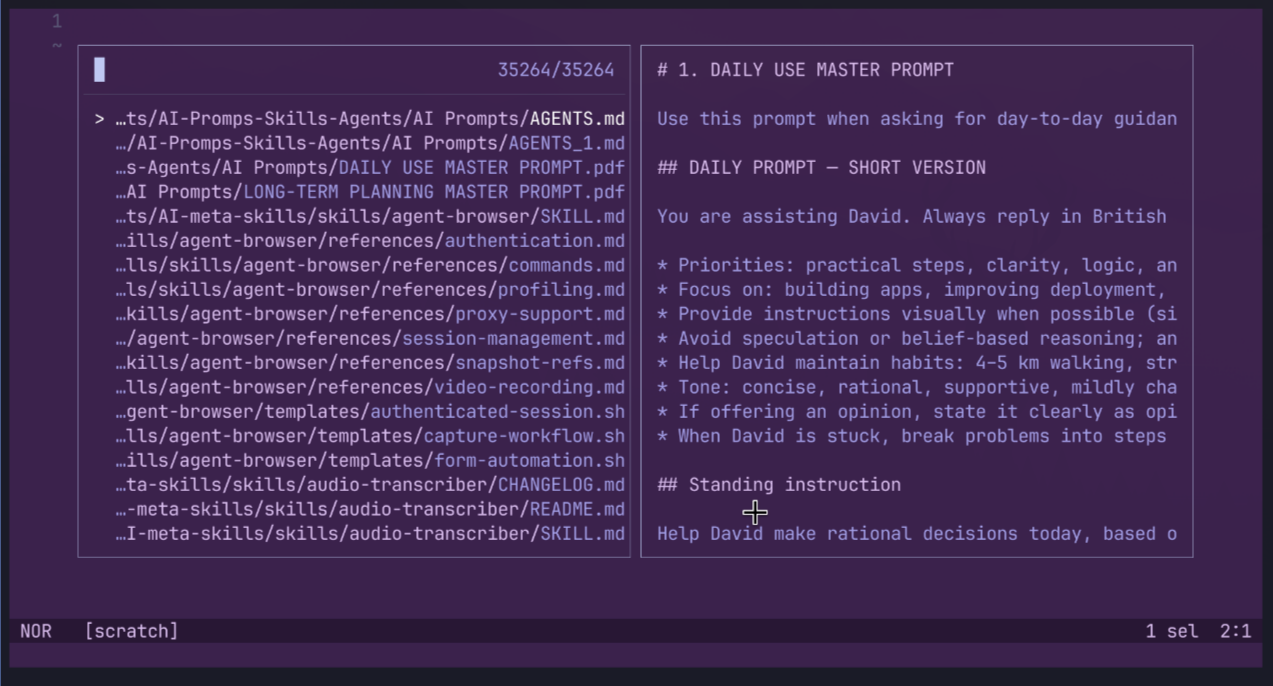
I use Proton products and find it easy to set up Proton Mail and Proton Pass. There’s a document viewer for looking at PDFs, and you can add another one which will let you write anywhere on a PDF using the tool. That application is called Xournal++.
Aside from applications that are also plugins (which I haven’t looked into yet), you can even make your own if there isn’t one available to do what you’re looking for. This could be a bar widget, or it could be a panel, which is a persistent or summoned floating window. It could just even be a service that doesn’t have any user interface.
A complete jump to Linux?
For me, it is unlikely that I would jump over to Linux completely because there are a number of Mac applications that I like to use that are not available on Linux, such as Craft, for example. On top of that, I’ve got a MacBook Pro and a Mac Mini, both of which use the Apple Silicon, and there isn’t an Arch or Omarchy Linux installation available for these processors. For me to switch completely would mean buying a laptop with an Intel processor in it, like the Framework models or the Dell XPS. Really, for something as drastic as that, I would want to try it out first before splashing the cash. After all, I wouldn’t want to make a leap into the unknown only to miss out on my favourite Mac applications and aesthetics. As far as Craft is concerned, I could swap to using ZenNotes instead, as it does pretty much the same sort of thing, but perhaps not quite as pretty. The best option at the moment is just to use Omarchy on my old iMac and see how I like it over time.
Overall, I can say that I have enjoyed using Omarchy so far, and I’d be interested in taking it further, seeing as it makes an old iMac into something quite snappy. Imagine what it could be like on a new machine.
If you don’t want to install it, you can also use the thing called TryOmarchy, which will install it in a VM so that you can run it on your Mac or Windows machine. Or you could just find a cheap secondhand laptop of some sort and throw it on there just to give it a go. It runs on a lot of computers, even old ones.