WisprFlow - Incredible AI Aided Dictation Tool
What it is all about is getting the data out of your head and into the computer. That could be typing or it could be by dictation. I have been using dictation for a long time. I used to use Dragon Dictate on my Mac. I paid for it and it wasn’t that cheap either but it was worth it. It wasn’t a subscription based service, like so many things are these days. I did pay for the upgrades a few times and got great use out of it. The problem was that they decided to not support Mac anymore.
Dictation After Dragon Dictate
I found others like Whisper Transcription. I was used to using Dragon Dictate and Voice Control which let me see what was being turned into text as I was speaking. With Transcription you have to see what was converted from audio to text before and then you still have to edit it to make it readable. There was always some editing to be done. At least with Dragon Dictate and Voice Control I could use my voice to edit the text with specific commands.
Using Voice Control on the Mac
So I changed to Voice Control which is the accessibility feature that comes with the Mac. Most people don’t know about it because it is hidden away in the accessibility settings. They could promote it as a general purpose dictation tool but they don’t. The way that you use voice control is that you speak to the computer with two or three sentences, and you can see what’s coming up on the screen. I would say that the accuracy is around 95%, so there’s always going to be one or two words that it just doesn’t get. What’s good about voice control is that you can use the commands within the system to tell it to select a word and to correct it. It will give you some choices for the corrections, and most times it gives you the one that you want. Another good thing is that the software learns about your mode of speaking as you use it. In theory, voice control should continually get better and better.
I think the problem with voice control is that Apple doesn’t put enough emphasis on developing the software. In the four or five years I’ve been using it, it hasn’t really got any better, and lately, I have found that simple words that it should get right, it doesn’t! With homonyms, it should work out which of the correct, similar-sounding words but with different spellings should be used in your sentence based upon the meaning of the sentence. I have been noticing bugs within the speech-to-text engine, which makes using voice control a little bit annoying from time to time.
Siri Dictation
There is the ordinary dictation tool that comes with the Mac but it is not as good as Voice Control. The standard Siri dictation is pretty good to use for messages, but you always have to re-read the translation from speech into text just to make sure that it has got the meaning of what it was you wanted to say. It makes silly mistakes and doesn’t really take into account the context of a sentence as it should. But then…. Voice Control isn’t perfect either. So I have been looking for a better solution.
Wispr Flow to the rescue
Now I have found a better solution. I don’t get to see the text arriving on the screen as I am speaking. But it makes so few mistakes that I am not so bothered about that. Wispr Flow is amazing. The only problem is that it is a subscription service, but it is probably worth it. It is what Siri dictation should be giving us. I just press on the keys I have set up to listen to my voice, when I let go of those keys the text appears on the screen. 98% of the time it is perfect. I am half inclined to say that it is 99.5% good with its accuracy; it’s still learning from my speech patterns. Where it has made mistakes has been to do with names of towns which I can’t expect it to have within its dictionary, and I have had to correct some of those. On the plus side, the next time I have said those words, those town names, it has got them correctly and inserted them into my text without any problems at all.
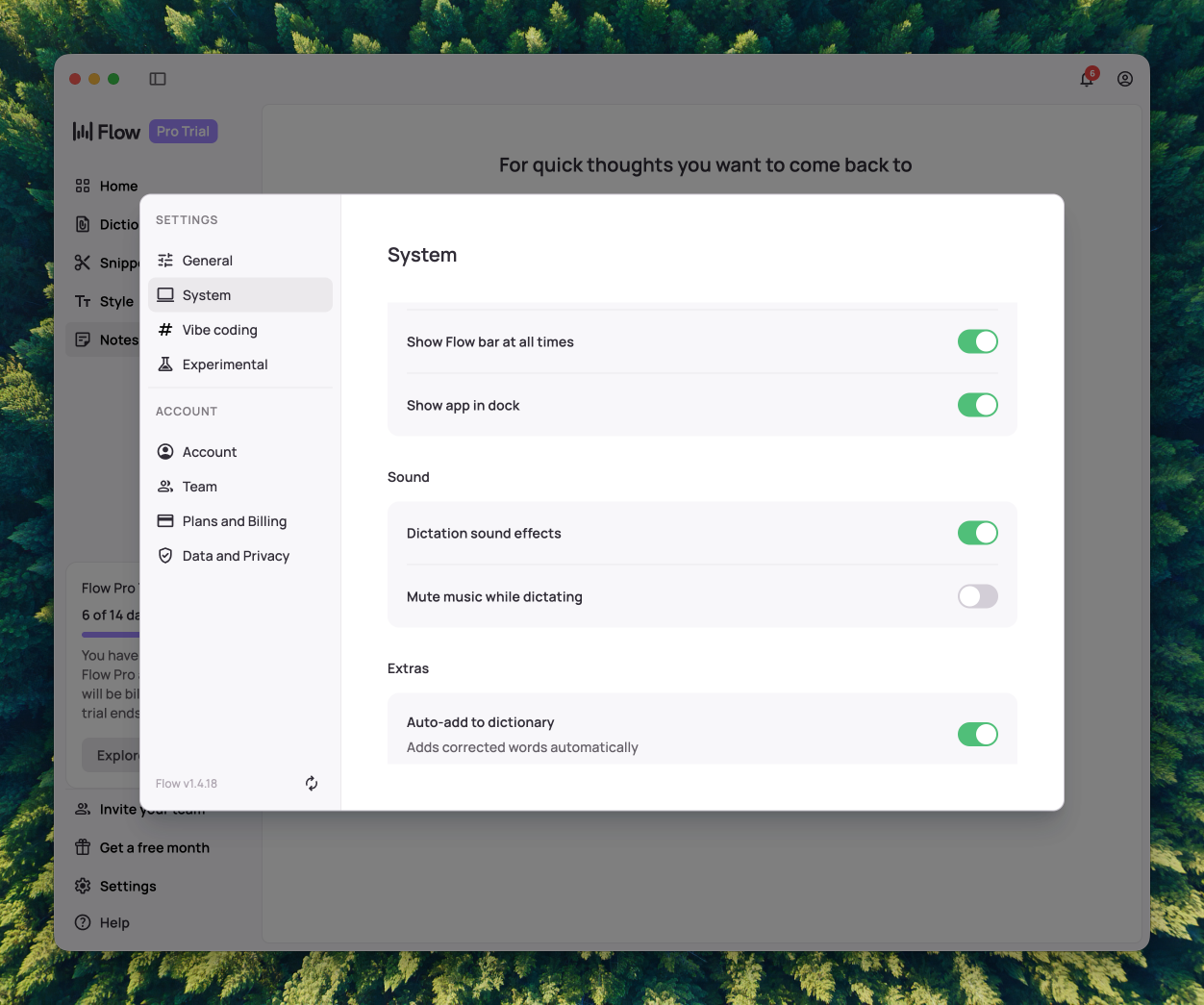
There is a Settings panel that comes with Wispr Flow, and within that, you can make a few changes if you need to. By default, the Fn or the Function key, which is in the bottom left-hand corner of your keyboard, is the one you use to have the Wispr Flow listen to you. I used that for something else, so I changed it to pressing down the Control and Option keys.
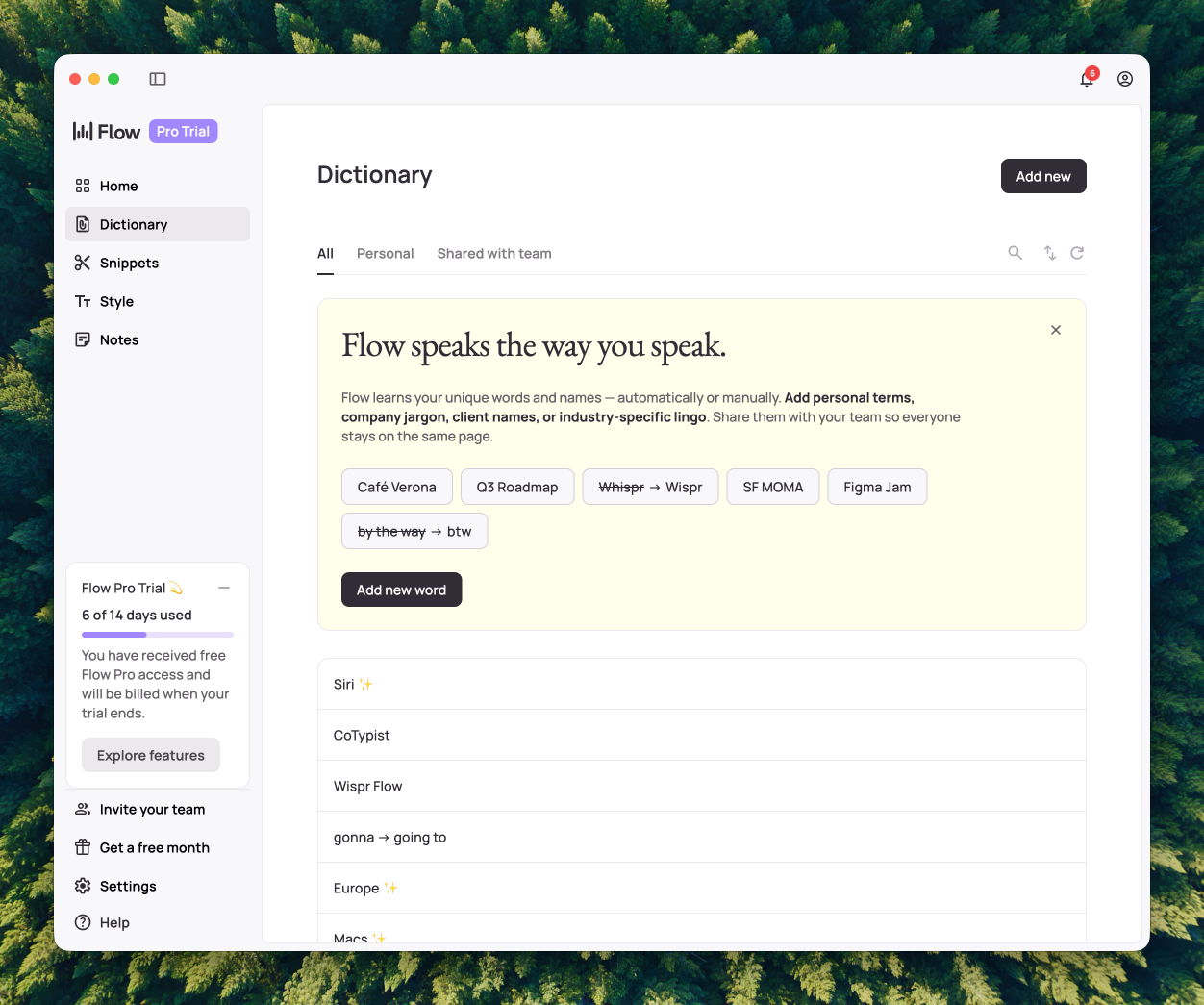
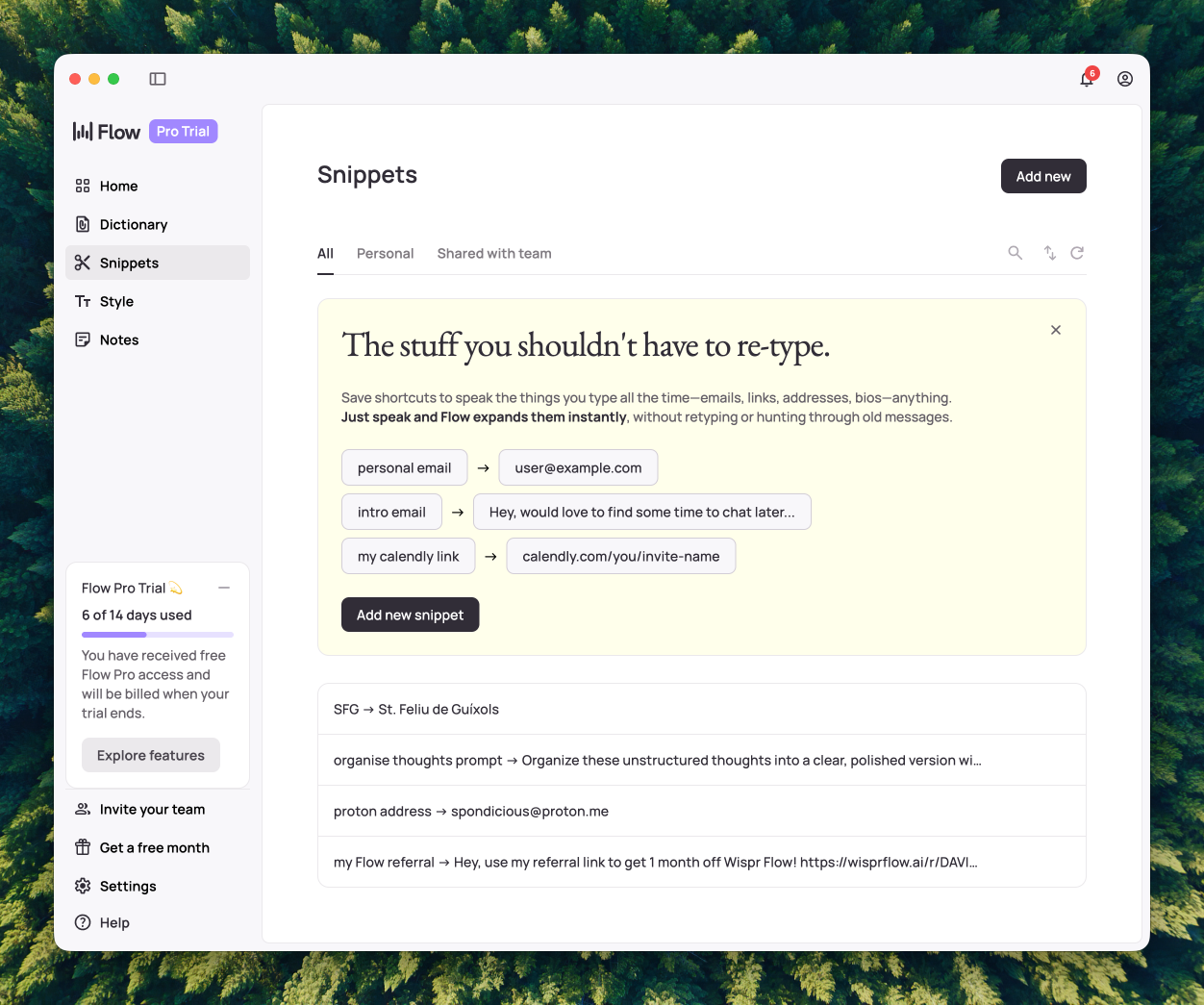
It works just as well. At first, I was wondering how I could tell it to correct a word, and I thought that I would do that within the settings panel. I need not have worried though because lately I have been correcting words using the keyboard in the text just after I have been dictating, and I’ve seen a little notification pop up to say that the word has been registered as being corrected by me, and the next time it tends to get it right. Flow learns your unique words and names — automatically or manually. Add personal terms, company jargon, client names, or industry-specific lingo to your dictionary. Within the settings panel, you can add words to your dictionary, and you can also add snippets. So, for instance, with the snippets, you could say the words “personal email,” and it will actually expand to your actual email. With the dictionary that’s for words that are probably jargon or names of towns, that’s especially important for me because I live in Spain and I dictate in English. So if I say the name of a town often it will get it wrong because it doesn’t understand Spanish town names, which may be something to do with my pronunciation.
Give me Some Style
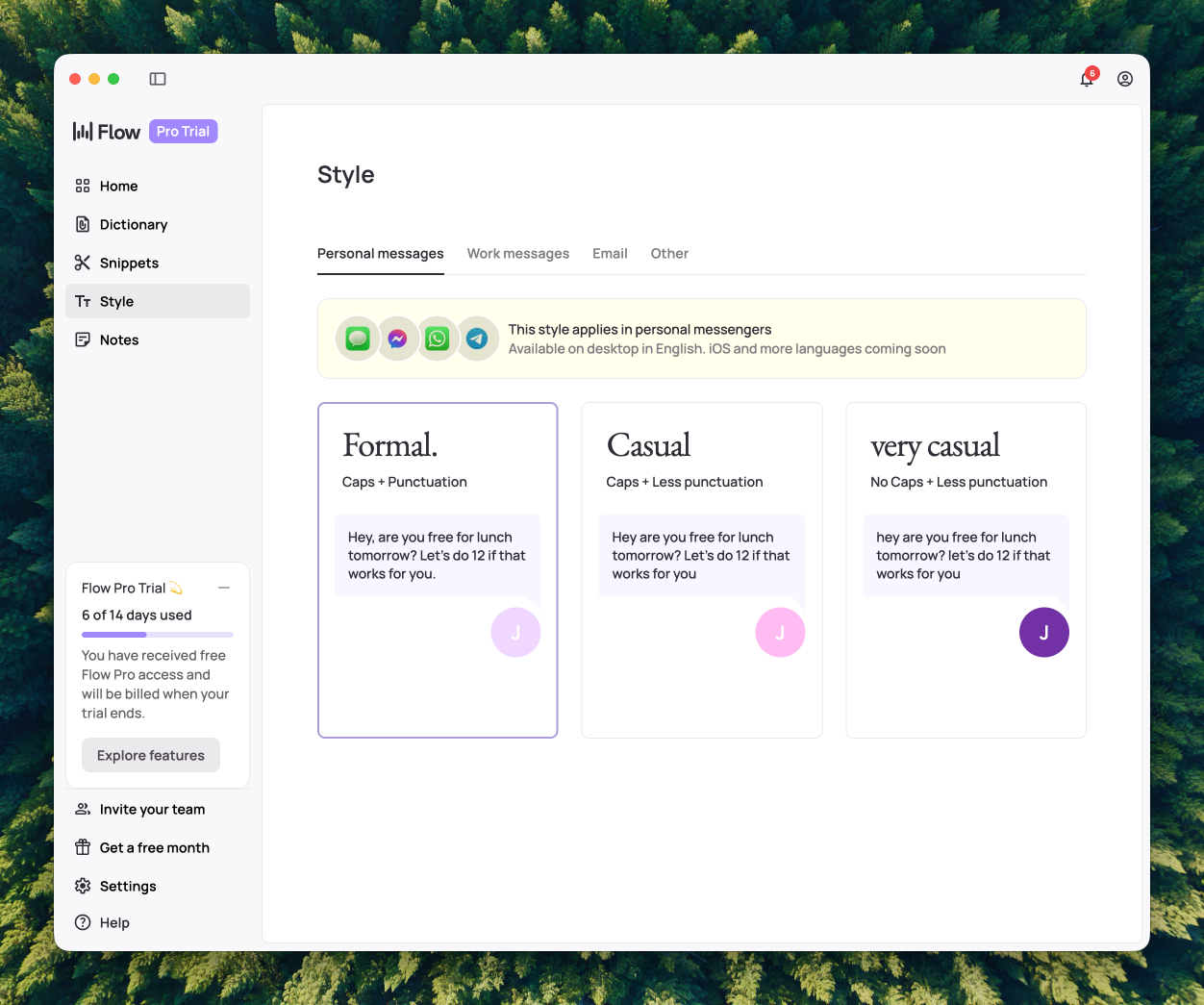
In the settings area, there is a tab for style. You get three choices of styles. The lowest one is to use no caps and less punctuation, and that is something that I’m never going to use. They call that one very casual. The next one is entitled “casual,” and with that one, it actually used capital letters and a decent amount of punctuation. The one that I use is called “formal,” and the reason I use that one is because I don’t like to use the word “gonna.” I would much prefer to use “going to.” I much prefer to write in proper, good English.
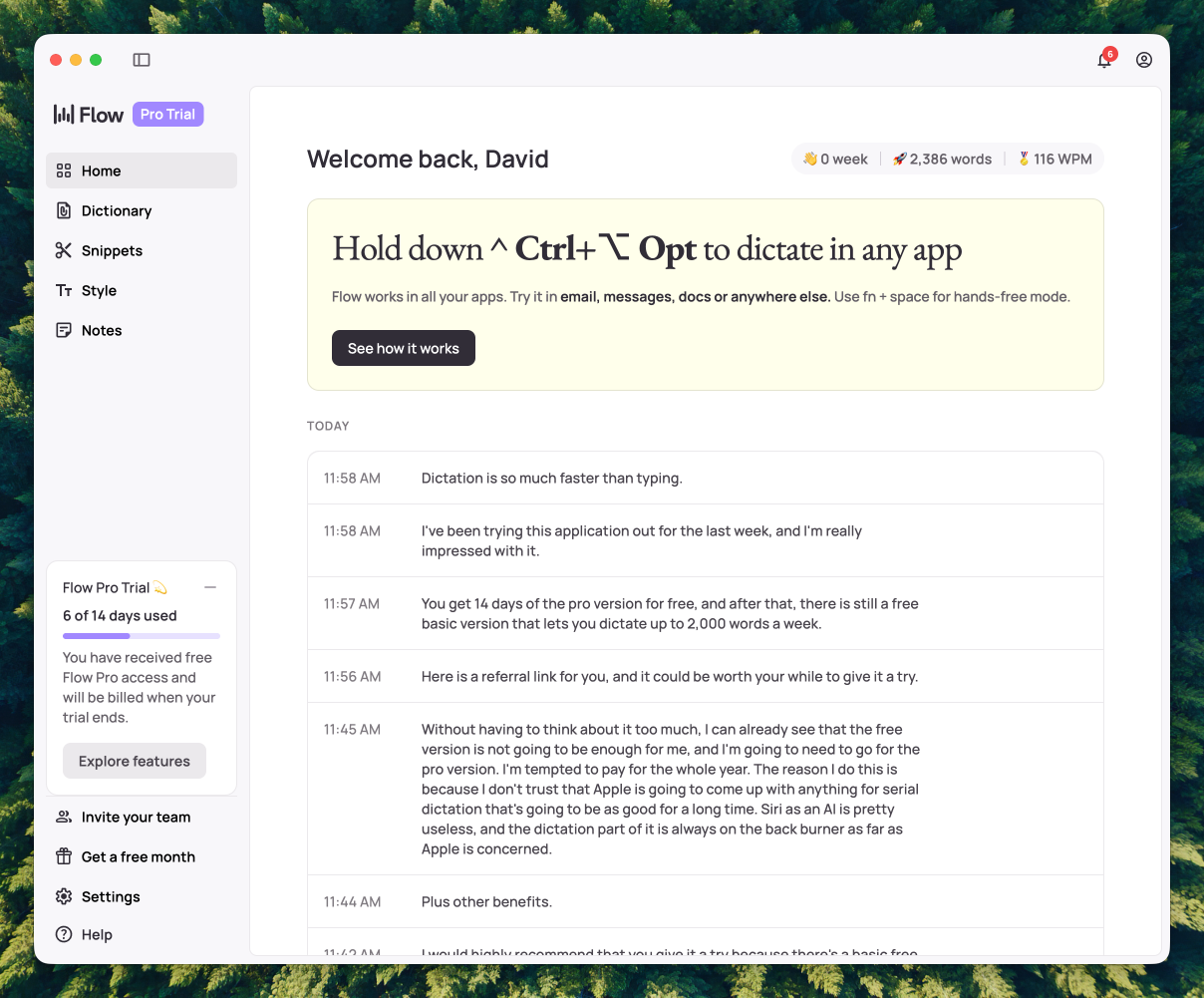
On the home page, you get some stats for the amount of words that you have dictated. I can tell you right at this moment I have dictated 1177 words and I have been doing that at a speed of 119 words per minute. Then there is a panel which gives you a little bit of information telling you what keys you need to use to get the dictation working and where you can use the dictation. So far, I’m finding it works in every app where I’ve used it. Below that, you get panels listing all of your dictation sessions. I’m still used to dictating two or three sentences, stopping, and having a look to check what’s been dictated. You could just keep talking if you want to, and it would all work perfectly. With the other dictation applications I’ve been using, I’ve always thought of it as being good enough to produce a first draft that would need to have a lot of editing to make it into something I could publish. With Wispr Flow, I’m finding that I don’t need to make changes to the text after my two or three sentences, but I will still read it through afterwards, just in case I have been speaking oddly while I’ve been dictating. That can happen sometimes! So, it only takes minor editing after I’ve read through it, and that saves quite a lot of time.
Wispr Dictionary and Snippets
In the Settings, there is a button you can use to get it to automatically add corrected words to the Dictionary. Then, you also have a button for Smart Formatting, both of which I have set to On. There is another one which will put in a Wispr Flow signature when you are dictating an email. There is a Creator Mode which is supposed to show dictating with Wispr Flow when dictating. I can’t see how that works at the moment.
Add Words to the Dictionary
Add Snippets
Wispr Flow Notes
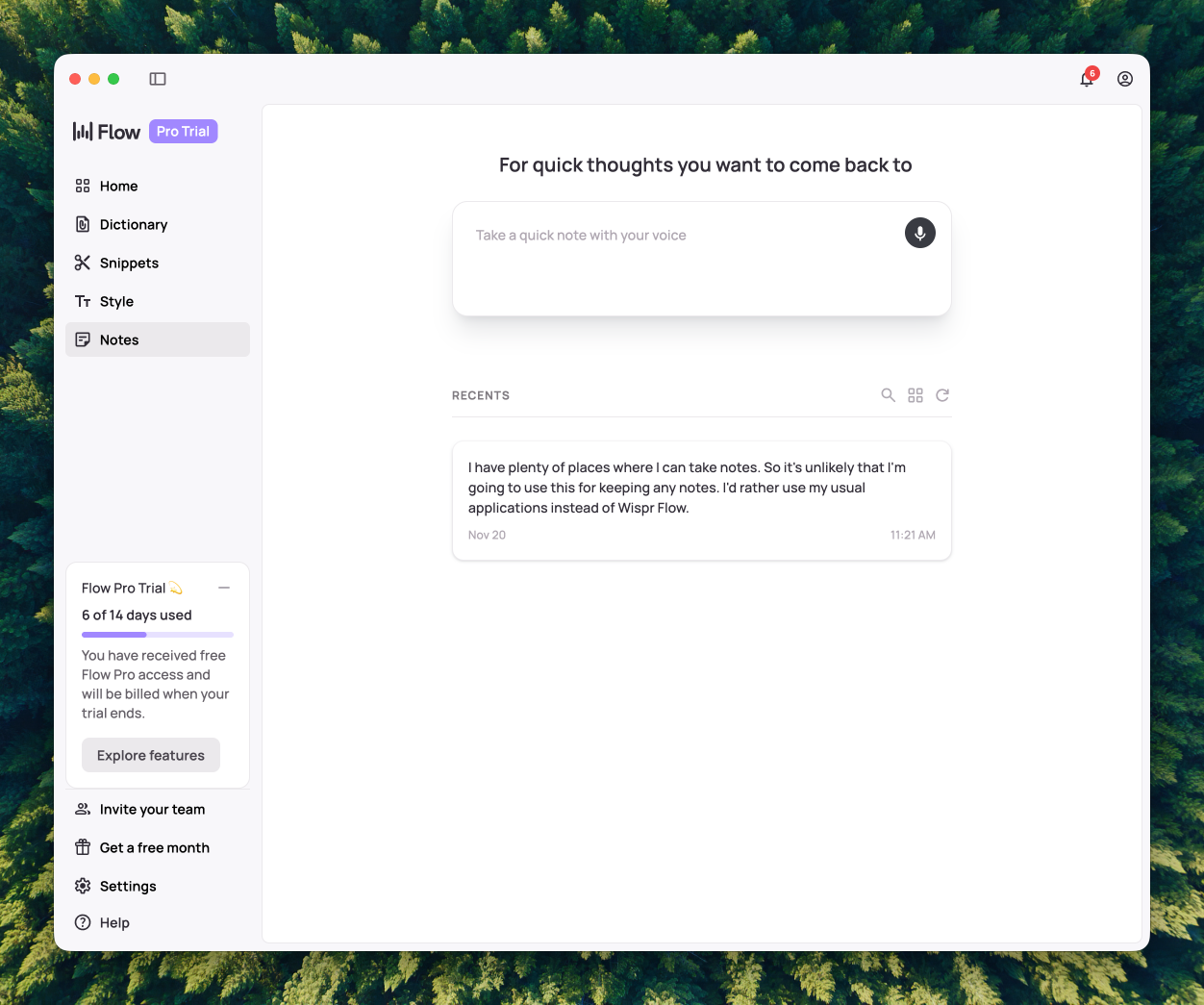
There is functionality in WisprFLow to take notes. Not much point in using this seeing as we can use it in all our apps. It makes more sense to dictate into the apps that you are using for notes anyway, rather than putting it into an application which is about dictation and not really about taking separate, independent notes.
Command Mode a feature in Wispr Flow
Command mode in Wispr Flow is an incredibly handy feature that allows users to execute commands with ease and insight. This mode offers streamlined navigation and greater control over various elements within the platform, simplifying the management of workflows and the automation of tasks. By tapping into command mode, users can swiftly access functions, enhance their productivity, and elevate their overall experience within Wispr Flow. Whether you are kicking off a new project or fine-tuning existing parameters, command mode offers a flexible approach for engaging with the system without having to navigate through countless menus. Its design is centred on reducing clicks and boosting efficiency, ensuring that users can carry out tasks quickly while remaining focused on their primary objectives.
I didn’t write the paragraph above. I used the command mode and I asked it to write a paragraph explaining the command mode feature within Wispr Flow. While doing it, it used American English for some of the spellings. I selected those words and told it to change it to British English, which it did. I also asked it to change the whole paragraph which I had selected and put it into a style more suited to the way I write, and it didn’t really make a lot of difference. When I first looked at Command Mode, I thought it was going to allow me to control my computer in the way that I can with voice control, but this isn’t the case.
What you can do with some text highlighted:
- Make this more assertive and concise
- Turn this outline into an essay
- Translate to Polish
- Insert relevant paragraphs into the text
- Summarise this text in 50 words
- Provide a step-by-step guide on how to complete this task
- Expand on this but maintain my style
- Insert emojis where appropriate
Using the Command Mode
I asked the app to say I’m really really sorry in five European languages. This is what it gave me:
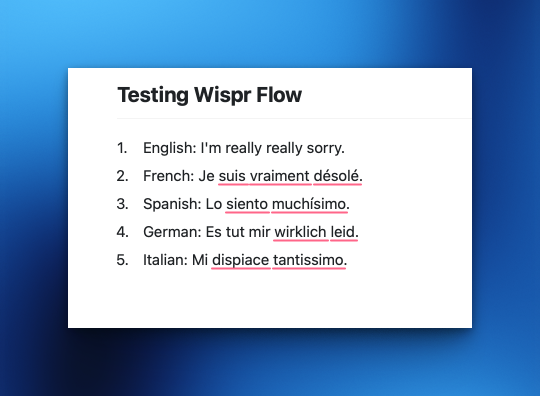
Basically some of the things that you can already do with other AI services like ChatGPT and Perplexity.
My Honest Opinion About Wispr Flow
I absolutely love Wispr Flow, and I’m incredibly impressed by how good it does its job. It is what Siri dictation and Voice Control on the Mac should be. I’m not so keen on the subscription model, but that’s to be expected because it’s using AI. Because I like using dictation and I’m used to it, I think for me that the subscription model is okay and worth it. For yourself, you’ll have to decide whether it’s a good idea or not and it will depend upon how much data you put into the computer and if you’re prepared to do it using voice. Sometimes it’s not possible to use dictation. For example, last night when I started doing this article, I had to use a different product which also uses AI because I wasn’t able to dictate due to other sounds and distractions in the room. The other product I use is called CoTypist. Which is also brilliant and I highly recommend. The good thing about Cotypist at the moment is that it’s free to use, but I expect at some point in time it will be a product that you have to pay for, probably with a subscription. It’s not quite as fast as using Wispr Flow, but it is pretty good. What it does is to guess what it is you’re going to say next or what you’re going to type next, and if it’s correct, you just press the Tab key to take it in one word at a time. Or if the four or five words are good, then you just press the key, which is the odd one, which is just above the Tab key. I had started to learn touch typing, even though I’m fairly quick with the keyboard. My fingers kind of fly around to a certain extent getting those words in there, but I think with these two tools that’s not necessary, and actual typing on a keyboard is going to be one of those things that we read about in history books.
I would highly recommend that you give it a try because there’s a basic free version which you can use for 2,000 words per week on your desktop computers and you can put in 1,000 words per week on iOS. You can have dictionaries and snippets, and there is support for 100+ languages.
If that’s not going to be enough for you, then you can pay $12/month (if you pay annually) or $15/month (if you pay month-by-month). Where you get unlimited words per week on all devices, and you also get the command mode for editing. Plus other benefits.
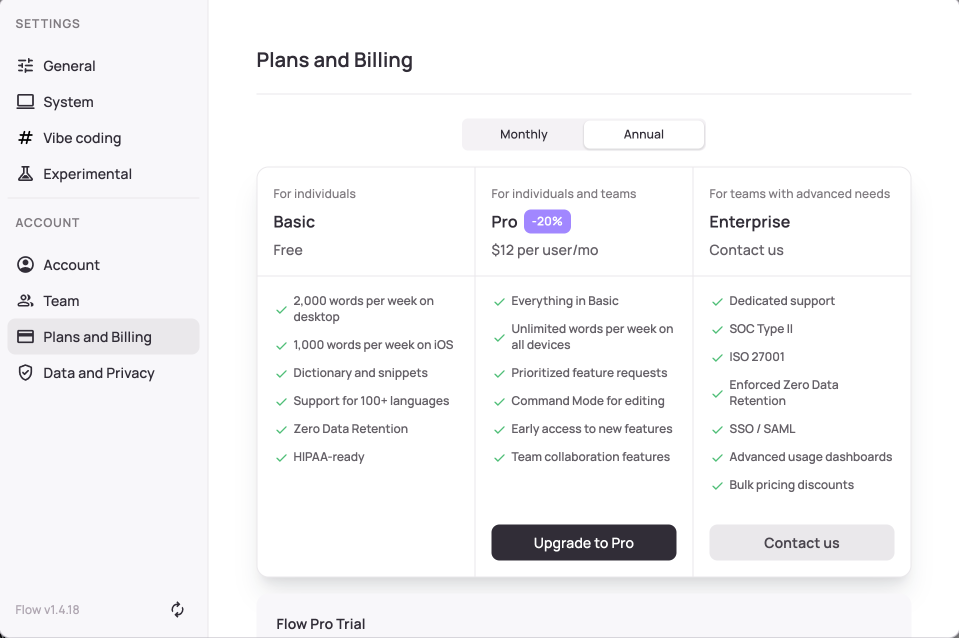
Without having to think about it too much, I can already see that the free version is not going to be enough for me, and I’m going to need to go for the pro version. I’m tempted to pay for the whole year. The reason I’d do this is because I don’t trust that Apple is going to come up with anything for Siri dictation that’s going to be as good for a long time. Siri as an AI is pretty useless, and the dictation part of it is always on the back burner as far as Apple is concerned.
Update November 22nd, 2025
While I was writing this article I got an offer from WisprFlow to get it for 50% off. So I put in the code and got Wispr FLow for $6 per month instead of $12 per month. That is a great deal, and I would recommend that you look out for such offers if you are thinking of getting WisprFlow.