
zkNotes for Zettlekasten
Terminal Notes - zkNotes
My note-taking application of choice is Craft. I particularly like it because it is a proper Mac application available on the iPhone and on the iPad as well. And it’s pretty. It’s easy to use and has everything in there apart from the kitchen sink. Well actually apart from the graph view that you get with some other note-taking applications like ZenNotes or Obsidian. But a graph view is not a deal breaker, in fact another application I like now for taking notes also doesn’t come with a graph view and that is ZKnotes.
ZK is a note-taking system or application you use within the terminal. So if you work in the terminal a lot like I do, then it’s quite a good option for taking notes of whatever sort. As you might guess from the name of it, the ZK refers to Zettelkasten. The Zettelkasten idea is to have short atomic notes that are small and to the point. So it’s perfectly suited to those small notes you want to create and don’t really want to get out the big guns.
Getting Started with ZK.
On my Mac I installed it using Brew which is really simple. brew install zk . It’s a fast install and within no time you’re ready to start taking notes.
on my Arch Linux Omarchy computer, I was able to use this command line to install the ZK package. sudo pacman -S zk. whichever way you’re installing the application it’s not going be long before you’re in zk and making your first notes.
First Notes
The first thing to do is create a new notebook to host your notes. You’ll do this in the command line on your terminal with this command. zk init my-notes. You will be asked a couple of questions about the sort of wiki links you prefer and also the type of tags you want to use. If you have already created the folder for your notes, then you can just type in zk init. Whichever way you do this within your new folder you’ll get a .zk folder containing a templates folder, a config file and the database.
Move to the new directory you’ve just created called my-notes and start creating your first notes. With this next command create your first note with a title. zk new --title "An Interesting concept"
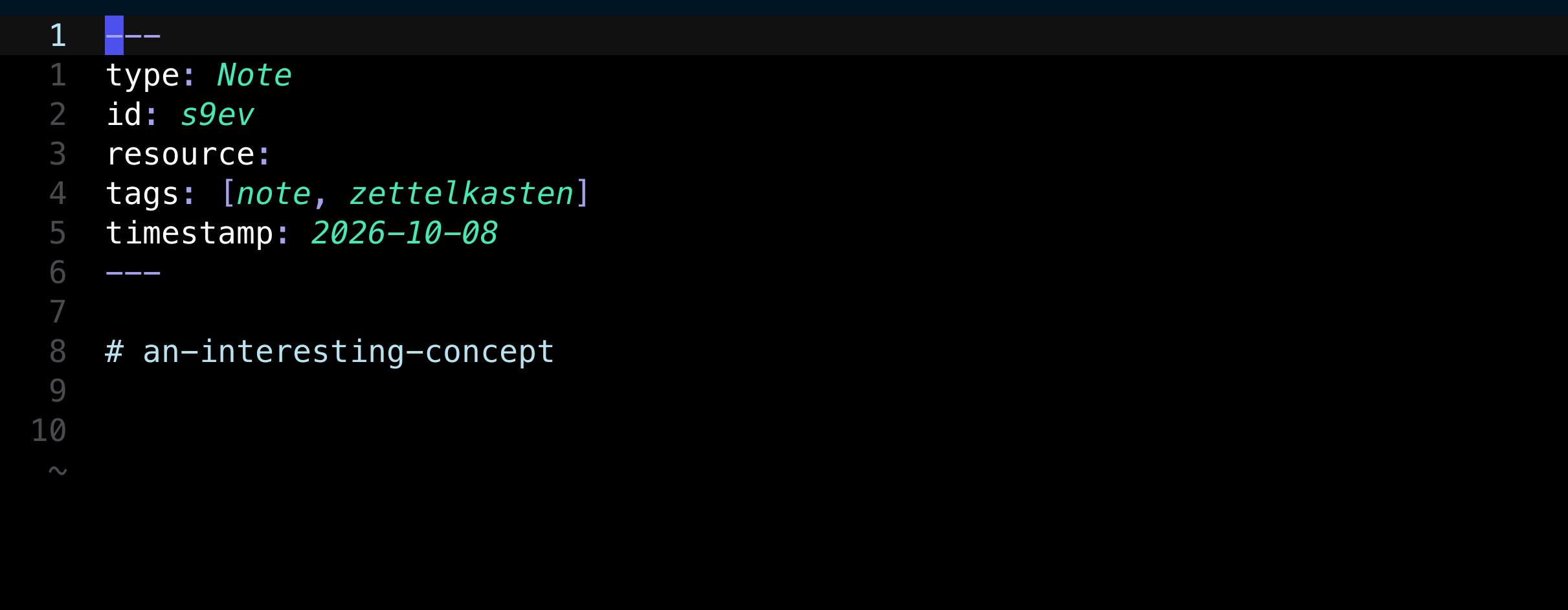
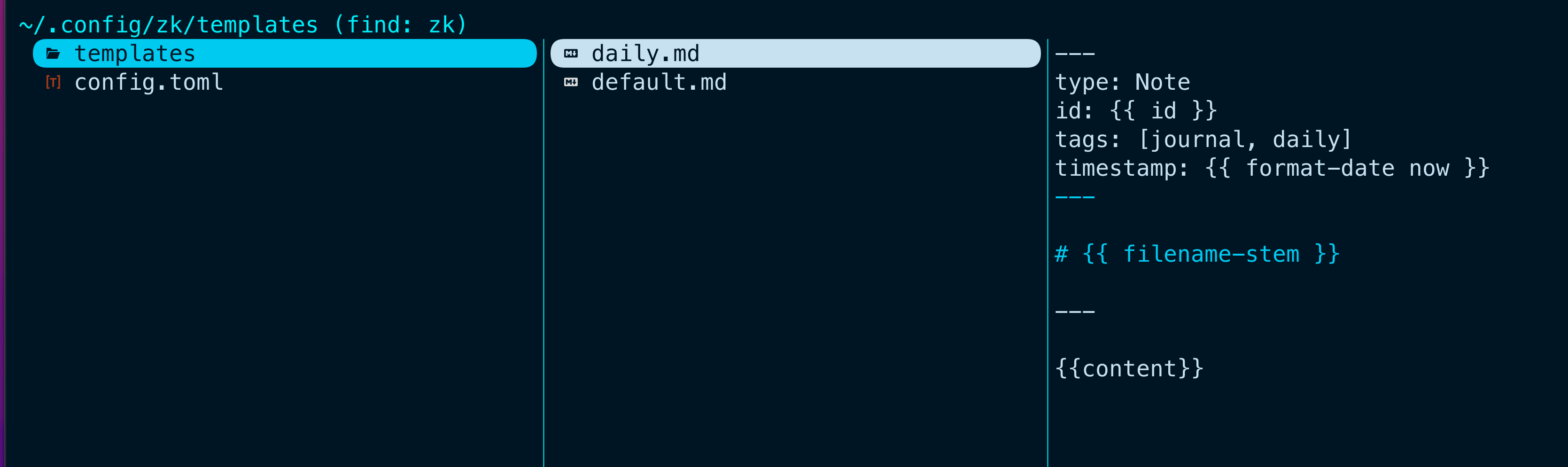
With the way that I have mine set up I have a default template giving me some headings in the metadata at the top of the file. So with your first file created it may not look exactly the same. I have mine set up so that this header within the file is created from a default template I keep in the ~/.config/ZK folder. In the image below you can see the config file I’m using and also that there is a folder there for templates. I have two templates, one for daily notes, so that I have a journal within ZK and also a default template which goes into whatever note I create using ZK on my computer.
In this next image you can see what my default template looks like.
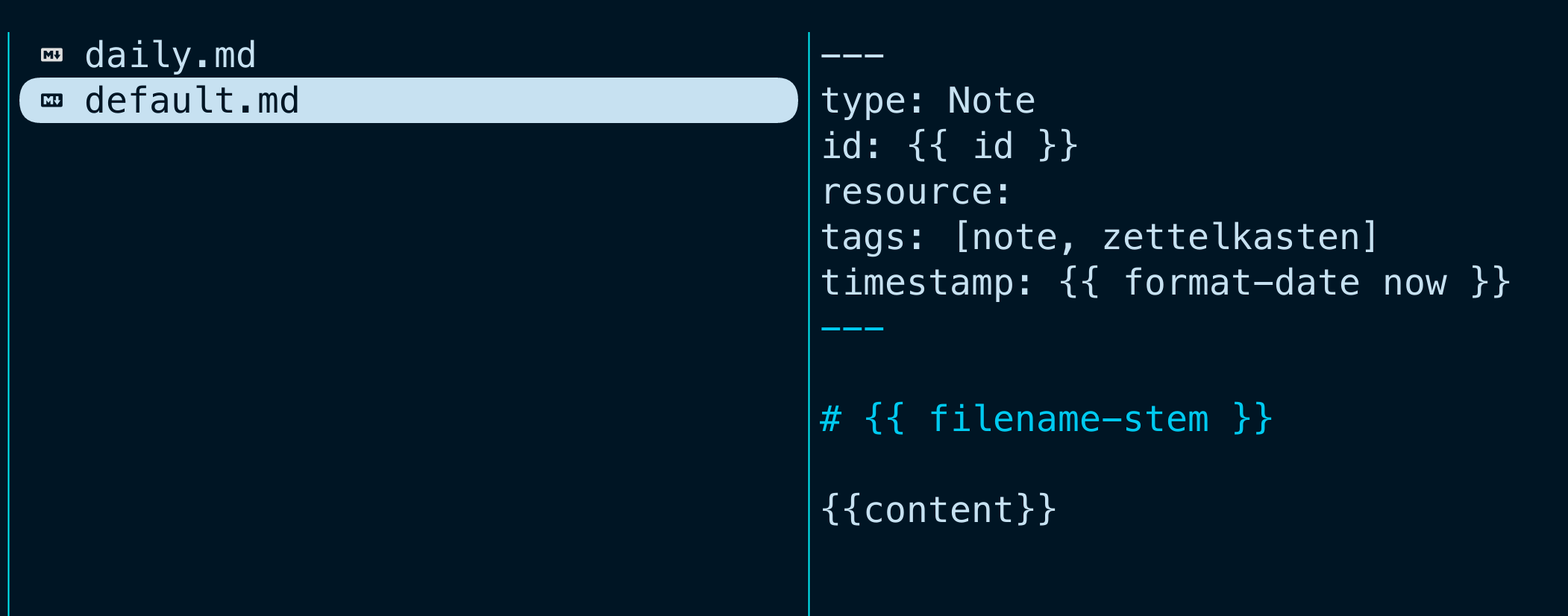
The date of the note and the tags are inserted as well as including the database identifying ID. Change those tags to suit the note that you’re making. Where it says file name stem that’s where I’m adding the actual name of the file as a header one at the start of the document. This seems to be working well for me so far. I don’t often need to add a resource to the document, but I can if I need to. So for example I might add a URL to a web page where I’ve taken this data from.
I have a function in my fish config which I start by typing in zkn followed by the title of the note I want to create.
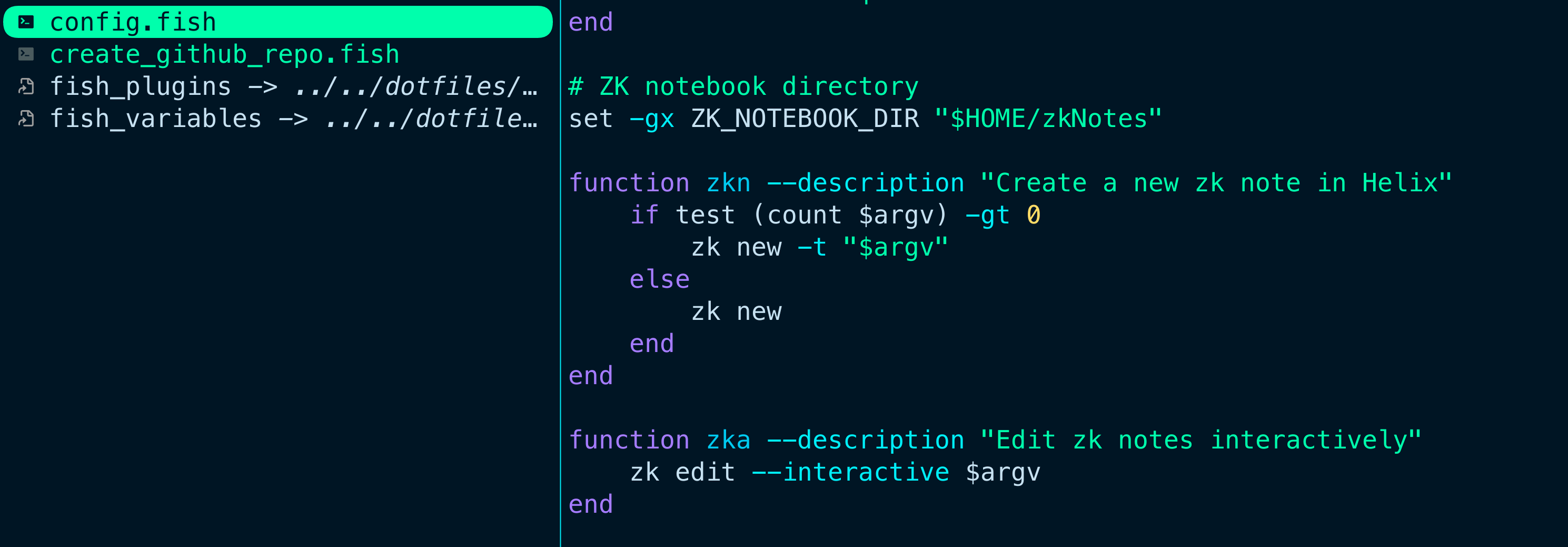
I have another function in the fish config, zka. This one gives me some interactivity. It lets me search for notes already in there so I can open them and edit them as I see fit. With your search you can hunt for words within the documents and not just the titles of a document. If the note isn’t found start a new one with - Ctrl+E to create a new note with the search term as the title.
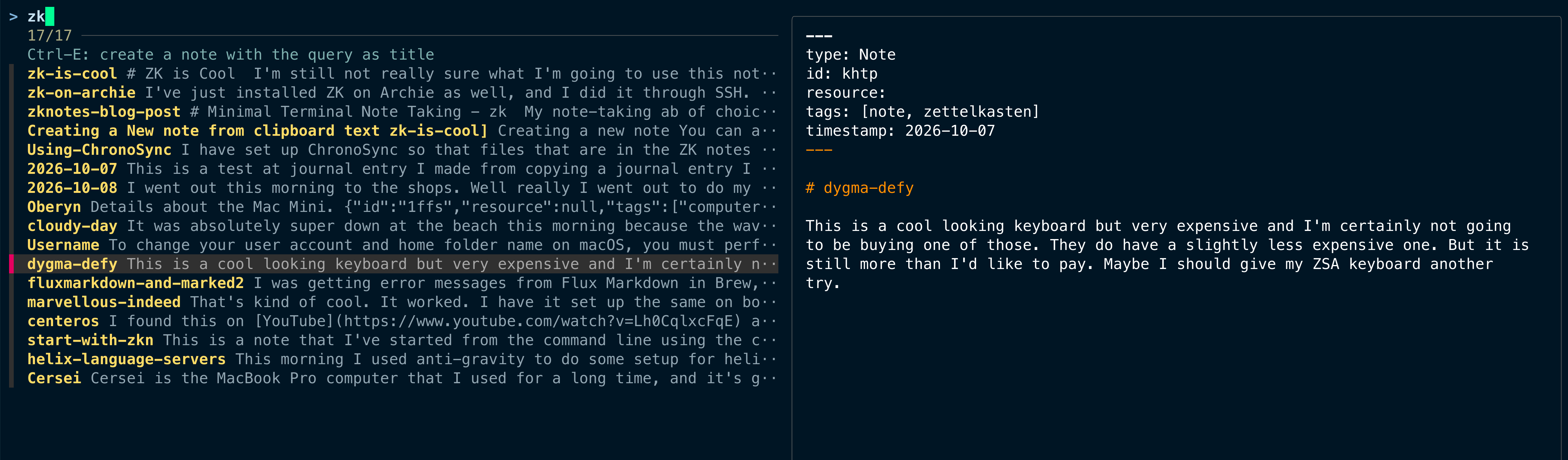
Use your favourite terminal text editor.
My favourite terminal text editor is Helix. I used to be a NeoVim user and you could use that or even use Nano. Just set what your text editor is in the config file. So mine is set to hx for Helix.
Working the wiki.
You can create a wiki link to another document using double square brackets. Like this - [[jump]] and in Helix press the letters g-d, and if there is a link there to a document, it will jump to that document. If there isn’t a link in there, use space + a then choose to create a new document in the current directory.
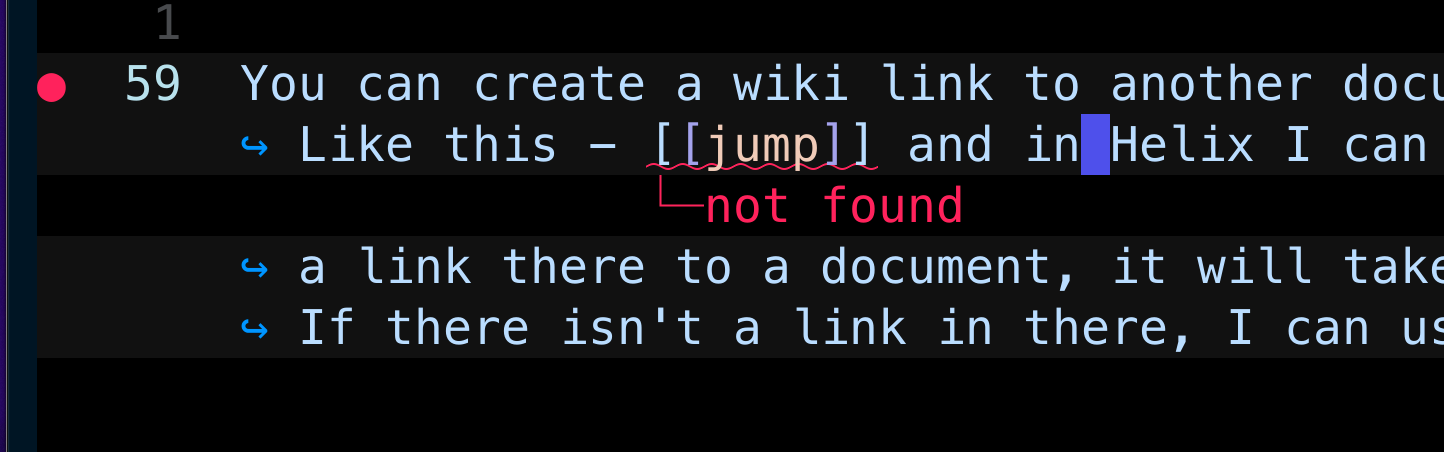
What I like about creating these links is there’s two ways of doing it. One way is to start by first typing two square brackets and then putting the words for the link inside those brackets. That’s when you use the space A to get to the menu which allows you to create that file.
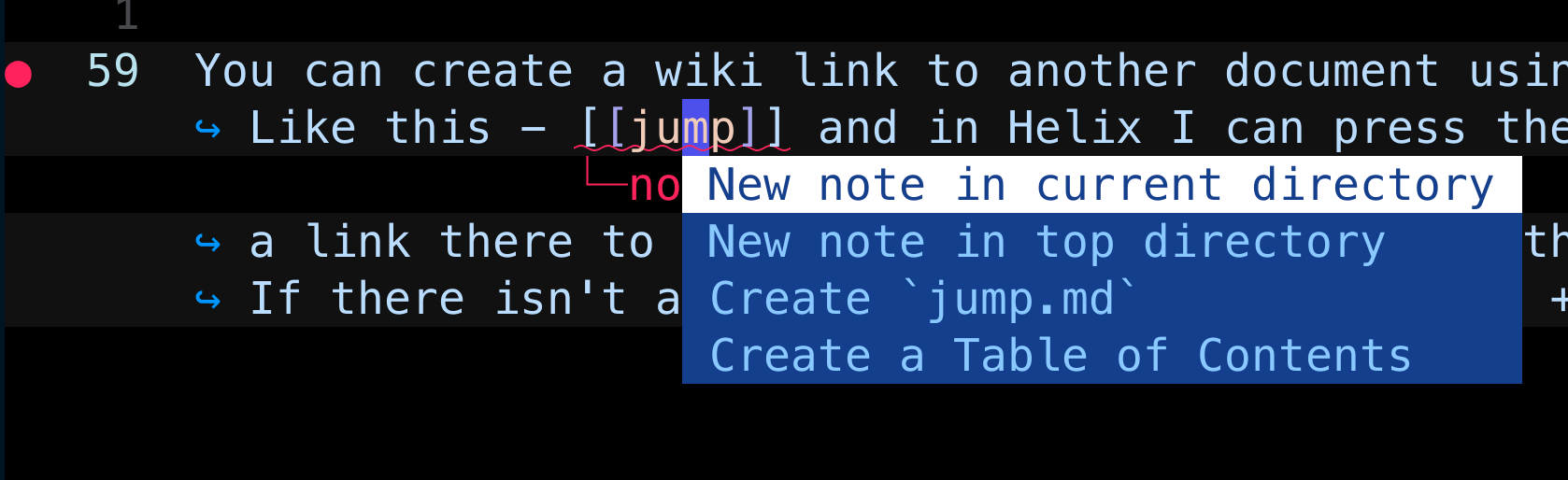 The other way to do it is to have the words typed into your document that you want to have as a link to another document. Select those words and then use space+a to create the link and the document at the same time. Space+a in zk and Helix gives you Perform Code Action So once you’ve learned these keybindings it’s pretty easy and quick to edit your documents and add links.
It’s Only Text.
The great thing about this ZK system of notes is that it’s text and it’s fast and it’s universal. With that in mind, it means that you can open up this folder as a vault in either Obsidian or ZenNotes and you get access to the extra facilities you get with those applications such as the graph view. Definately a good route to take if you want to add images to your documents. You’re not going to be able to see these images in the ZK universe of notes, but you can see them if you look at the note in Finder and you can see them when you’re looking at the notes within Obsidian or Zen Notes. If you are keeping a Second Brain in Obsidian or ZenNotes then do a weekly or daily ingest of new zkNotes into it. I might even do that with Craft.
It does take a bit of setting up.
The installation part of it is easy. Setting up the folder for storing your notes is also easy. But to get the real best use out of it you do need to go into the config file and change a few things. It also works better if you add one or two aliases within your shell config. There are kind of three levels of configuration and as much as you have the aliases within your shell config, then you can have aliases within the config in the dot config for /zk folder. Then finally you can also set some aliases within the .zk folder within the notes folder. I don’t really have anything to do with the config file in the notes folder and have everything sorted out within the main config. For the ZK notes terminal application and also the aliases I’ve set up within the shell config. The good thing is that once you have this set up then you don’t really have to think about it anymore and it’s easy to use. When you combine this with using a good text editor like Helix, it all becomes very easy indeed.
The templates are handy and I like the fact that it’s possible to set up a template for daily notes that you can use as a journal. It’s great jumping from the document you’re working on to the linked document using gd. If you just want a look then use Space + k to get a preview. There’s information to tell you about broken links which you can fix with the automation menu Space + a. zkNotes is simple to use and remarkably effective for creating Zettelkasten notes. Make the notes review them later and get them into your main body of notes later.
ZKnote from Yazi
My favourite way of moving around the system on my computer is to use Yazi, a file manager, and I’ve set up a keybinding which allows me to type in first C followed by Z and then I get a pop-up asking me to give a name to the new note and then it will create that note for me in the right place on my system.
Step One
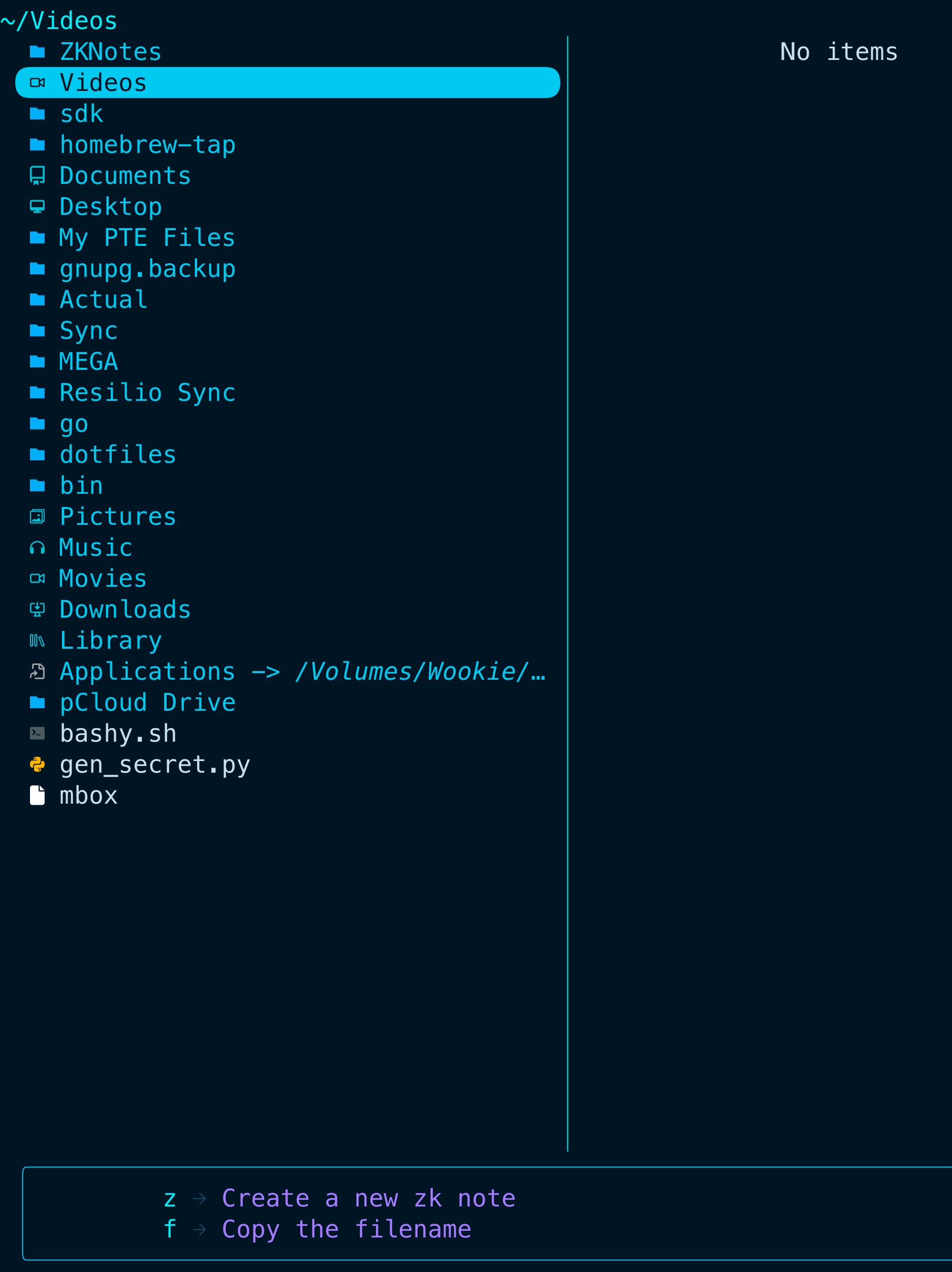
Step Two

This opens up the new note in the specified editor. For me it’s Helix. For you it could be NeoVim. Paste, type or dictate into your note and hey presto the job is done. you have quickly and easily created your note and saved it into the correct folder for your ZK notes.