Warp Terminal ADE: A Game Changer for Developers
What I love about Warp Terminal ADE
I’ve looked at Windsurf, Cursor, VS Code, and the like, but none of them are as good as Warp Terminal. I tried Warp before it became ADE, (Agentic Development Environment) and I sort of liked it. It was useful to get the hints and help to do what I wanted to do in the terminal. There are so many terminal commands, it’s hard to remember them all. Especially when you have to remember the various flags and options. You know, the dash followed by a letter or two, like –help, –version, sometimes it’s a single dash and sometimes it’s a double dash.
I like working in the terminal, things get done faster and more efficiently. Using Neovim to write in the terminal is a great way to get things done. Just have to learn the letters to get things done, like yy, dd, and using the space bar to open a menu to show you what you can do. It’s not that difficult to learn, especially if you use it daily, letting the muscle memory take over.
Using the Intelligence of Computers
It is why computers are so great. Let them take over the repetitive tasks and the boring stuff, and let us focus on the creative and interesting stuff. I would automate just about everything, and I would use my freed up time to focus on the things that I enjoy doing.
I thought with coding we would move from the arcane language of coding to dragging and dropping of components. This is what we got with a not code based UI builder. I have used it for about one year and I loved it. There are still some things you have to code, once the components are in place and you have to look at a bunch of settings to get it to work. Still much better than manual coding, but not as good as what is now available. Warp and Copilot now offer a way to code with natural language and I am excited about it. Just tell it what you want and it will generate the code for you. If there is a problem, it will tell you what it is and then go on to fix it. Sometimes it will fix it as soon as it, itself realises and sometimes you have to inform it of the problem and tell it to fix it. It is mind blowing.
Setting up a new project in Warp Terminal ADE
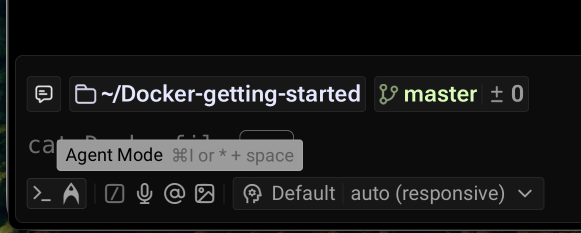
I had dropped Django for a while, but I am back to it. I went with using Flutterflow which uses the Dart programming language. Django uses Python and sometimes when I had a problem I didn’t know how to fix it. I would have to do a lot of research to find the answer. Sometimes I would even have to go back a commit or two with git to get back to a point where I knew it was working and then start again. I even started right at the beginning of the project to get a fresh start. With the AI in Warp Terminal ADE or Copilot, I can just tell it what I want and it will generate the code for me. Setting up a new project in Warp Terminal ADE is a breeze. Mind you, I am getting better at using git and branches to keep my work safe. I use branches more now, when I start to add a new feature. It’s easy to switch back to the main branch and try again it I need to. Or merge the branch back into the main branch when I am happy with the new feature and the way it works.
Excellent Things I can do with Warp Terminal ADE
A few times I have dropped an image into Warp to use as context to fix a bug. That with a bit of natural language to explain the problem, I can get the bug fixed in a few minutes. I have also copied error messages into Warp Terminal ADE and it has been able to tell me what the problem is and has fixed it for me.
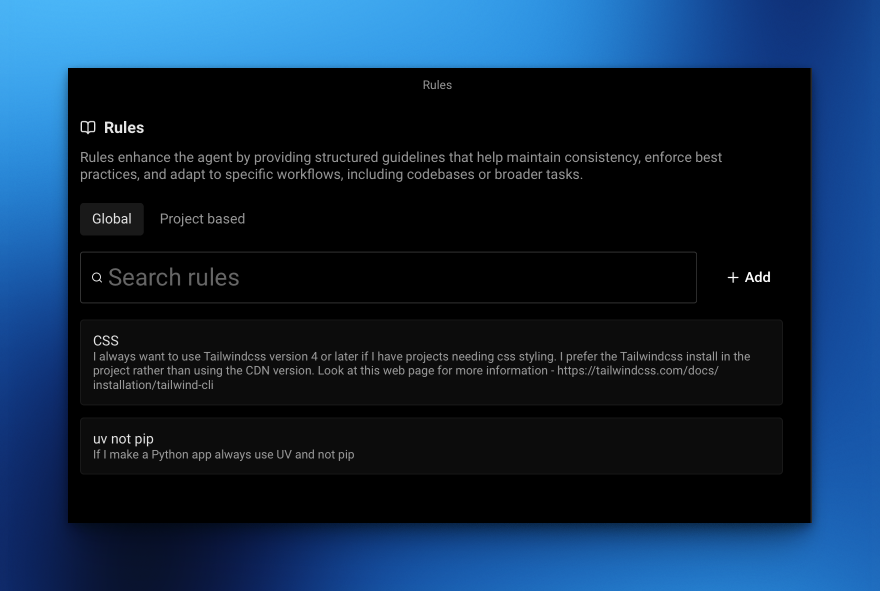
I have a set up in Warp - With the Rules feature - To tell it I always want to use uv instead of pip. I also tell it I want to use the latest version of Tailwind CSS and to import it rather than using the CDN. As I use Warp more I will set up more rules to tell it what I want.
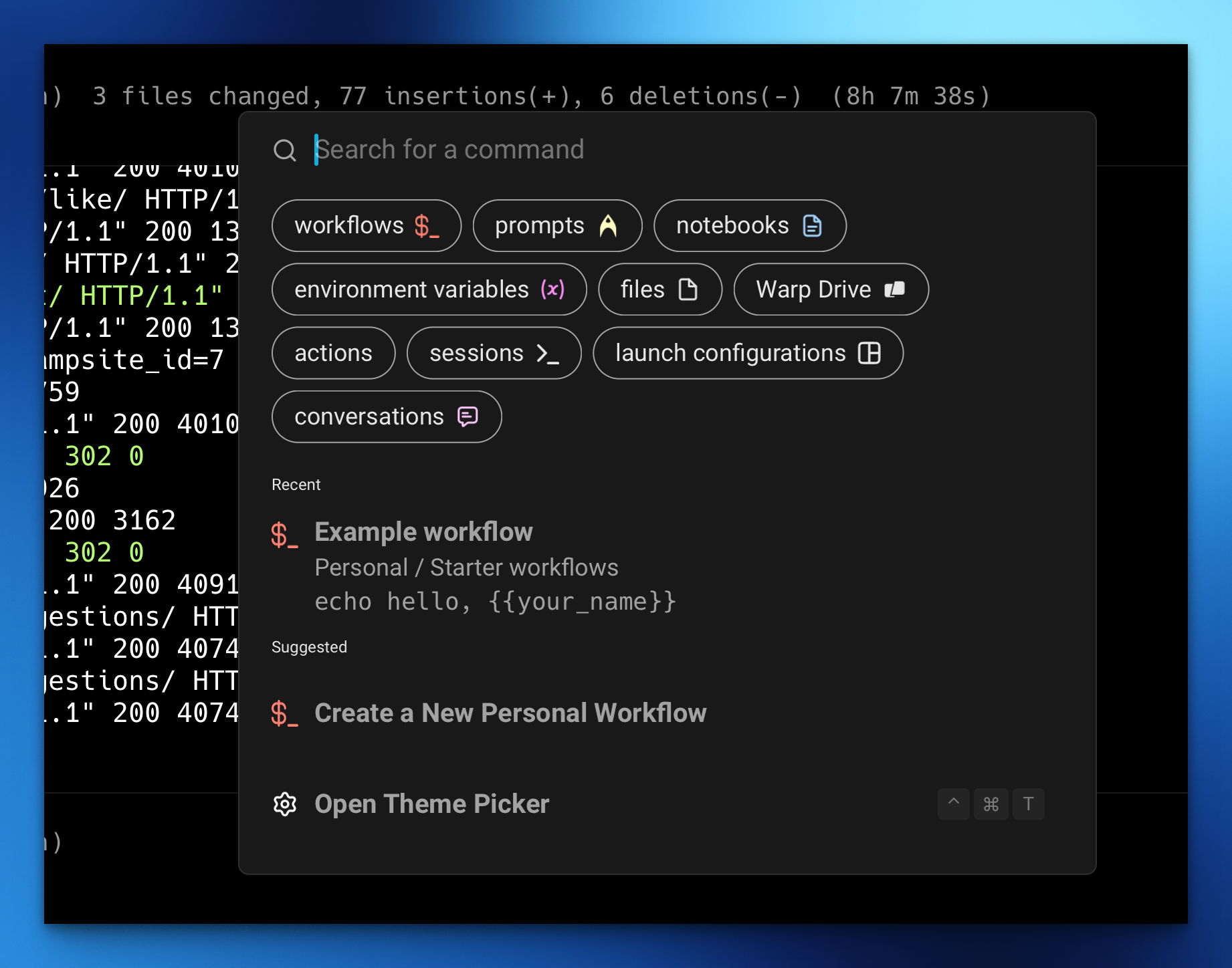
I have also started using Workflows in Warp to have some commands I use often readily available. This is good because I don’t have to type the command every time I want to use it. Also, it runs the command without using any of the AI features. This keeps the costs down as I am not being wasteful with my AI tokens.
Getting Good Advice from Warp Terminal ADE
I wanted to add a map to my page in the project. I had not done this before. So I just said I wanted to add a map to my page in the project. Then I was asked some questions about the map. Did I want to have one without using an API key? Which service did I want to use? I didn’t know which service I wanted to use so I told the AI to make the choice for me. It told me to use Leaflet, which I had never heard of and Open Maps. A couple of minutes later I had a map on my page in the project. It all worked great and I was very happy with the result. What more could I ask for?
MCP Servers in Warp
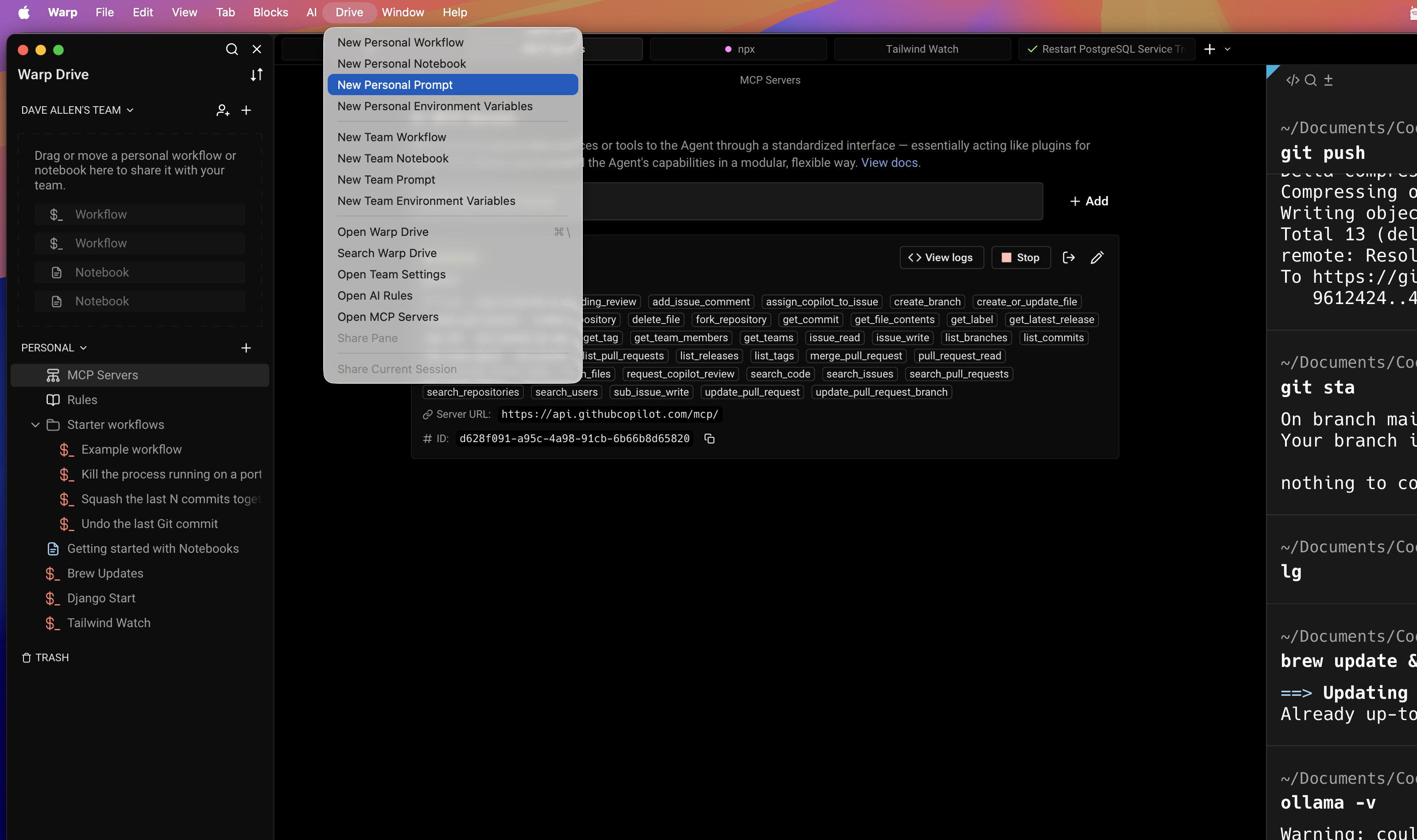
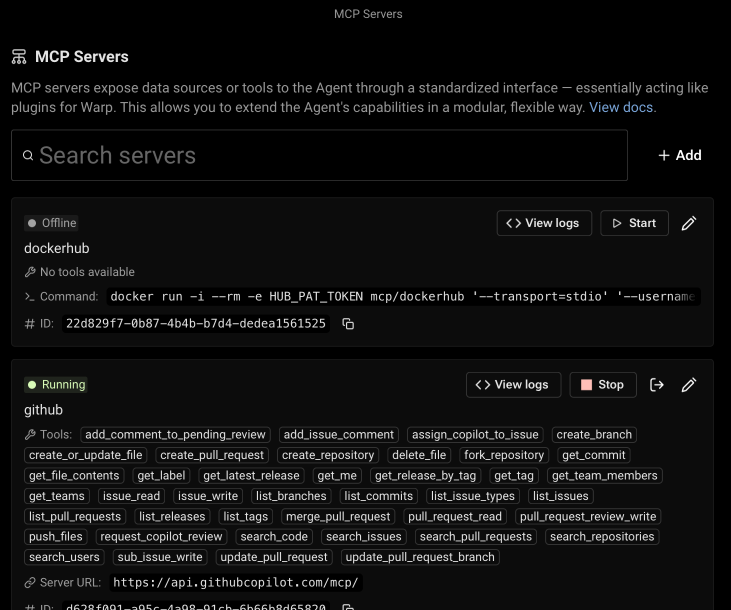
So far I have only one MCP server in Warp - I have the Github MCP server. I found it useful when I had a git repository locally and I wanted to push it to Github. I didn’t have the Github repo setup already and previously I had to go in to Github and create a repo. Then use the command line with the commands provided by Github to push my local repo to the Github repo. It works, but using the MCP server in Warp is much easier. I will be adding more MCP servers in the future. Probably the next one will be Docker if I can find a way to do it.
Warp Drive
In Warp Drive you get to see your Workflow and Workbooks, Notebooks, Prompts and Personal Environment variables. Both Personal and Team information is visible. I don’t work with a team, so I don’t have any Team information. You get access here to your MCP servers and any rules you have set up too. I have only two rules set up so far. I have not explored Notebooks yet but I am sure I will. Notebooks are interactive, runnable documents that combine markdown text, list elements, code blocks, and shell commands which can be executed directly within your terminal session. They function like Runbooks or Jupyter notebooks but are designed to live adjacent to your command line. So you can list the commands you want to run and have notes about them.