
Helix Text Editor
I’ve been using NeoVim for quite a long time now, mostly using the LazyVim version of it. I think maybe I did give Helix a try a while back, but it didn’t really stick with me. I’ve just had another look at it, and I’m quite liking it. I put it into Omarchy as the default editor too. Best if I use the same text editor in all places so I get used to the key bindings.
Neovim is going to get multi-cursor support in version 0.13, but Helix already has it. I like the way that you select things first and then decide what you’re going to do with that selection afterwards. It works the other way around in Neovim.
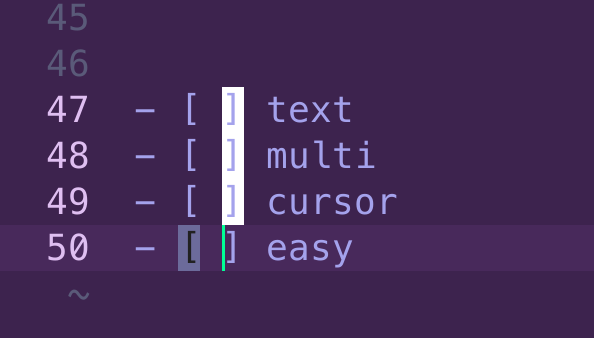
I’m finding it easier to surround some text with brackets or whatever than I can do with Neovim. So I can easily select a word or two words or more and surround it by, for example, square brackets, parentheses, quotation marks, whatever I want. Just as easily, I can select the word and remove those surrounding text objects. In fact, it’s even possible to do a swap from one type of bracket to a different one if you want to do that.
Helix Match
Select what you want to match then type in m to get this menu.
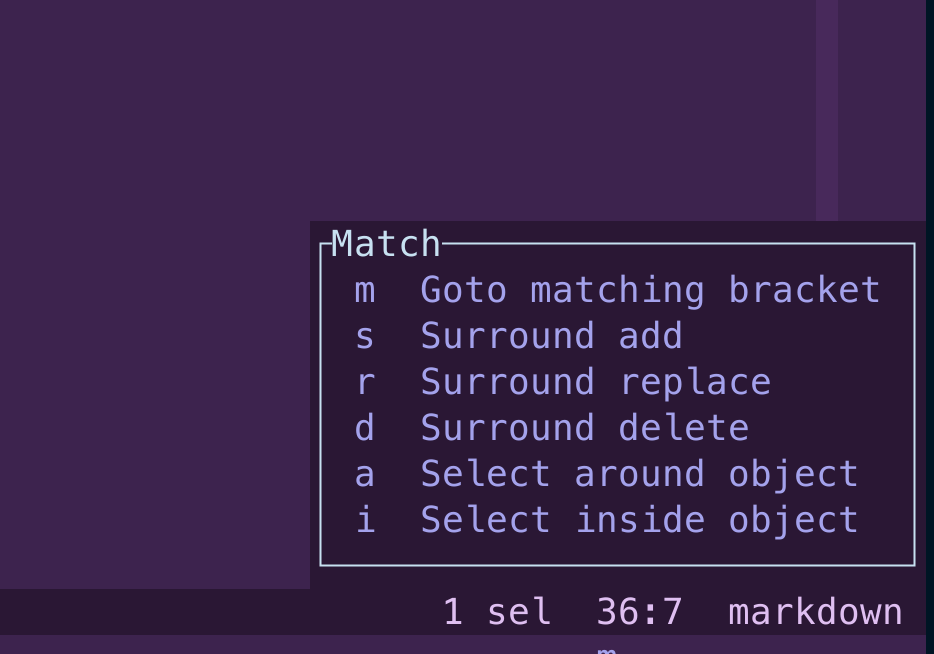
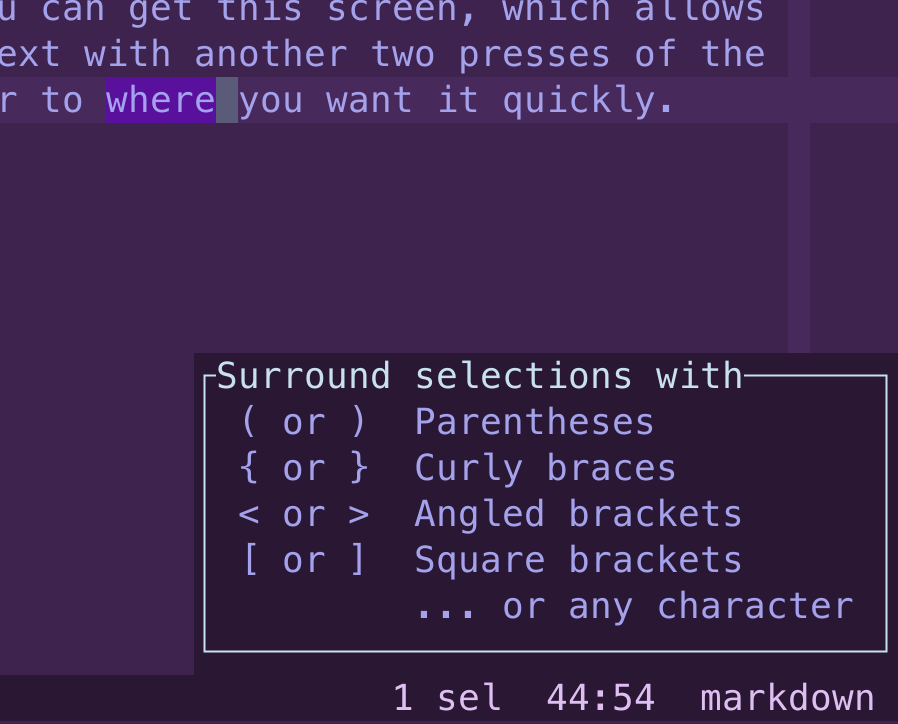
Then choose s to surround the text with brackets or whatever.
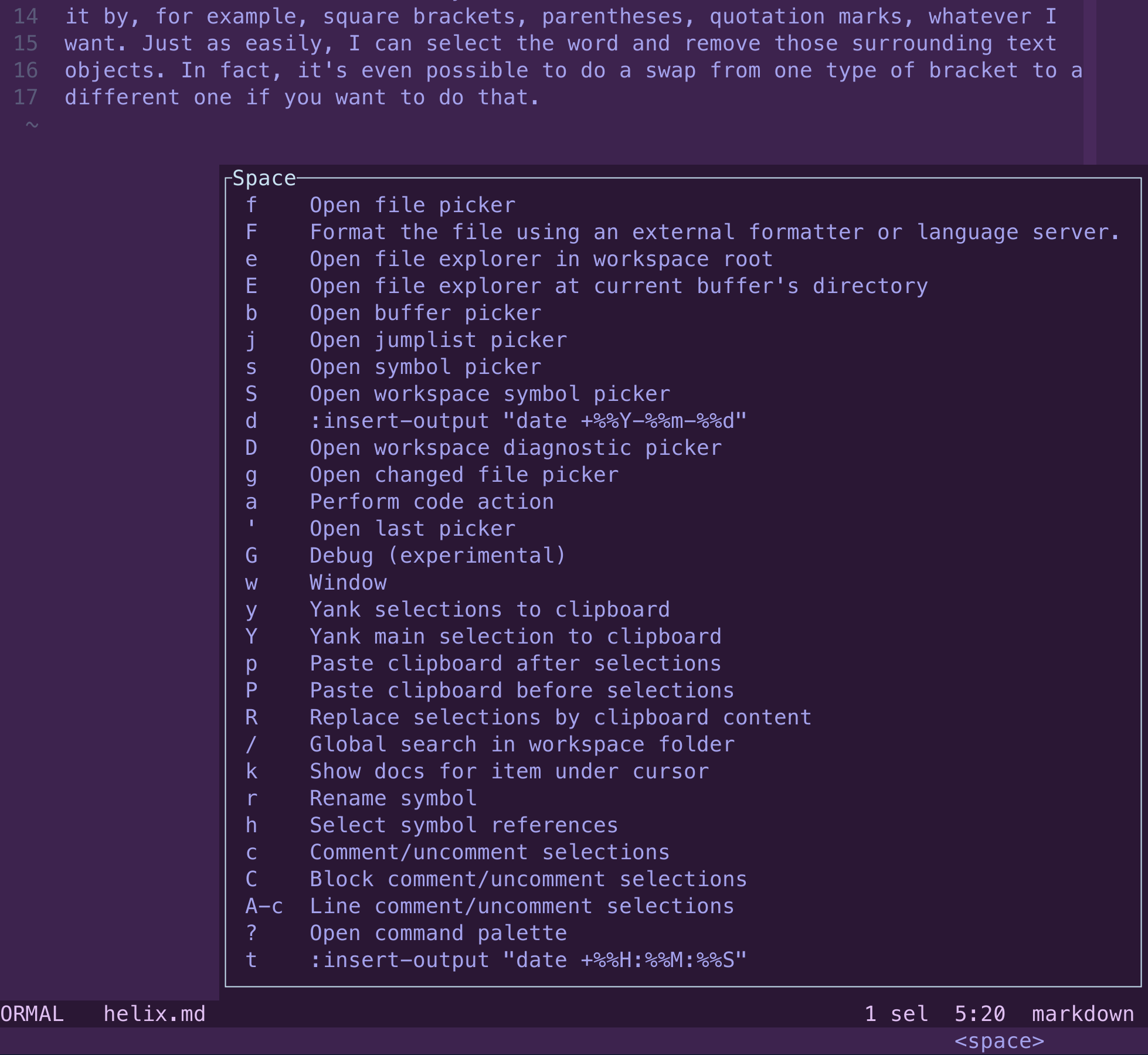
Hit the Space Key and you get a menu
Go To Menu in Helix
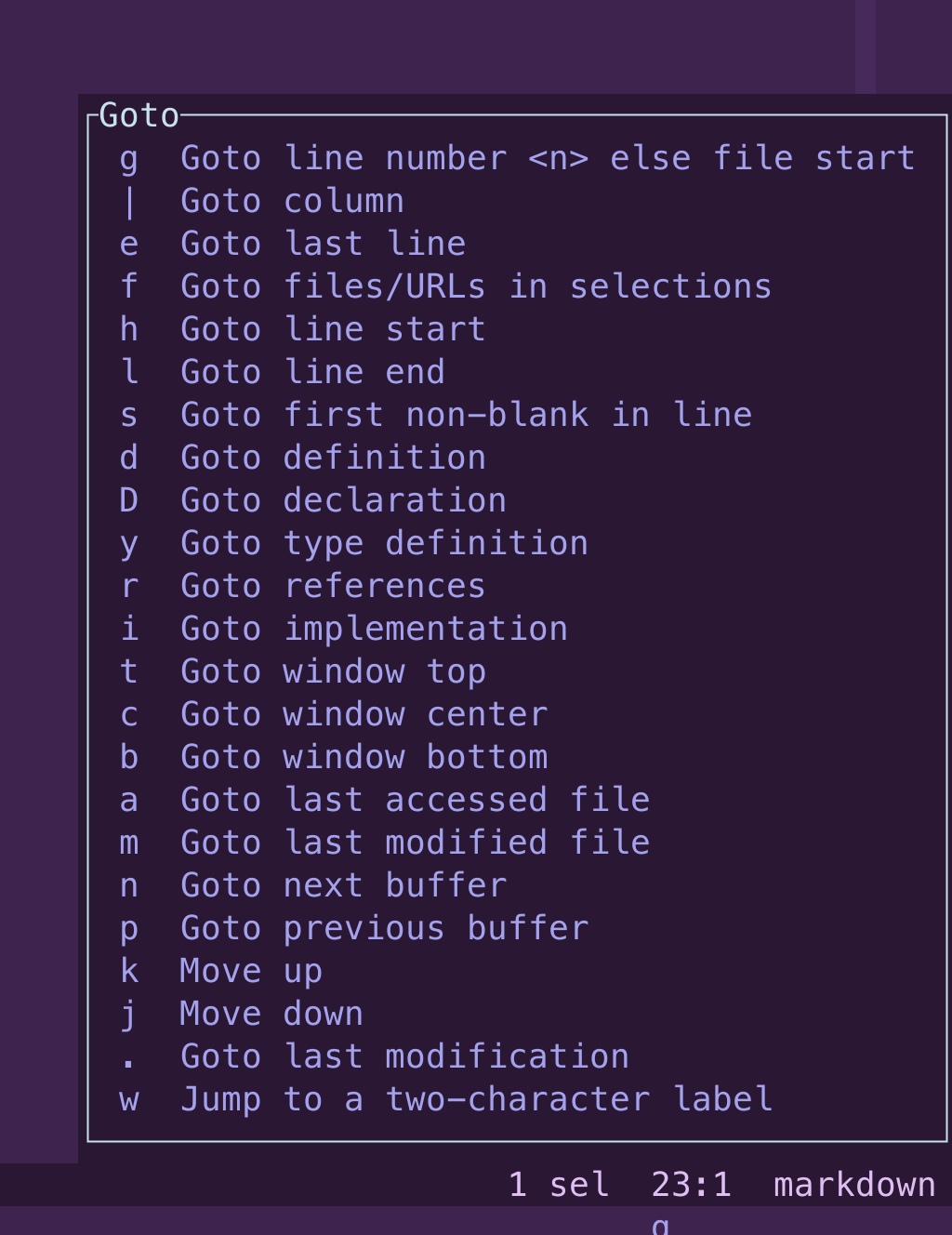
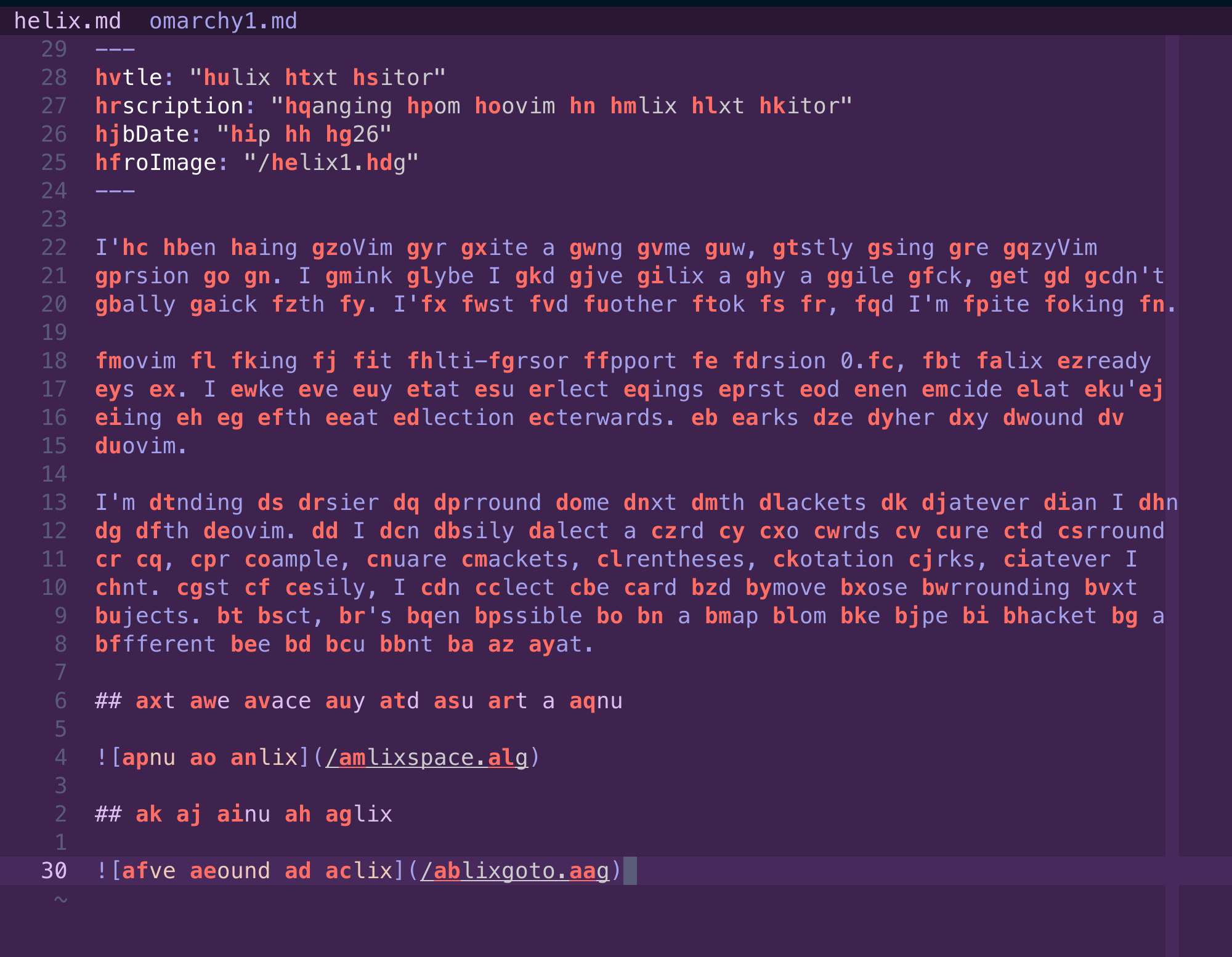
Go To a two-character label
If you type in the letters G and then W, you can get this screen, which allows you to get anywhere within your window of text with another two presses of the keyboard. It’s a great way to get the cursor to where you want it quickly.
There are a lot more things you can do with this application, and I’m still just learning some of the keyboard shortcuts to do them, but I’m really liking it so far. In my opinion, for me, it’s better than using Neovim. NeoVM is still great, but I just like the way that this one works.