
2026 Dictation Applications
A History of Dictation
I’ve been keen on using dictation for a very long time. For about maybe eight or nine years, I used Dragon Dictate before it got taken away from the Mac platform. I liked the way that it was mostly accurate, maybe 90% to 95% accuracy overall. I like the fact that I could, with my voice, select text and make corrections where necessary. All I had to do was tell the computer to select a word or a whole sentence or whatever was necessary, and then either rewrite over the top of it or say that I wanted a word in all caps or sentence case or whatever I needed. I could put the cursor in front of a word or behind a word and then continue with my dictation. I was able to use Dragon Dictate for a couple of years after they stopped being a Mac application provider. And I looked elsewhere for something that would provide similar facilities. Dragon Dictate wasn’t cheap, and I upgraded it perhaps three or four times. For the most part, I was happy to pay for the upgrades because it was such a useful application, and I got work done faster by being able to dictate rather than type.
Apple Voice Control
Next came Apple Voice Control, which worked more or less the same as Dragon Dictate but was slightly less accurate. The commands I needed to use to get it to do the same sort of things for editing text were different. That involved a bit of a learning process and a period of getting accustomed to the software. The good thing about it is that it was available on my iOS devices just the same as it was available on my Macs, and the customisation I put into it worked across the whole of my system. It was disappointing that the accuracy was less than I found with Drag and Dictate. I find it difficult to understand why he was so poor at dealing with homonyms. On a couple of updates with the OS updates that came on a yearly basis, I found that sometimes it would get worse. You would think that it would understand the whole sentence and be able to distinguish between “two” or 2 as in the number two, “too” as in something more than, or “to” as in going to. But I kept on struggling with it and still managed to be more productive by using voice control than using the keyboard. I still preferred it to using Siri dictation. Because Siri dictation didn’t give me any opportunity to edit the text using voice after the text was on the page
2026 A Plethora Of Dictation Apps
WisprFlow
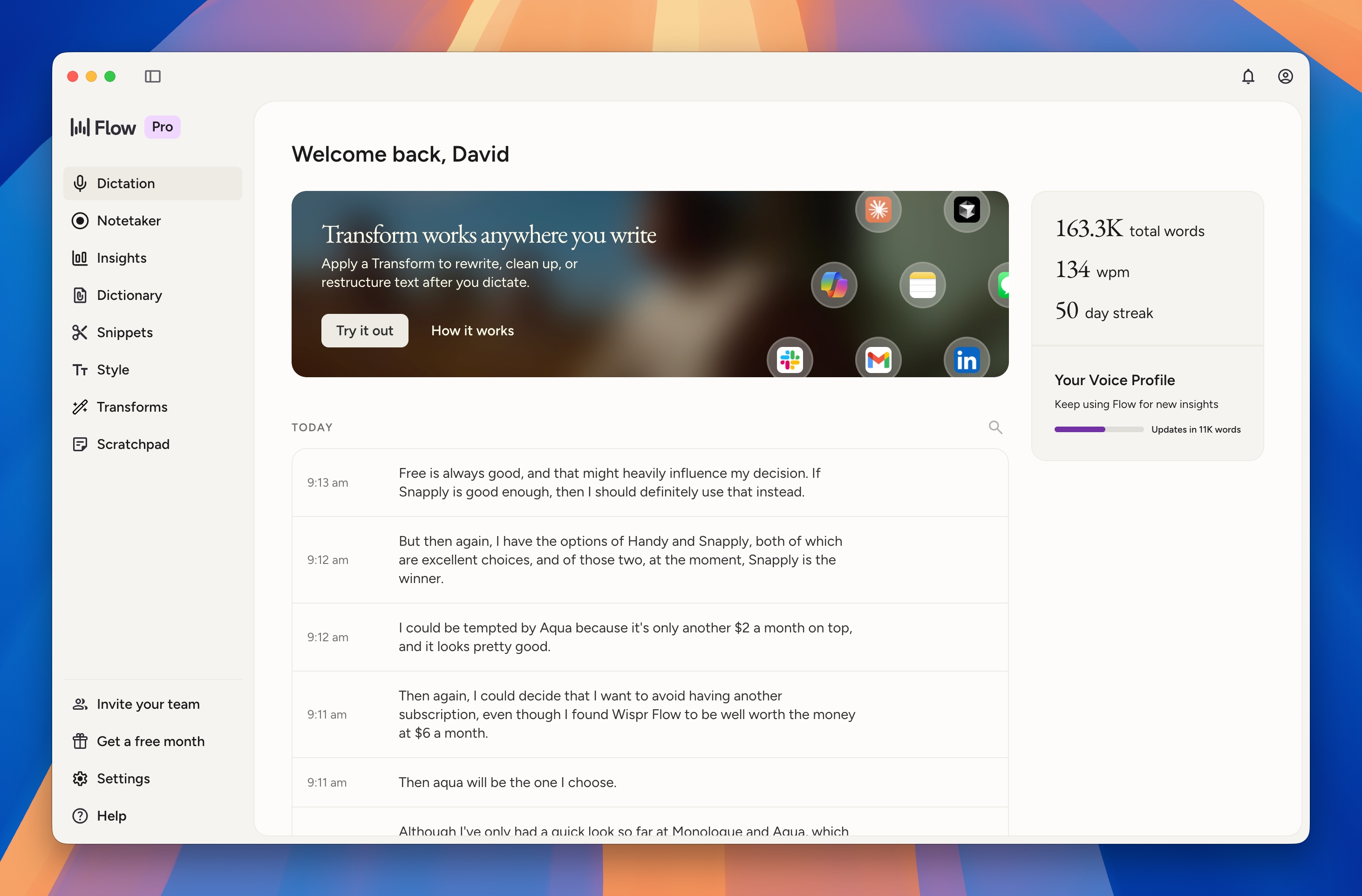
Well, colour me, totally impressed. In 2025, I came across WisprFlow. There were a few other Wispr-based dictation apps that have crossed my path, but nothing quite as good as WisprFlow. I use the trial version of Wispr Flow, which gives you a certain number of words per week or month. And I was considering the possibility of paying the $12 a month for the full version of it because I dictate a lot of words. It became a no-brainer when they came up with an offer in November of last year, which gave me Wispr Flow for $6 a month. The accuracy is impressive, to say the least. I don’t have to say the punctuation like I did with Dragon Dictate or with Voice Control. Those sorts of things are put in automatically, so the commas and full stops go where they’re supposed to go.
I found myself wishing that Apple could give something as good as this as part of the operating system. When the company is making so much money and they say that they are looking after people with accessibility problems, like not being able to type, you would think that they would go all out to provide the best dictation for everybody and not just for those with accessibility difficulties. In some ways, you could categorise Apple as all fur coat and no knickers. At the same time, AI has been around for quite a while now, and Apple have got so far behind it is ridiculous. Siri is as dumb as a bag of spanners. We will have to see what happens with OS27 to see if there are any upgrades to the technical capabilities of Siri in the next Iteration of the operating system.
Wispr Flow is almost perfect. The accuracy is in the 97% to 98% range. Much of the time, you dictate something and it comes out absolutely perfect, and you don’t need to make any changes. On the other occasion, you might need to do a small edit. Perhaps there is a word in there that it hasn’t quite heard, and you need to fix it. Also, what’s good about it is that when you do fix it, it automatically takes that fix and adds the fixed word into the dictionary for the app. I like that. That’s impressive. Another good point for Wispr Flow is the fact that it also has snippets. This is to take care of something where I wanted to, for instance, put in an email, and all I have to do is to use a keyword. It does the job for me without me having to say the whole email. Of course, that could be something longer than an email, so again, it increases productivity hugely by having snippets available.
Getting started with Wispr Flow was really easy, and I didn’t have to do much in the way of onboarding. I basically opened up the app and started talking to my computer and saw text appearing on the screen. At the bottom of the screen, there is a little pop-up which lets you know that you are actually working with Wispr Flow. My preference with the Wispr Flow and generally with dictation applications is to have it so that when I press the shortcut keys down to make it work, it continues listening to me as long as I have the keys pressed. On the other hand, some of the other applications I’ve tried don’t give that option, and it actually works fairly well. Also, when you press the shortcut key to start it, do the dictation, and then press the shortcut key to stop it. Wispr Flow also allows you to set up a key which works as a toggle, so you can have the best of both worlds. In fact, you can even set it up to be started by pressing one of your buttons on your mouse. I have a fancy mouse with plenty of buttons, so it’s easy for me to do that.
Wispr Flow is really, really good, and I’m happy with it. To a large extent, I’d be okay with renewing the subscription when it comes around again in November. However, on the subscription renewal page, it says that next year it’s going to cost me €12 a month instead of the €6 I’ve had it for during this last year. If I can get it for €6 a month again in November, then I still might continue with it rather than changing to one of the other options I have been looking at. The other good thing about using Wisprflow is the fact that it is also available on iOS for this one price. You don’t have to pay twice to be able to have dictation on two platforms.
Other Dictation Apps
It seems to be on an almost weekly basis where I’m coming across other dictation applications. Some of them positioning themselves as the same as Wispr Flow but half the price then, over the last couple of months, I’ve come across more of these dictation applications, which are actually free to use. They’re expecting teams to pay for it, whereas individual users can use it for free. Another possibility was the Raycast dictation which at the moment, it is free to use with the beta version of Raycast. The accuracy is pretty good, and it’s also available on iOS as well. When the beta testing is finished, it’s going to be part of the Pro version of Raycast, which is not so expensive. It will give me the dictation as well as other Raycast goodies, such as Artificial Intelligence capabilities. So I’ve given it some thinking space in my head with regards to making a decision about whether I would go for WisprFlow or whether I would change to Raycast Dictation.
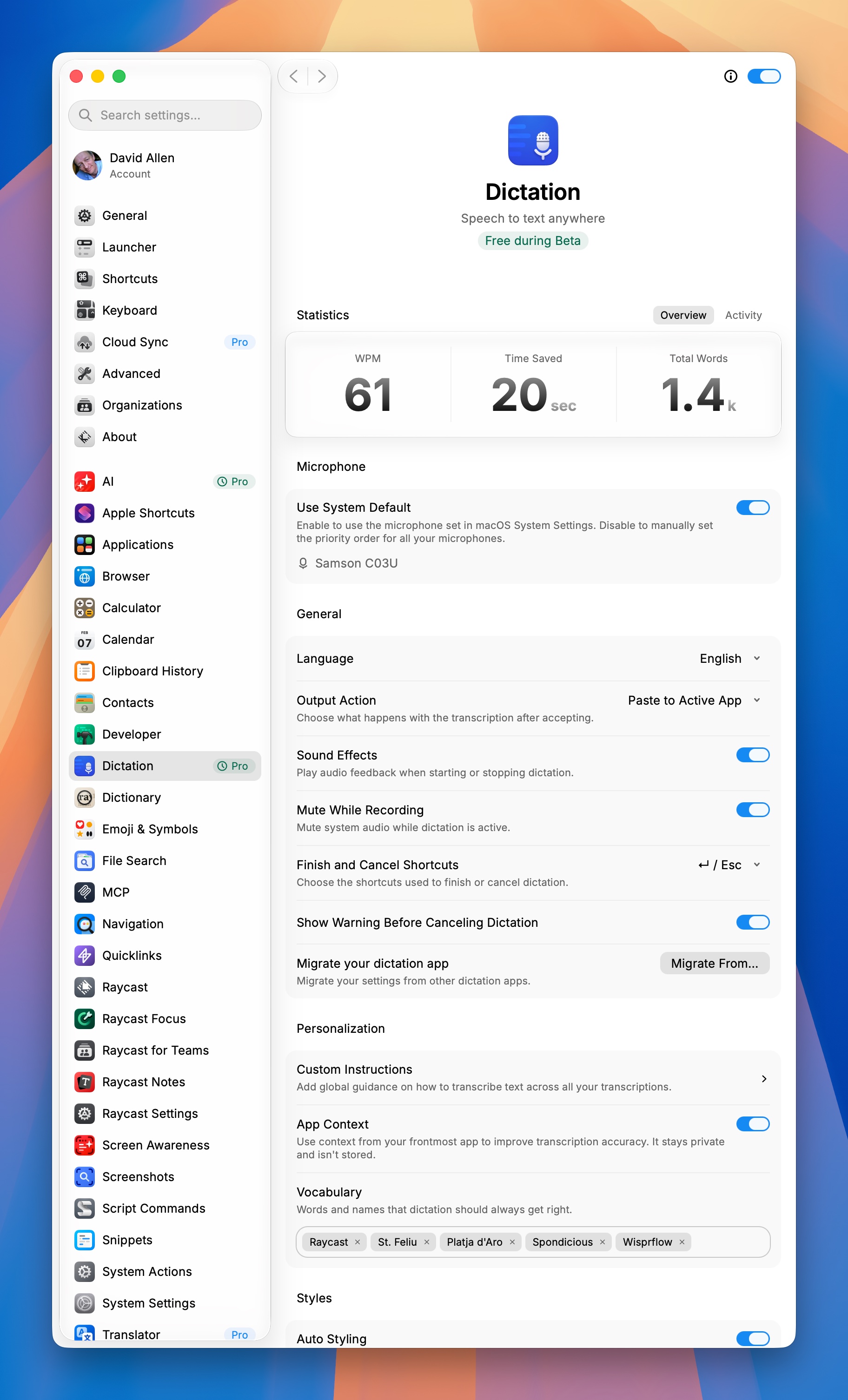
But then, at the same time as finding out about that, I also came across a number of other dictation applications, such as Handy, Snaply, Eloquent from Google, VoiceInk and Fluid Voice. There was another one I came across, which I can’t remember the name of, but it was another one that you had to pay for. It was coming in at about half the price of Wispr Flow, although it was the same as Wispr Flow if Wispr Flow is continuing with the €6 or $6 per month. There was also another one I came across, and again I can’t remember the name of it, but it was available for a one-time payment.
So Which Is The Dictation App For Me?
Handy
Last week I was convinced that Handy would be the dictation app I would change to. My first couple of sessions with it were not good, in as much as it only offered the American version of English with those awful spellings with a Z in rather than using the S. I like to see the word “organise” spelt properly. Same with the word “colour”. But after three or four dictation sessions, it settled into using the British spelling, and I don’t think I actually made any changes in the settings to make that happen. It could have been that I changed the AI being used in the background. I’m really not sure. The accuracy of Handy is pretty good and very close to what I get with Wispr Flow. Good enough for me to decide that when November came around, I would almost certainly change to Handy to be my dictation application of choice. I also have a Linux machine in the house running Linux Mint, and there is a version of Handy that works on Linux as well, so that helped me make my decision. There isn’t a version of Handy for the iOS devices, which is a bit disappointing, and so that still weighs in my decision whether I would stick with Wispr Flow if I can get it for the same price as I did for the first year. I shall make my final decision on it when November comes up and it’s time for the subscription to be renewed. What I could do to sort out that problem is to go back to using voice control on iOS and then just try and do as much of my dictation as possible on my proper Mac computers.
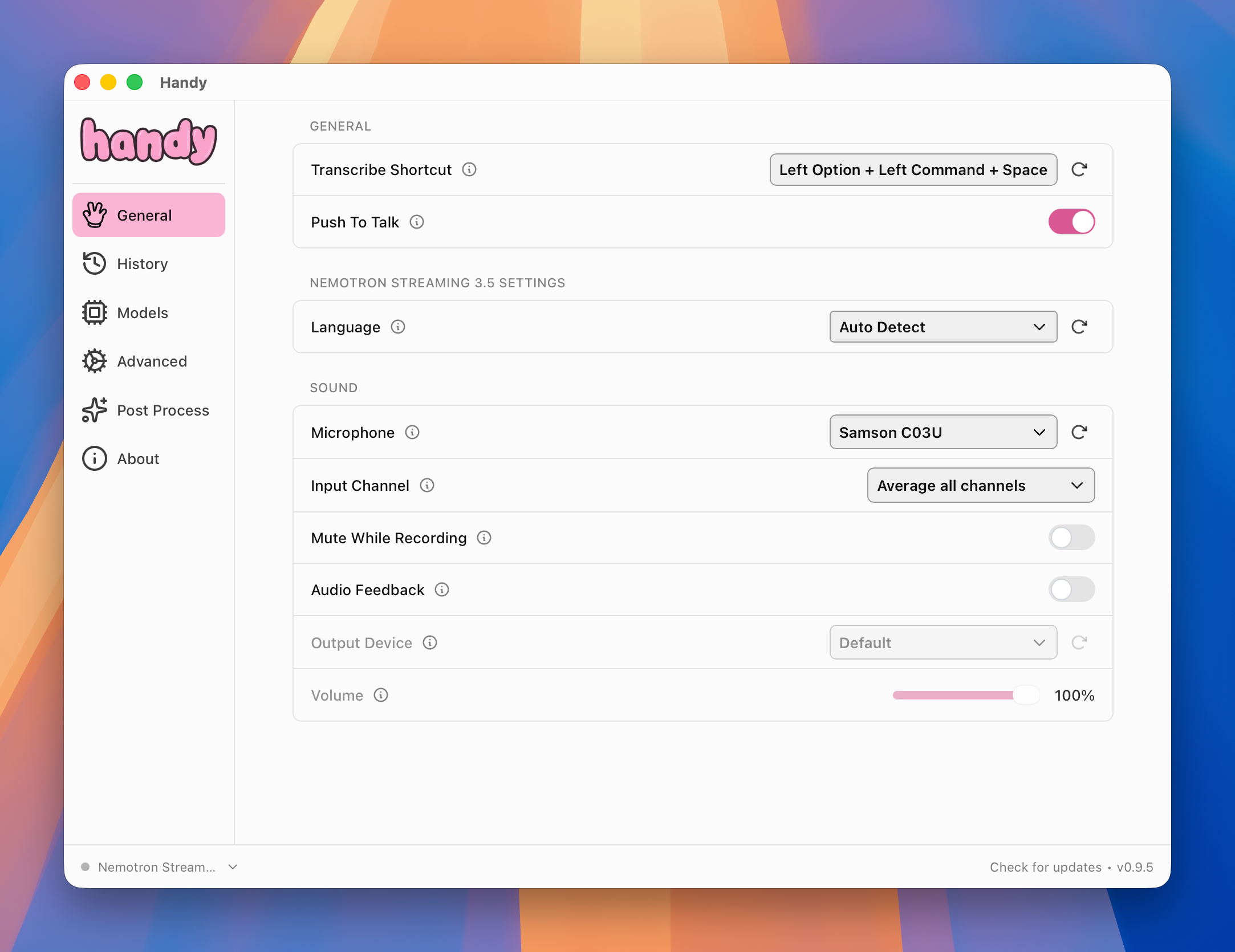
With using Handy it is working out well to have it with the left option left command and space as my shortcut key. I press the two modifier keys first and then hold down the space key and as soon as I’m finished talking I just lift up the space key for it to stop listening to me. Within the settings, it’s also possible to change it from push to talk so that I can use those same keys to toggle the dictation rather than holding the keys down to dictate. The settings for the app work nicely, and it’s easy to make any changes you need to get it working the way you want it to work. You can even do things like telling it to mute other sounds coming from the computer while you’re talking.
I wasn’t sure at first which transcription model I should be using, and I think it was originally set up to use Parakeet, but after that, I changed it to Nemotron Streaming 3.5. There were quite a few transcription models available, and so I asked artificial intelligence to recommend the best one for me. Maybe that’s how I got it to give me British spelling rather than the American spelling. I think that one of the advantages of Handy over Wispr Flow is the fact that you can use it offline because the speech-to-text is working on your own computer rather than being sent out to a server somewhere. If you are privacy-orientated, then this is a big plus.
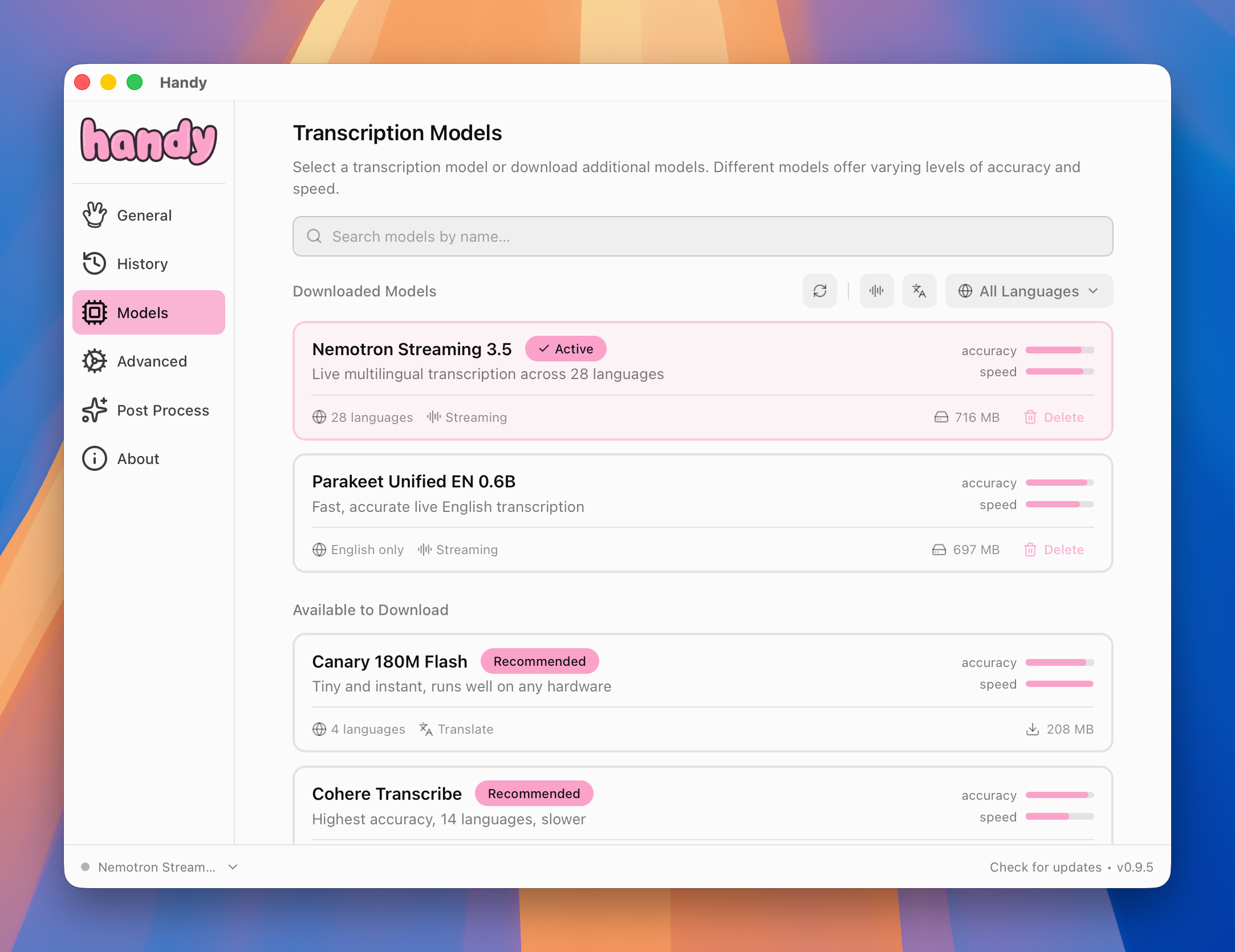
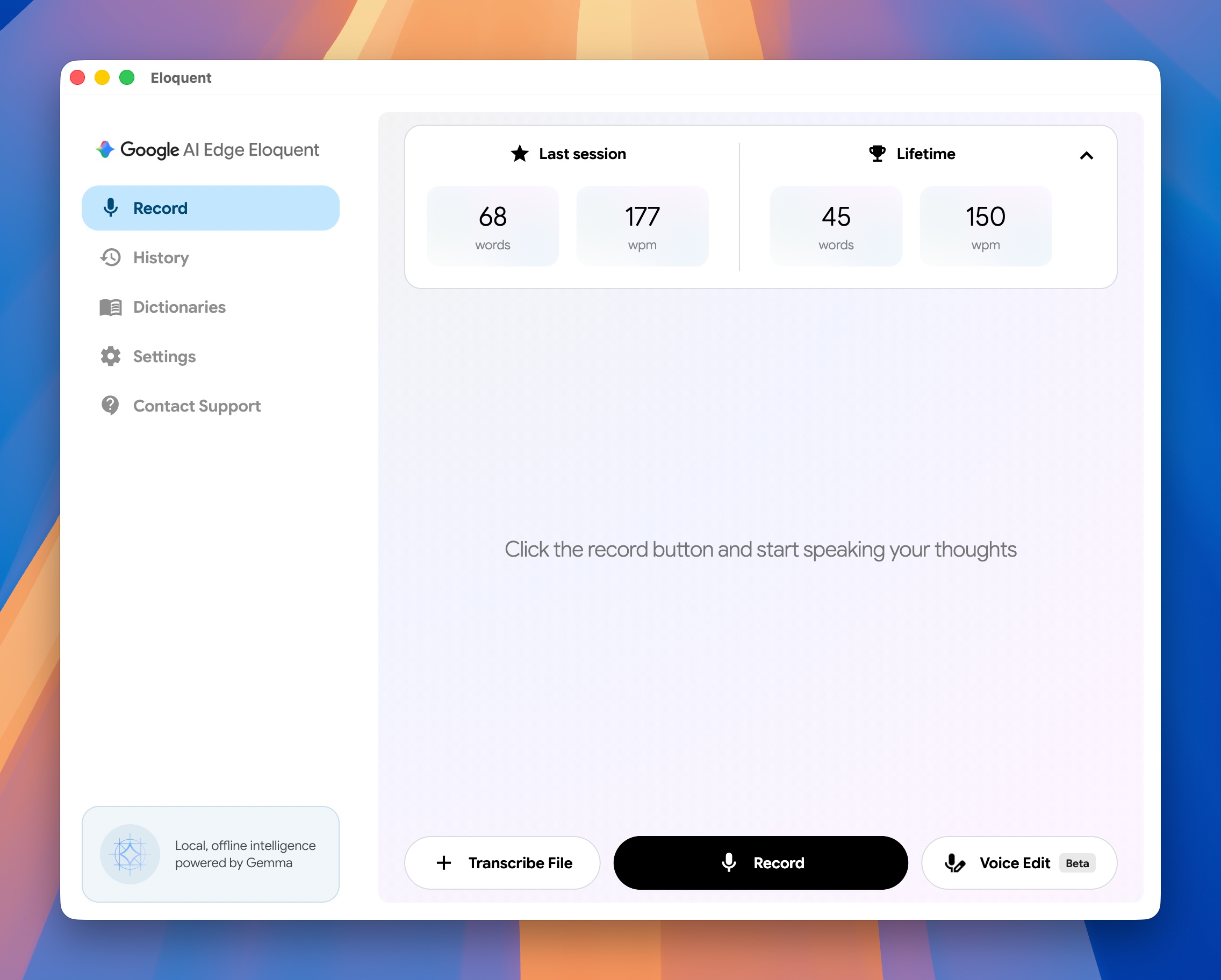
In the settings for handy, if you go to advanced, you can tell it to use experimental features, which gives you another menu item called post process. I have this set up to use a different hot key. In this case, it’s Option, Shift, and Space. I’ve set it up to use a local AI. I have one running on my computer through Ollama, and I’m using gemma4:latest. It’s nice to have this option there, but I don’t use it very often because it changes the text so much from what I actually said in the same way that Eloquent from Google works. With Handy, there is a section called “Prompt Instructions”. There is a basic prompt there, and you can add to it or change it as necessary to suit your requirements for processing the text.
Snaply
Snaply Dictation - I like this one. I set it up to use the Fn key to start the dictation. It’s also possible to change the key you use to start the dictation and end the dictation, which is great. I can use the Fn as a toggle key, or I can just press it once and then press it again to stop the dictation. In the settings, it can be set so that you have both options available, or you can do it so it’s just one or the other. For myself I prefer using the holding it down to do the dictation rather than toggle, but might as well set to do both and then I can choose whichever feels right at the time. It also has a writing assistant which I get to with Control + Space.
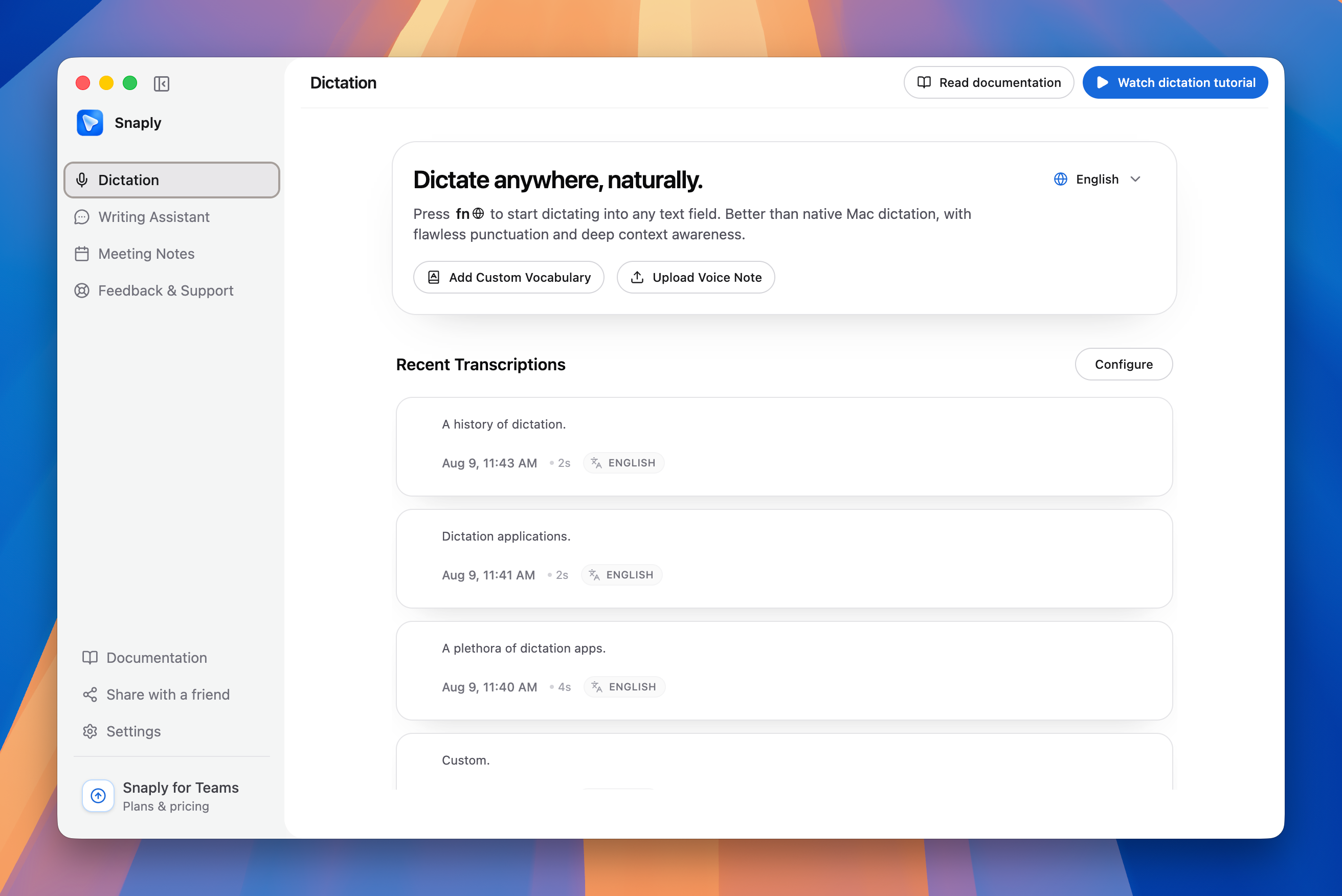
When you’re setting the dictation language, you can choose English or you can choose multi-language. I have mine set to English, but it will be interesting for those people who speak more than one one language. There’s a good range of European languages to choose from.
It’s easy to add languages to the custom vocabulary, and you can even do a bulk import. So, this is for when you want to add names, acronyms, product terms, and uncommon words, and you can add misspellings if Snaply tends to hear a term different from what you wanted or what you expected.
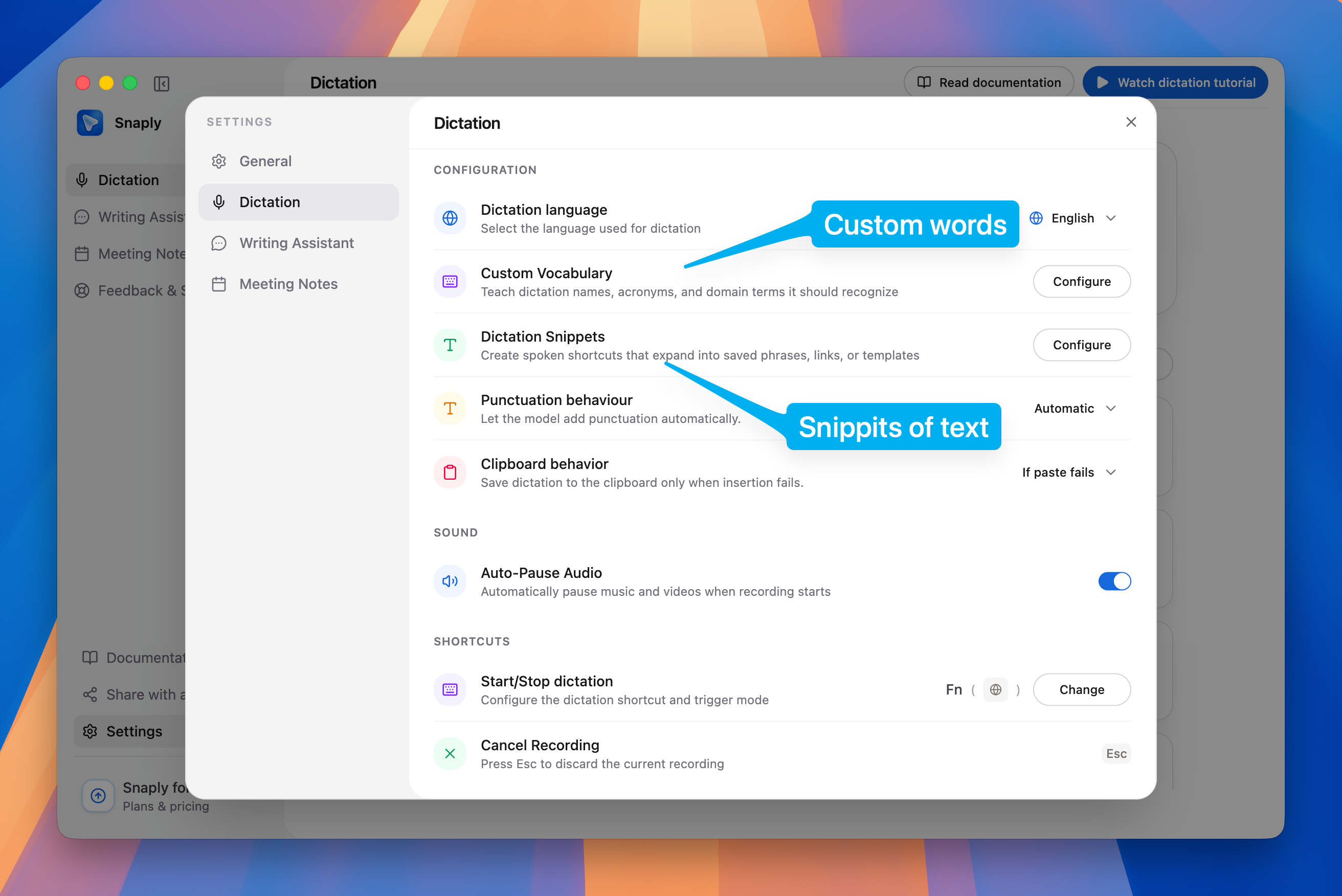
Then you have your dictation snippets, which are different from the custom vocabulary. Basically, you can have something where you say the word email and it puts in your actual email. Or you can have a whole load of text all thrown in there in one go. So, this could be something like a custom prompt for use with AI, and you’d only have to say a couple of words, and it would do the job for you. I think the snippets feature is a huge productivity bonus using Snaply. Snaply does a better job of both the custom vocabulary, the dictionary, and also the dictation snippets.
You can upload a voice note. Upload any audio that you’ve recorded you want to turn into text and have it transcribed, that’s possible with Snaply It’s not something I tend to do, I prefer just to use dictation and put the text exactly where I want it to go when I’m actually speaking.
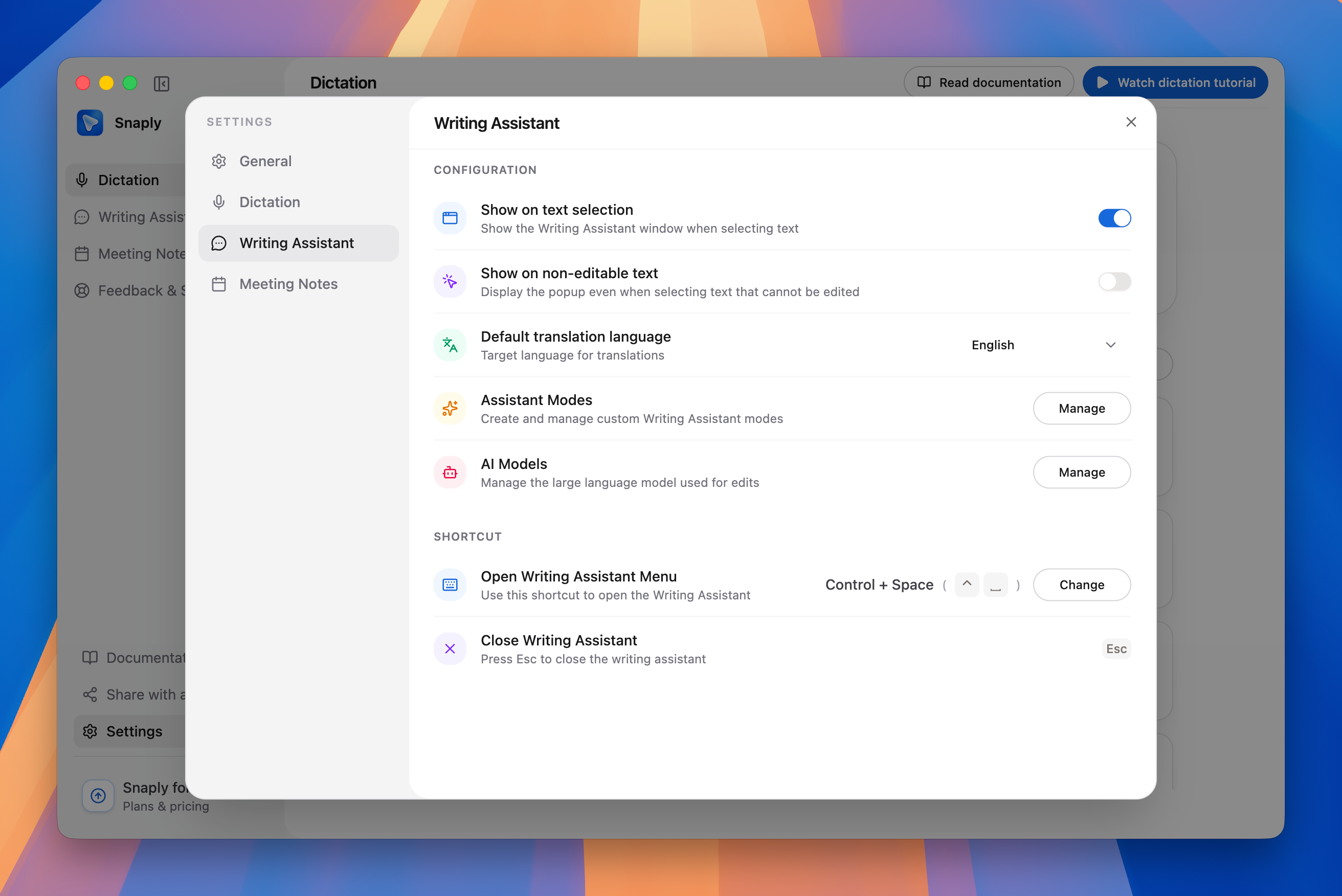
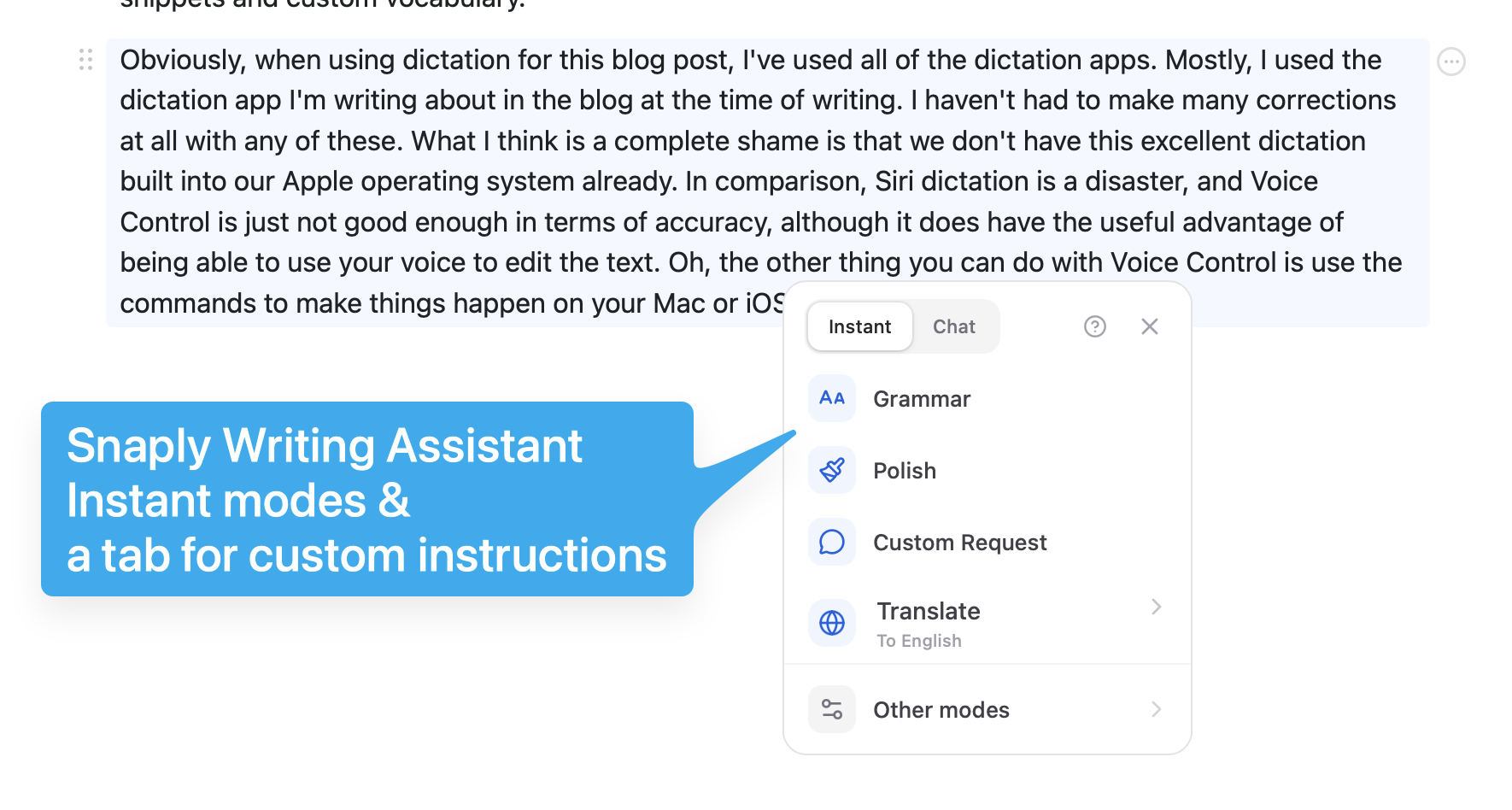
Snaply Writing Assistant - Or there is a blue round button with a plus icon which appears when I have text selected. This pops up a menu with the writing assistant. There are some default options, Grammar, Polish, Custom Request, Translate and Other Modes. Then there is a tab to chat with the writing assistant so you can specify what you want to happen with the selected text. The writing assistant uses an AI model of your choosing. Mine is set to a local model - Gemma4 from Google. You can use cloud models by adding an API key. The local model works well enough. No need to go out to the cloud, which is good for privacy.
Meeting Notes - another extra feature in Snaply are these meeting loads. I haven’t tried this out as I don’t do meetings, and I don’t know how it works out with regards letting you know who is saying what within the meeting. You have a few settings that you can adjust in the settings for the app, such as whether you wanted to display a live recording indicator and whether you want it to detect the meeting start and end automatically. You can set the maximum storage used for meeting recordings and choose whether you want to have deeper reasoning for meeting notes. This would increase the quality of the meeting notes, but it would make the notes generation a bit slower. This feature of making notes for meetings is something that Snaply has that Handy doesn’t have, and is something else which would perhaps make you err towards using Snaply rather than Handy.
Fluid voice
This one I’ve only given a little bit of a try, but it’s got a nice interface. When you’re setting up the application and you want to get all the settings correct, such as choosing which model to use, this one is the same as I used with Handy, using Nemotron Speech 3.5. According to the settings for this, it’s supposed to be ultrafast. But I don’t find it particularly fast myself. It is handy to see the text being generated in a small window at the bottom of the screen. It’s just a little bit slow. After you’ve finished the recording, you have to wait a little before it puts the text into the application. That could be because it’s doing some post-processing.
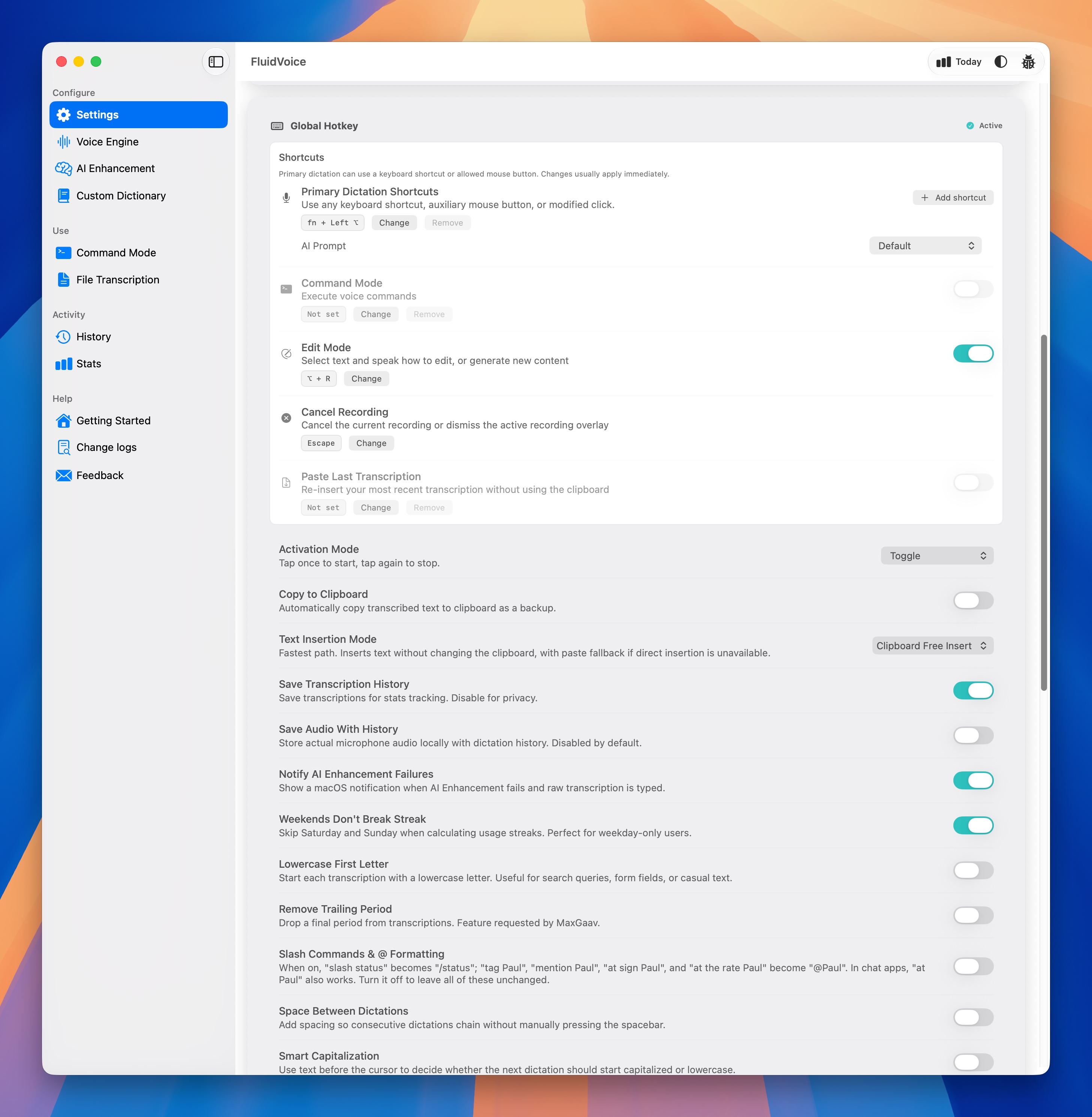 FluidVoice turns rough, rambling speech into
polished, ready-to-send text in any app. Free forever, open source, and 100%
on-device. So it has its good points, but on the other hand, I find it very slow
to use. It takes a long time for the text to go from the box you see at the
bottom of the screen and arrive in the app that you’re dictating into. It was
disappointing right from the start, and so I didn’t do much else with it.
FluidVoice turns rough, rambling speech into
polished, ready-to-send text in any app. Free forever, open source, and 100%
on-device. So it has its good points, but on the other hand, I find it very slow
to use. It takes a long time for the text to go from the box you see at the
bottom of the screen and arrive in the app that you’re dictating into. It was
disappointing right from the start, and so I didn’t do much else with it.
VoiceInk
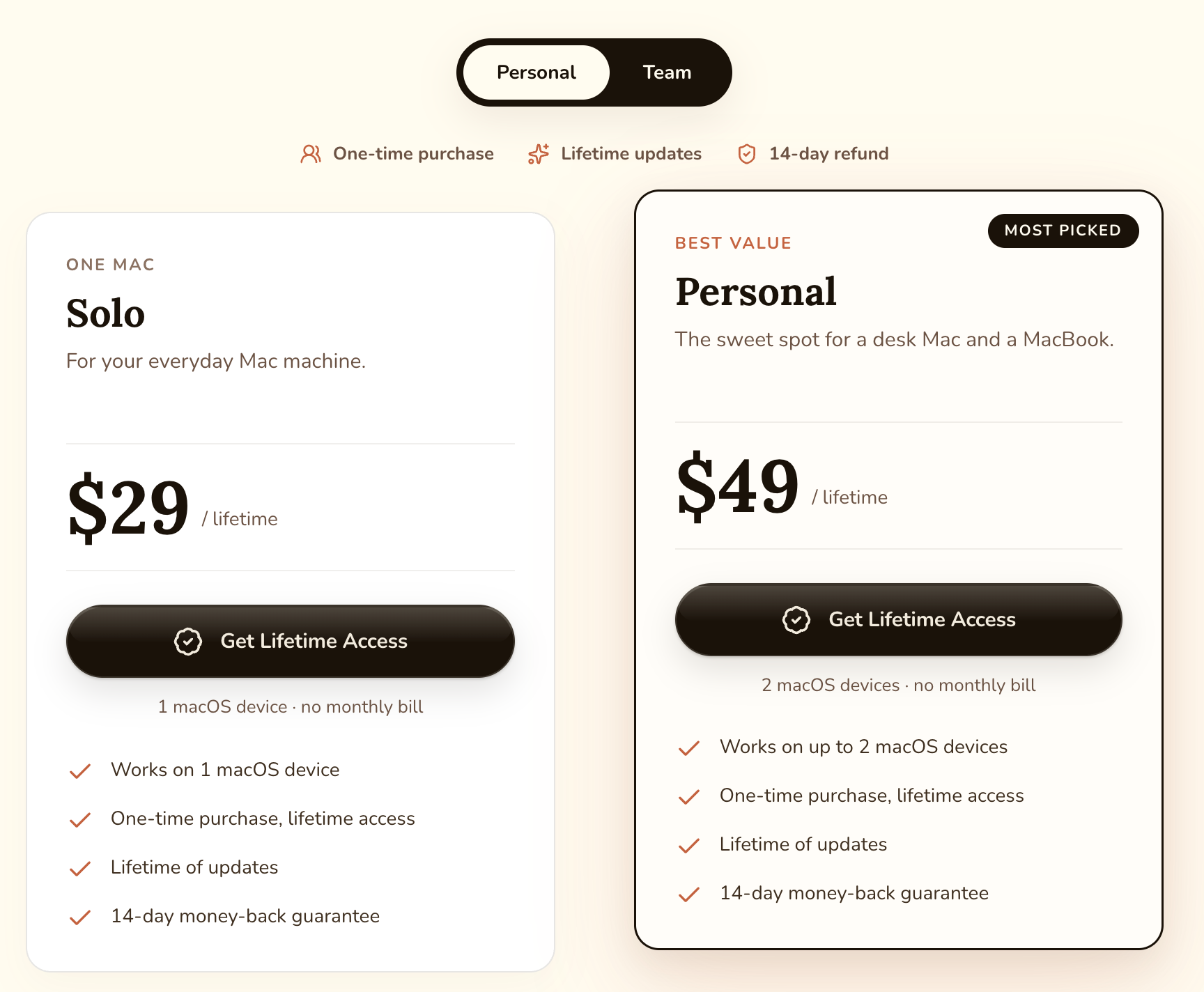
This is an app I only had a quick look at, and the reason for that was because after trying it out, I found Handy which is free, whereas VoiceInk you have to pay. The price is not too bad, and it’s a one off payment rather than a subscription so does that have that in its favour. It works out at $29 for just one computer and $49 if you want to use it on two computers. So if you have too many subscriptions and you want to save some money, then perhaps this would be a good idea. Unless of course the dictation you get from either Handy or Snaply is sufficient for you. At least there is a free trial, so you can find out if it’s up to your standard for dictation and see what other features it has. It’s at least worth a try if you haven’t quite found the dictation app that suits your needs yet.
Dictation on iOS
It is kind of nice to have one application which works across platforms so that you can have things like dictionaries and snippets working in all places where you do your dictation. So that you don’t have to remember keyboard shortcuts that are different from platform to platform In this respect, Wispr Flow is the winner because there is an iOS version which works pretty well, and it’s also available on the Mac.
However, I’ve just discovered a couple more dictation apps I can use on iOS:
Both have Mac apps too.
So far, I’ve only had a quick look at these two applications and they work pretty well. On the other hand, the big downside they are rather expensive. They do have a freemium model in-as-much as you can download them and try them out with a limit on how many words you can actually dictate into them, and then after that you have to pay.
Monologue - I downloaded and installed this application on both my Mac and on my iPhone, and it has a very nice-looking interface. I’m going to take advantage of the 1,000 words available of dictation in the free mode. I think that is a one-time thousand words. It also allows you to write ten free notes. When I started with Wisprflow, it gives you a certain number of words per month for free. The plans and billings says that it’s €149.99 per year, so that’s more than €12 month. So that makes it more expensive than the Wisprflow app.
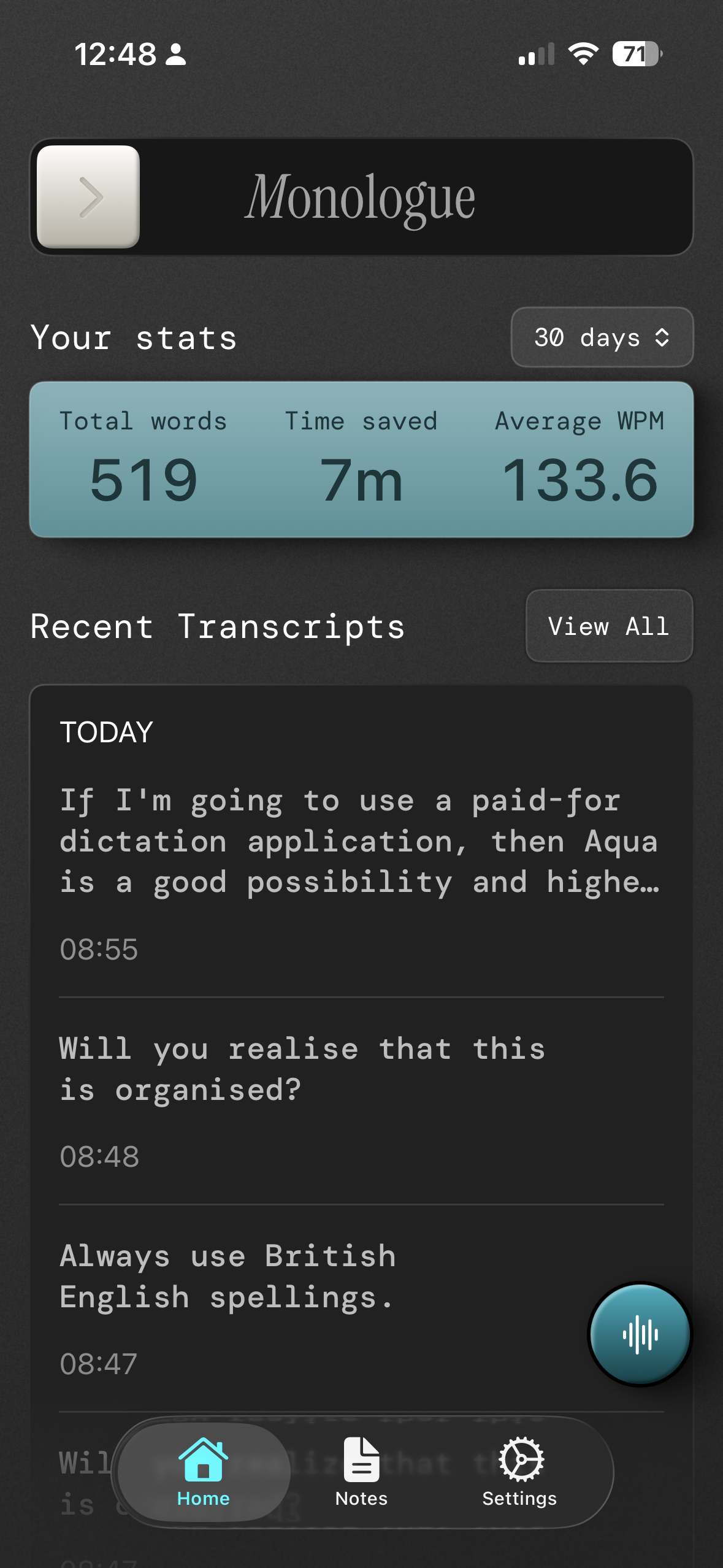
It had a good onboarding process. It’s on the Mac and I was quite pleased the way it set itself up. This is using the cloud model to do the conversion from speech to text. It’s also possible to use a local model. I haven’t got around to using that yet, but I’m sure it will work fine.
IOS, same as usual. With the dictation apps, you set it up as a keyboard, and with Monologue, you get two keyboards.
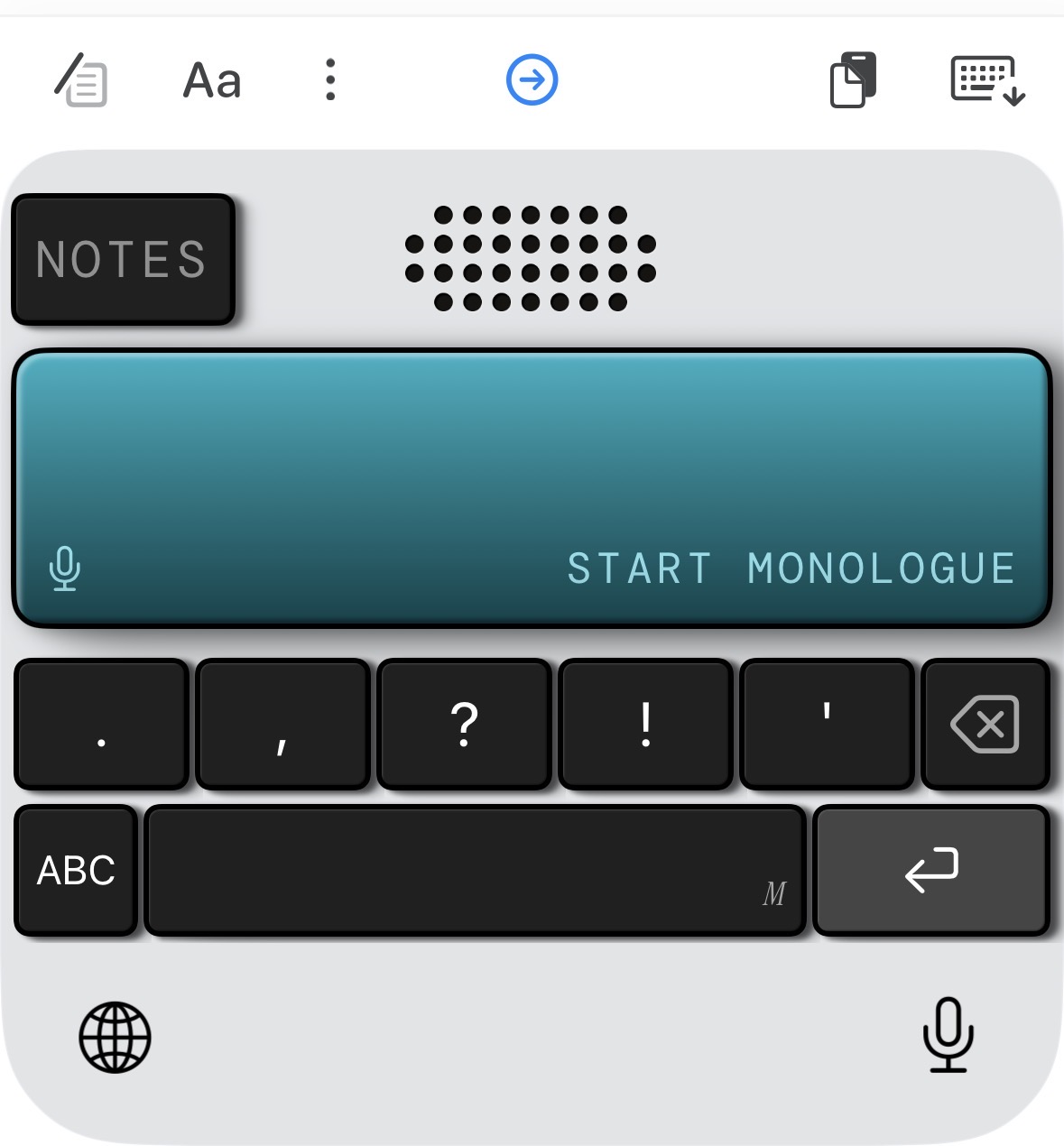
The first keyboard has a big start button, which you press to start talking, and then there are one or two keys underneath that you can use to add in things like a question mark or exclamation mark, also a key, if you want to go back to having a proper keyboard in front of you as well. One of the things with using dictation from one of these keyboards on the iOS devices is that it will send you off to another screen to confirm that you want to use dictation, and then you have to swipe back, which is annoying. But that’s an Apple problem rather than a problem introduced by these apps. With Monologue, they give you the option of creating a shortcut in the Shortcuts app, which supposedly will get around that limitation.
On the iOS keyboard, you can change the mode from fast to specifically for email, notes, coding, and messaging, there is another button there which gives you modes settings, so you can make changes as you require. You can create your own mode and give it custom settings for how you want the text to appear. I made a change so that it always gives me British English spellings. So that it will spell colour and organise it properly for me.
Aqua - this app works in a similar way and looks just as pretty as Monologue. It’s nice that it’s available on both the Mac and iOS. The setup procedure was really easy, and I was impressed with how thorough it was. In the settings, it reckons that I can use it with the mouse as well. If I press one of the mouse buttons, it’s supposed to start listening, but I haven’t got that working yet. There could be a conflict because one of the other dictation apps that I’m using is working with the mouse, and I need to change the settings, but I can’t find the settings for the mouse either.
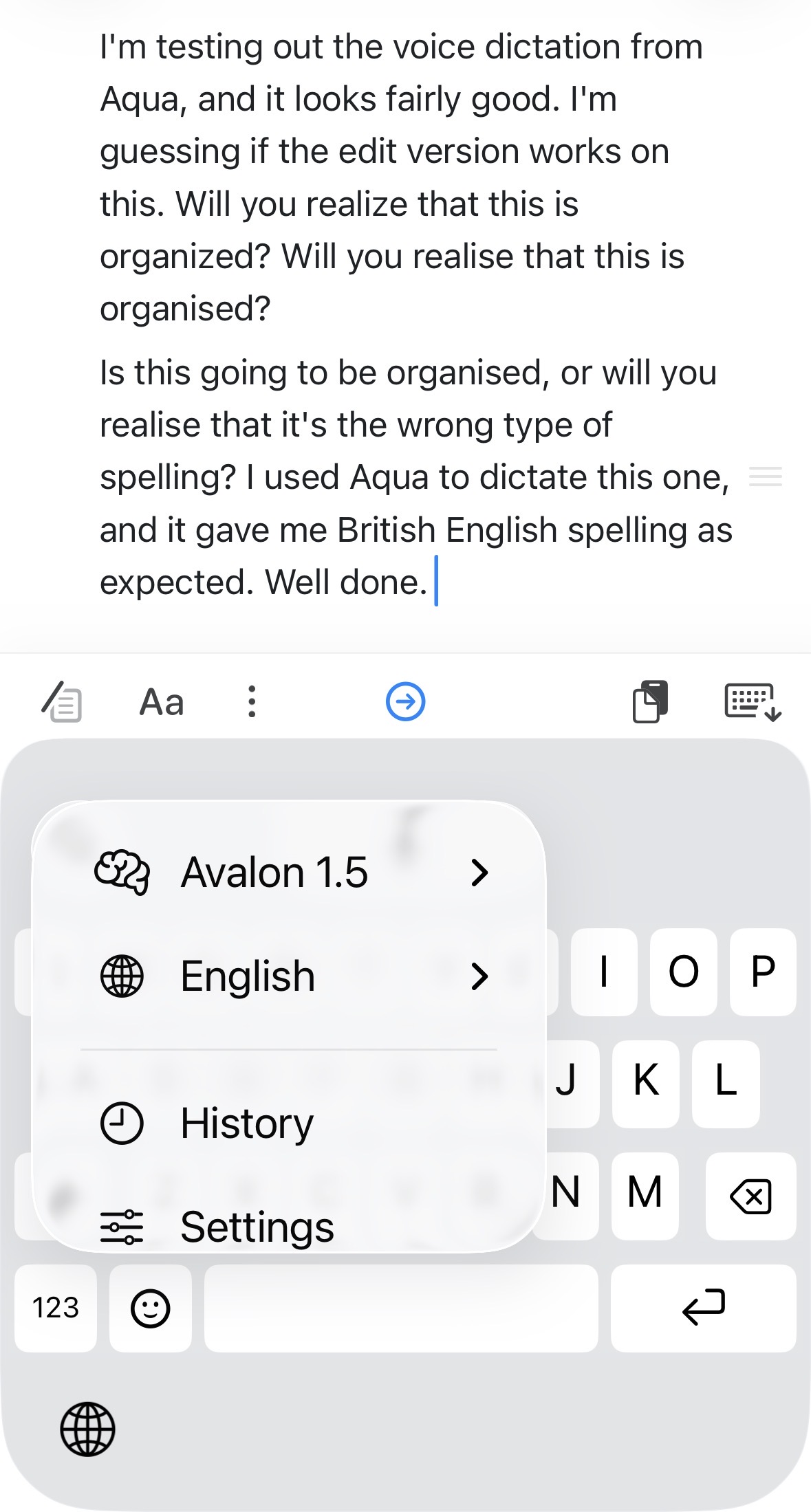
In the settings, you can add words to the dictionary for your custom words, and there is also the one called replacements, which is the same as snippets. There is also a box where you can insert custom instructions. So these are style preferences or instructions. For example, use all lowercase in Slack or please break text into paragraphs. I can’t test that at the moment because this is one that you have to pay for. Like Monologue, you get to dictate a thousand words before you have to pay. If you like dictation as much as I do, then it’s not going to take you long to get through those 1,000 words.
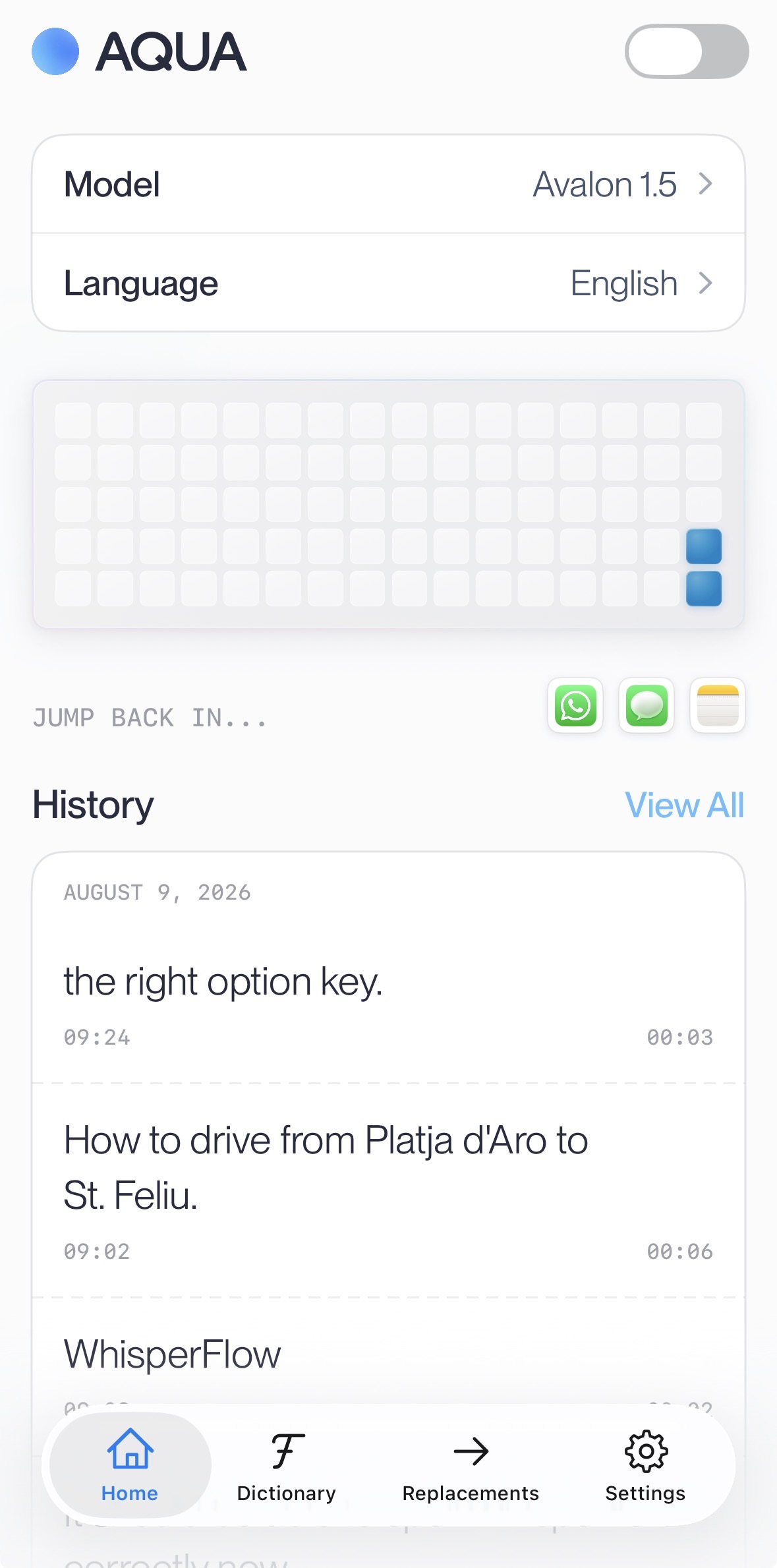
There are three levels of user: Pro, Max, and Team. With the Pro version, you get unlimited words, the Aqua engine, Avalon model, 800 custom dictionary values, and you can tune it with custom instructions. Pro version costs $8 per month. In the Max version, you get a real-time mode. You get voice commands like Send It, and any new features that are supposedly coming soon, and priority support. That one costs $24 a month. In the Team version, you get all of the Pro features and you get team-wide settings, and it enforces privacy mode organisation-wide. All those prices are based on paying for a whole year. So if you just want to go month by month, then the Pro version costs $10 per month.
My initial impressions of Aqua are that it’s accurate and looks good. The price of it is reasonable when compared to WisprFlow. There is also an edit mode which it’s useful. So for example on the Mac, you could select the text and then press your keyboard shortcut for editing, which in my case is Option and Spacebar. Then you could say something like, “Change this word for that word.“Or if it’s appropriate, you could tell it to turn the text into a list. On iOS, you get a button in the keyboard, and you can press that and then tell it to do the changes that you require.
So which of these dictation applications am I going to go for?
For the moment, it is too early for me to say because my dictation app choice will happen in November. Then I will decide whether I want to have a paid application or if I want to use one of the free ones. It’s going to be difficult to make a choice. If I have to go to their full price in WisprFlow, then I will certainly choose something else. Although I’ve only had a quick look so far at Monologue and Aqua, which are similar to WisprFlow and have applications on both Mac and iOS Then Aqua will be the one I choose. Then again, I could decide that I want to avoid having another subscription, even though I found Wispr Flow to be well worth the money at $6 a month. I could be tempted by Aqua because it’s only another $2 a month on top, and it looks pretty good. But then again, I have the options of Handy and Snaply, both of which are excellent choices, and of those two, at the moment, Snaply is the winner. Free is always good, and that might heavily influence my decision. If Snaply is good enough, then I should definitely use that instead. Another reason I might go for the paid version is that it gives me the dictation on iOS as well as on the Mac. The advantage that Handy has is that it’s available also on Linux so that I can use that on my Linux Mint machine. That won’t figure into the calculations too much because I don’t use that machine quite so much as I use my Mac and iOS.
Snaply is a Front Runner - For Now
In any case, the sooner I get past this testing stage and have just one dictation application on my devices will be a good thing because I’m fed up of all of having to remember all of the keyboard shortcuts I’ve set up for each of them. I’ve already deleted the dictation app monologue. AquaVoice will get used until the thousand-year words have been consumed, and then I shall put it aside until November. I’ll flip flop in between using Handy and Snaply and then make my final decision about how good they are in November as well. Snaply does have the advantage of better management of dictation snippets and custom vocabulary.
Obviously, when using dictation for this blog post, I’ve used all of the dictation apps. Mostly, I used the dictation app I’m writing about in the blog at the time of writing. I haven’t had to make many corrections at all with any of these. What I think is a complete shame is that we don’t have this excellent dictation built into our Apple operating system already. In comparison, Siri dictation is a disaster, and Voice Control is just not good enough in terms of accuracy, although it does have the useful advantage of being able to use your voice to edit the text. Oh, the other thing you can do with Voice Control is use the commands to make things happen on your Mac or iOS device.